
Configuring your website to work with HTTPS
After installing the SSL certificate, you need to configure the redirection of all requests from the HTTP protocol to HTTPS. This can be done in your CMS settings and using directives in the .htaccess file.
Rucenter specialists can perform all the necessary steps to correctly install an SSL certificate on your website: submit a request for the "SSL Certificate Setup" service.
To set up HTTP to HTTPS redirection on Rucenter hosting:
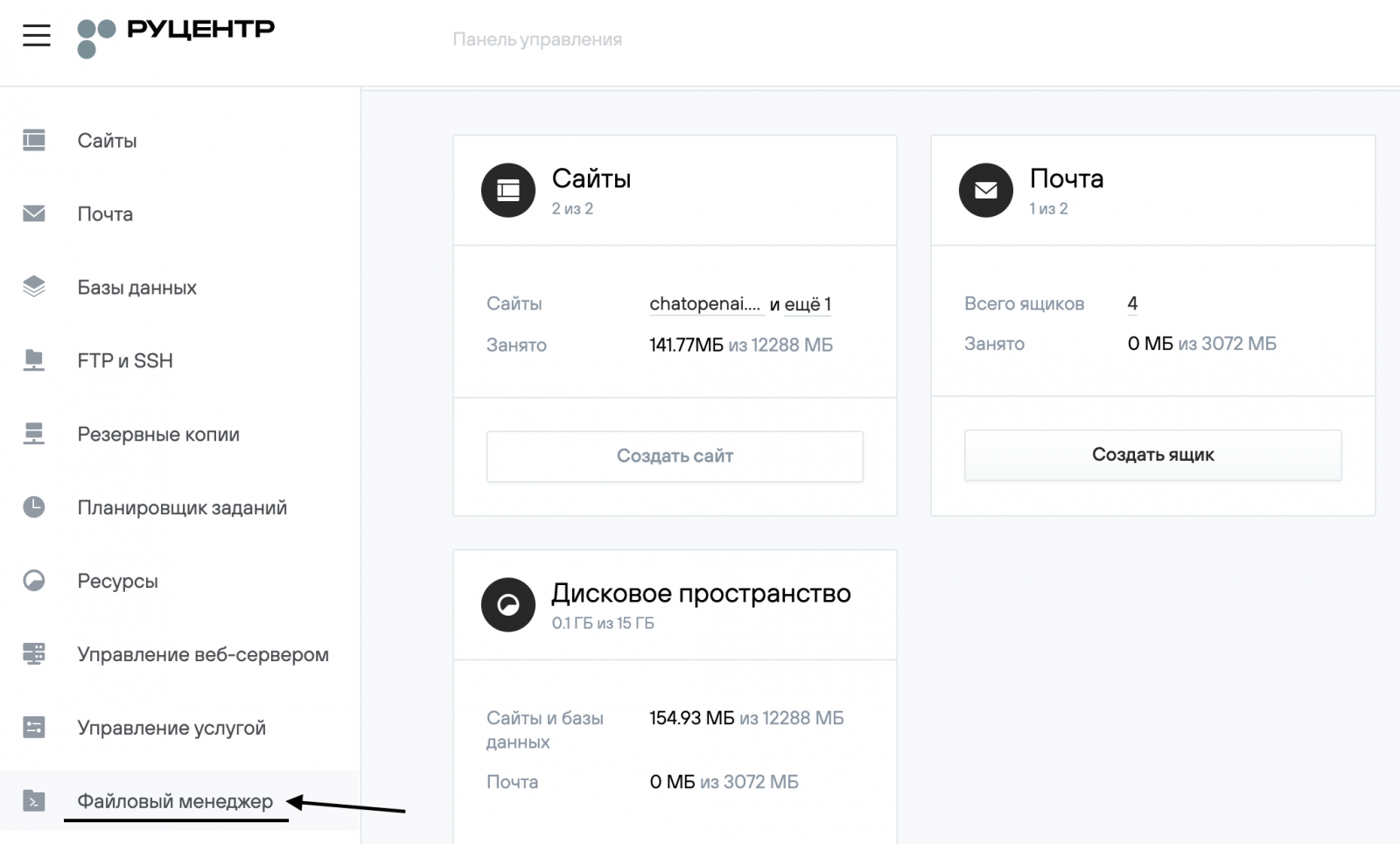
1. Go to the File Manager (Файловый менеджер) section of your hosting control panel.
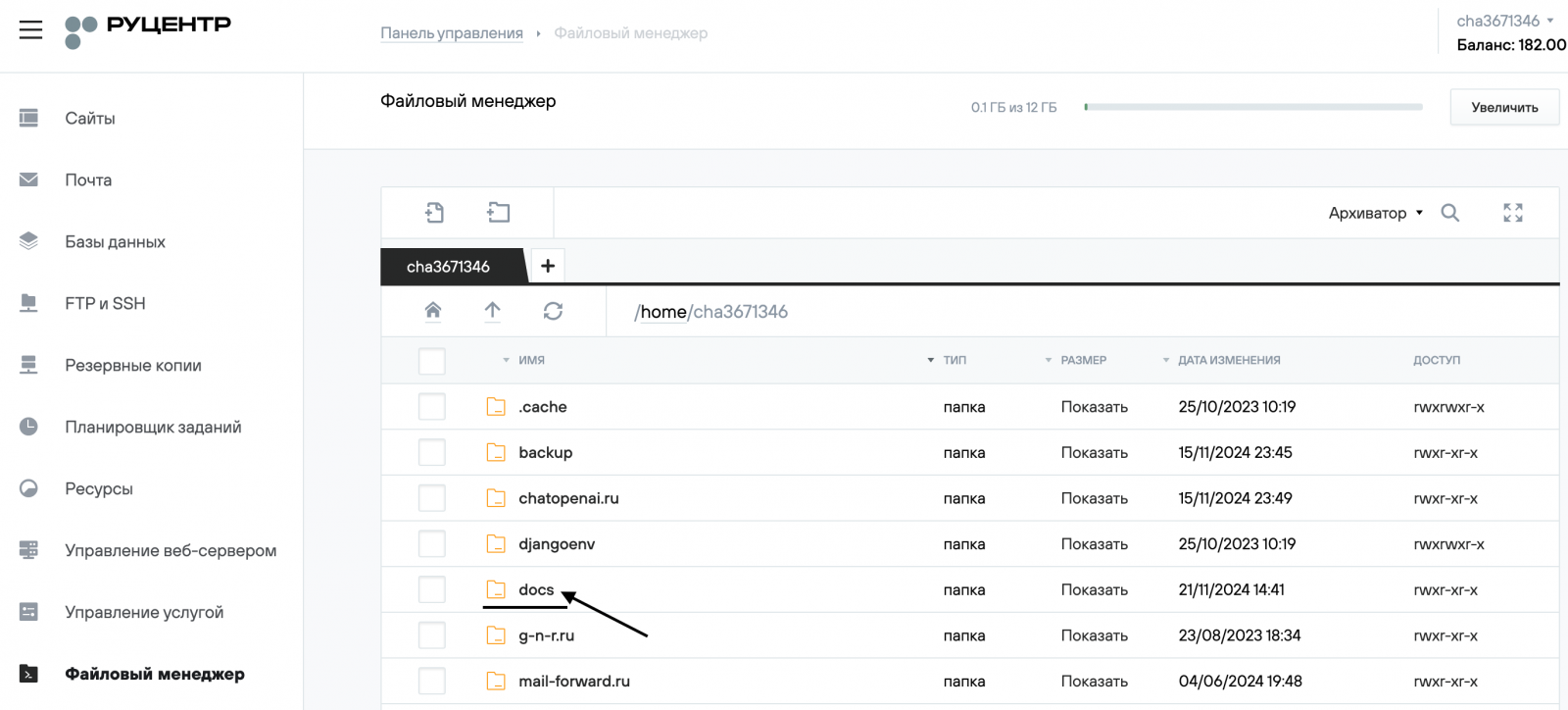
2. Select the folder with the name of the website where you installed the SSL certificate and go to the docs folder (root directory).
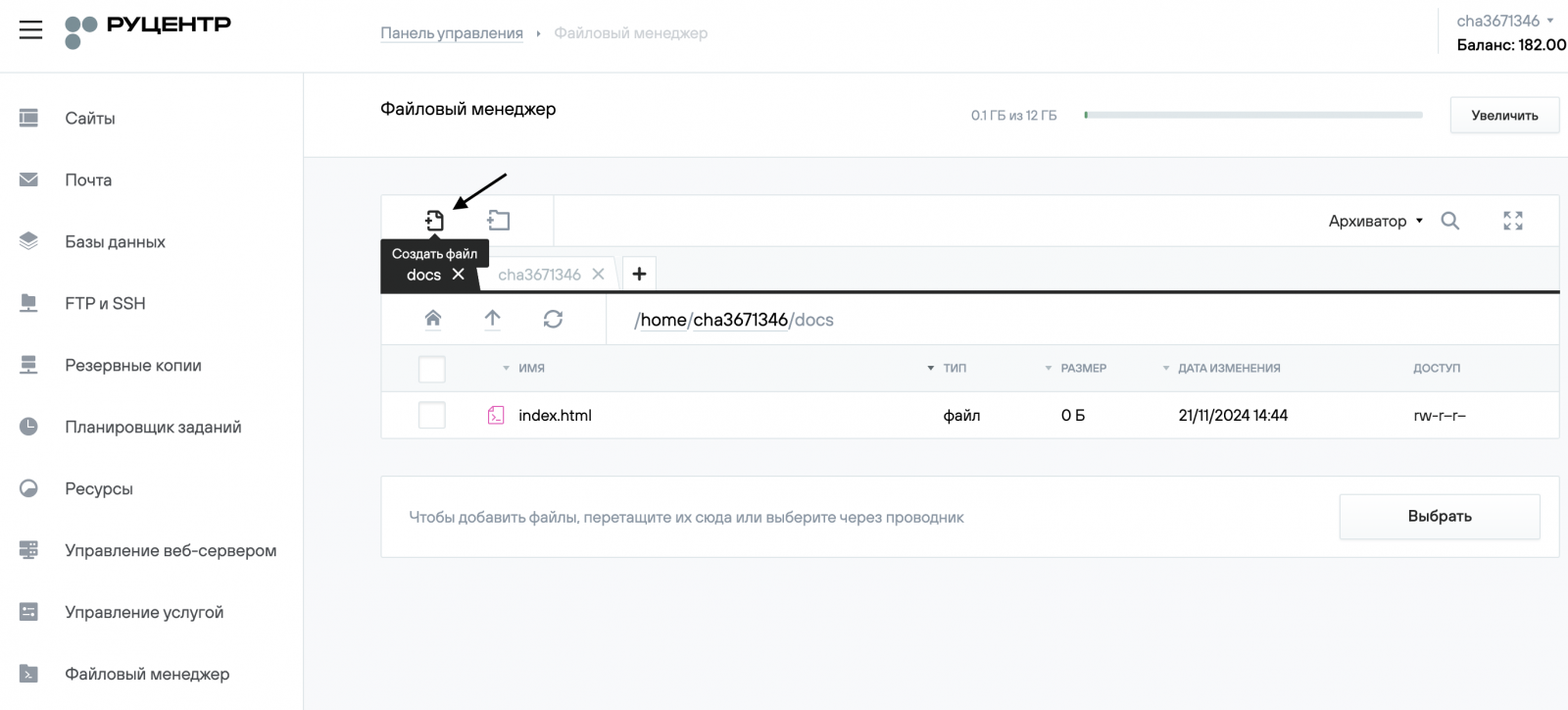
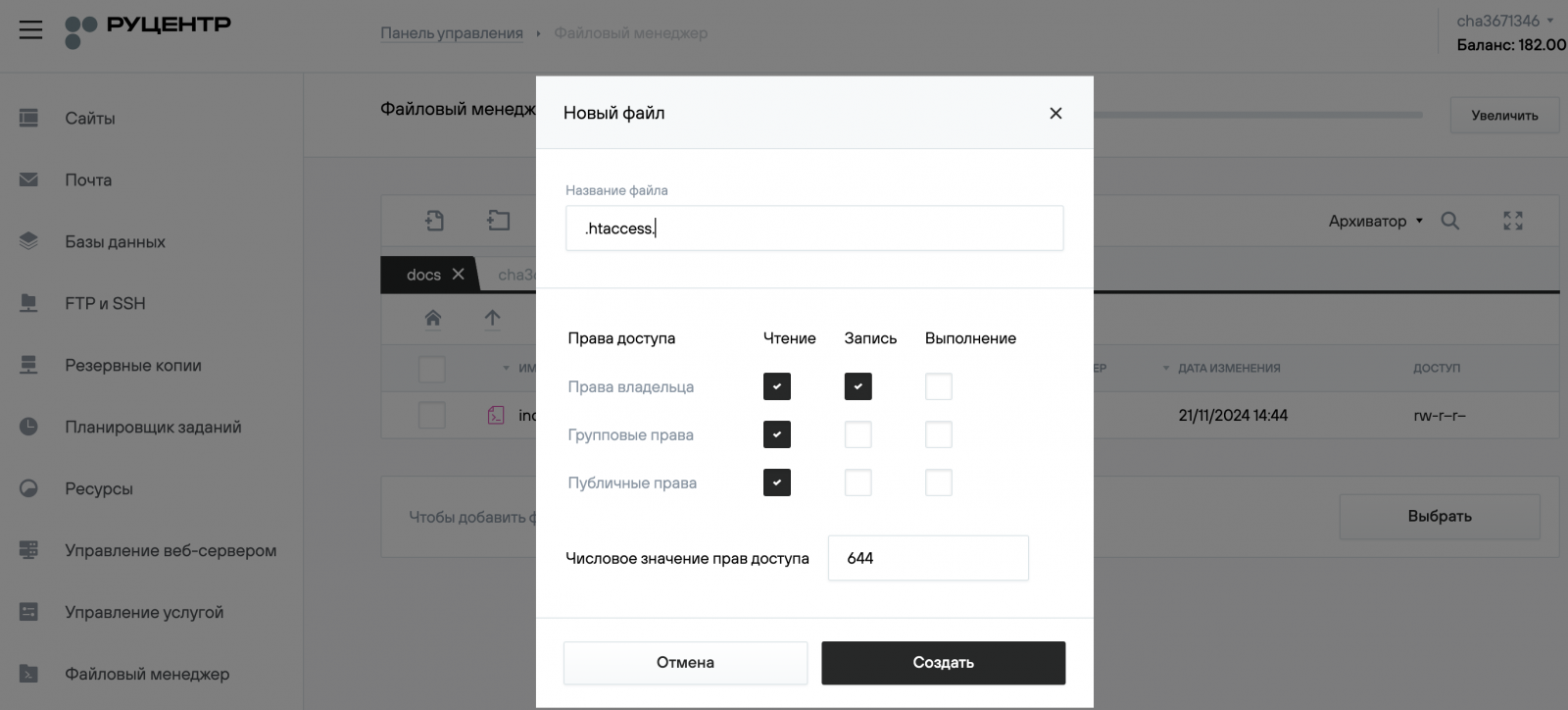
3. On the toolbar, click Create File (Создать файл) and name it .htaccess.
4. Click on the created file to edit and add the following directives to it:
RewriteEngine On

RewriteCond %{ENV:HTTPS} !on

RewriteRule ^.*$ https://%{HTTP_HOST}%{REQUEST_URI} [L,R=301]
Header always set Content-Security-Policy "upgrade-insecure-requests;"For correct operation, the headers_module must be enabled in the Web Server Management section of the hosting control panel.
If you already have an .htaccess file on your website, open the file and add the above lines to its beginning.
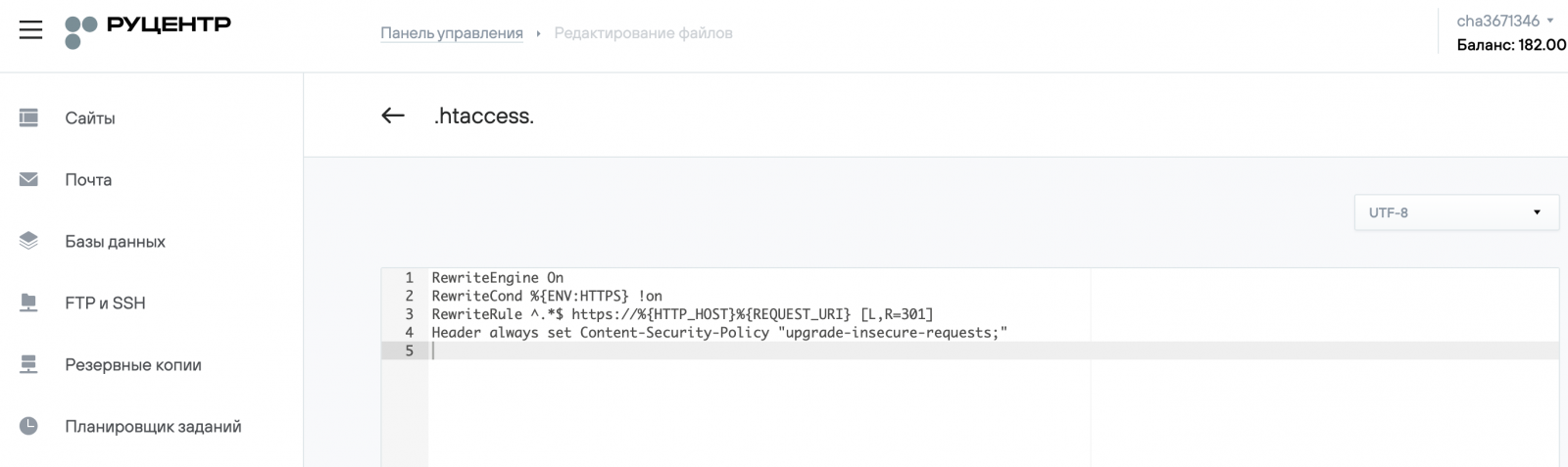
5. Save the changes and check the website’s functionality. The website must open via HTTPS. If the website displays correctly and the secure connection icon appears in the address bar, then the configuring procedure has been made correctly.
If after setting up a redirect the website is not displayed correctly, this may be due to mixed content. In this case, some of the content is loaded onto the website page using the insecure HTTP protocol instead of HTTPS, which prevents the website page from being considered completely secure. As a rule, this can be corrected by replacing absolute links with relative ones, i.e., in each project file, replace links of the form — https://site.ru/content/ на относительные— /content/, and for external links, specify the https:// protocol in the address.
6. If your website has a CMS installed, you'll need to take additional steps to configure an HTTPS connection and notify search engines of any changes.
We recommend that you refer to the CMS documentation and perform the following actions:
• for a Bitrix website: documentation on the developer’s website;
• for a WordPress website: you need to change the website protocol from HTTP to HTTPS. You can change the website’s primary protocol from HTTP to HTTPS in the Settings (Настройки) → General Settings (Общие настройки) section of the WordPress administration panel;
.png)
• for a Joomla website: in the CMS control panel, go to General Settings (Общие настройки) → Server (Сервер) → Enable SSL (Включить SSL);
.png)
• for a Drupal website: set up redirects and edit links as described in items 1–5 of these instructions;
• for an Opencart website: in the CMS website control panel, go to the Server (Сервер)→ Security section (Раздел Безопасность) and enable the Use SSL (Использовать SSL) option, then add the encryption key for confidential information when processing an order;
.png)
• for a MODX website: in the website control panel, go to System Settings (Системные настройки) → System and Server (Система и сервер), find the server type and change the protocol to HTTPS;

7. If SEO has already been configured, you will need to perform additional steps to set up the HTTPS connection.
To do this, edit the robots.txt file, specifying the HTTPS protocol in the Host and sitemap directives:
Host: https://www.site.ru

sitemap: https://www.site.ru/sitemap.xml
8. Notify search engines about changes to your website after you complete the HTTPS connection setup:
• Go to Yandex.Webmaster, Indexing (Индексация) → Website Move (Переезд сайта) section, and check the Add HTTPS box.
• Go to Google Search Console and add the HTTPS version of the website.