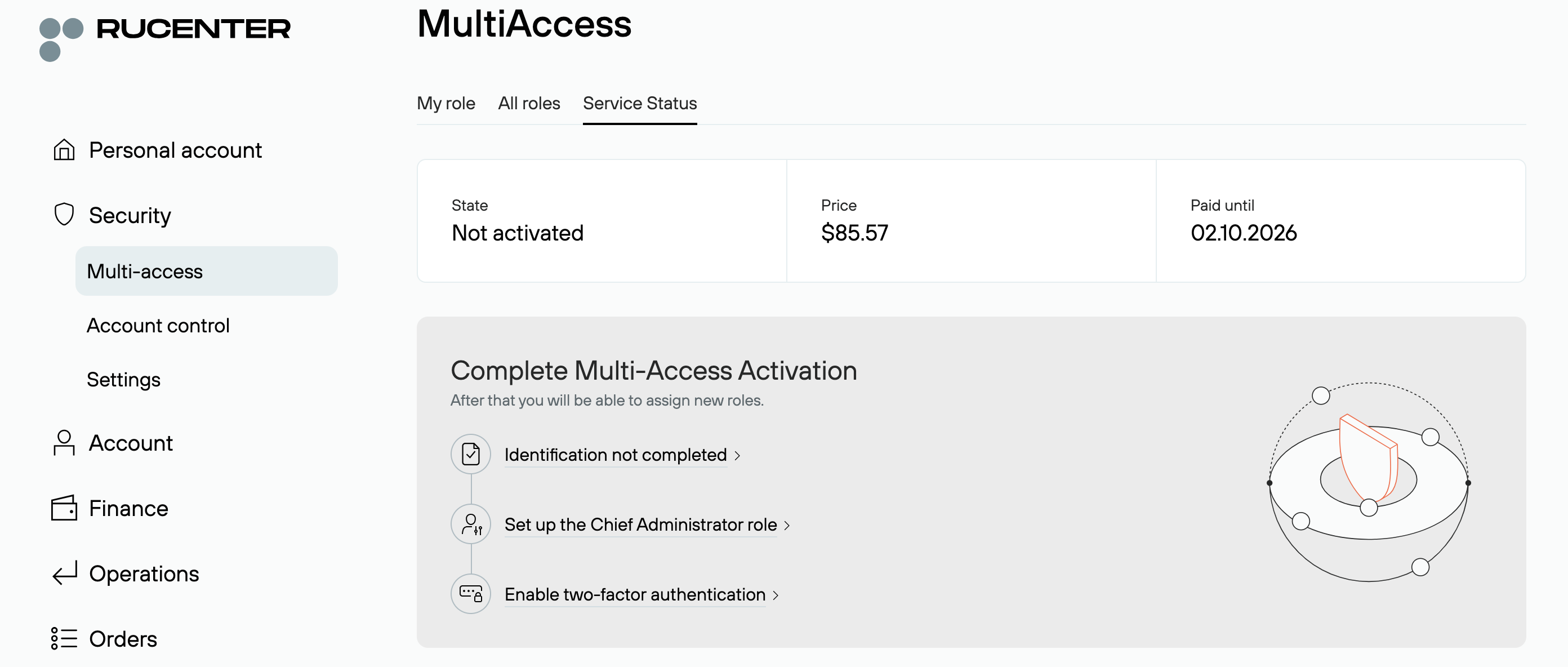
Multi-access Section in the Control Panel
To ensure convenient and secure multi-role account management, the Control Panel includes a dedicated «Multi-access» section where you can assign roles, adjust access levels, configure notifications.
This section also includes settings for two-factor authentication, login via Gosuslugi (State Services), login using a digital signature (EDS).
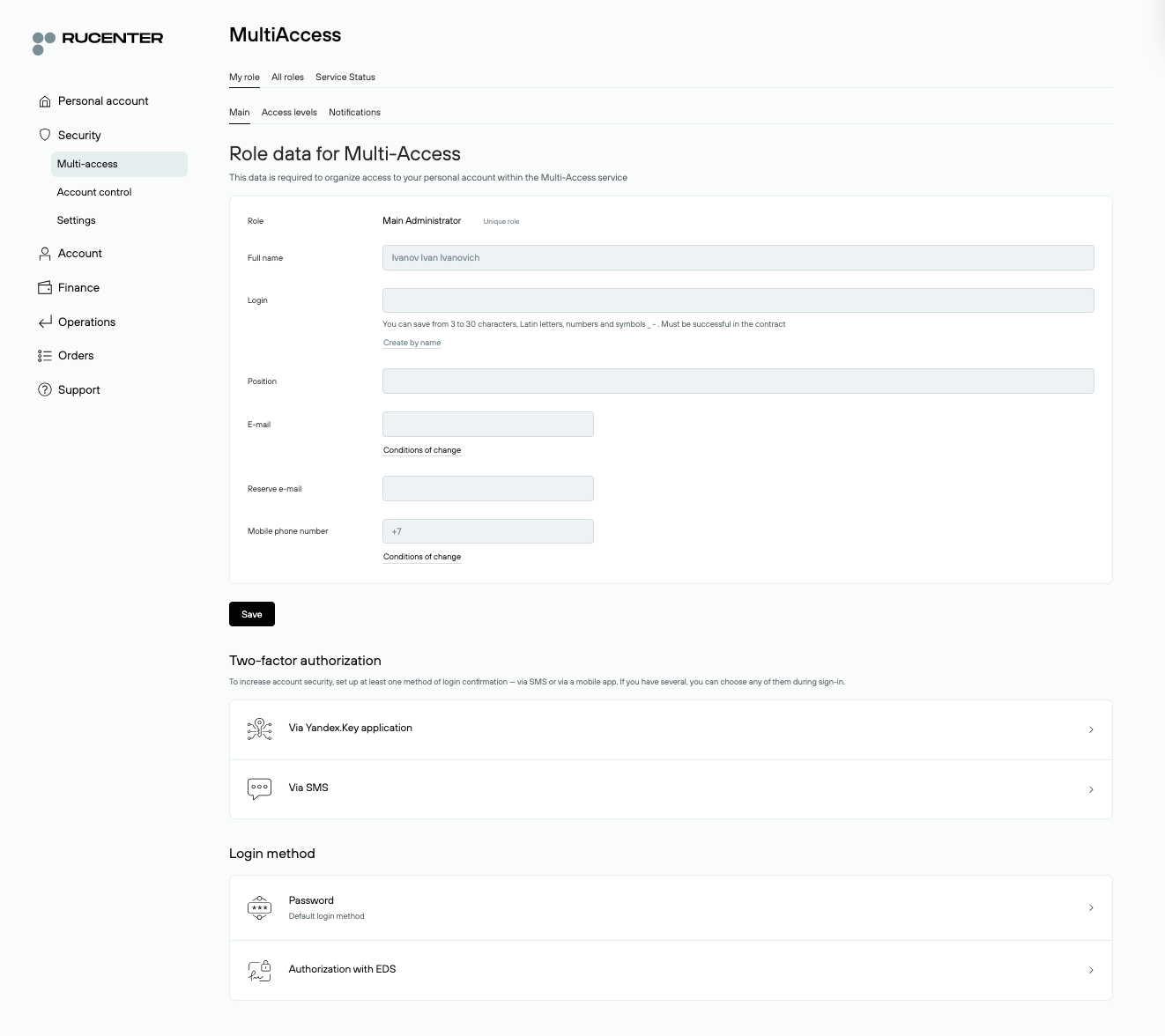
Section «My Role — General»
By default, the password for accessing the Control Panel is assigned to the Main Administrator role.
Under this role, in the «My Role — General» section, you can configure:
- login via Gosuslugi,
- login using a digital signature (EDS),
- password change.
The block «Role Data for Multi-access» must be filled out in order to activate «Multi-access». If you do not plan to use multi-role access yet, filling it out is not required.
To activate «Multi-access», all role data must be completed and two-factor authentication must be enabled.
Section «My Role — access Levels»
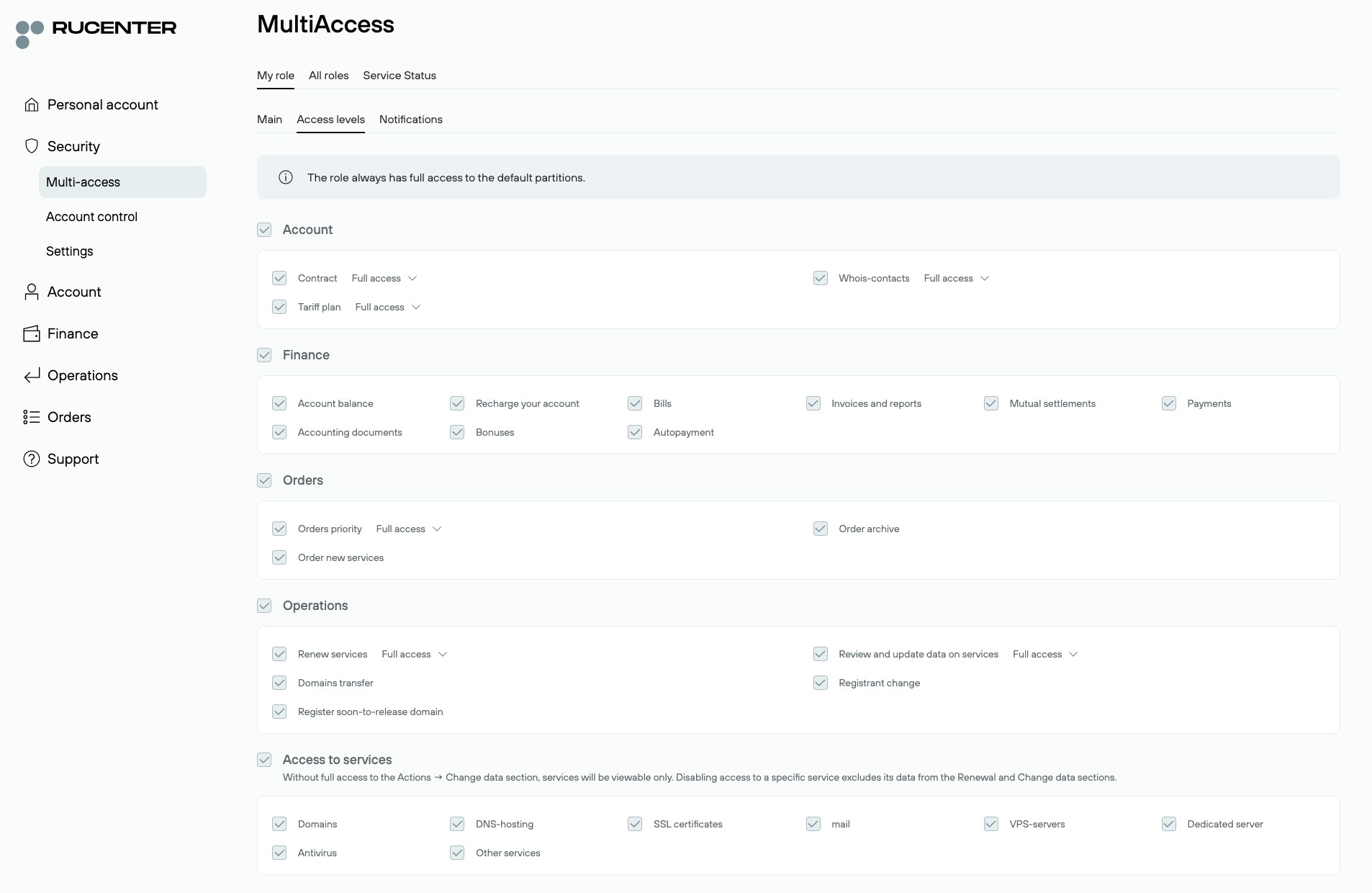
This tab contains information about the Control Panel sections for which access can be managed when using «Multi-access». Access under the current administrative password implies full access to all sections with rights to make all possible changes.
When «Multi-access» is activated, the Main Administrator always retains the full set of rights — they cannot be restricted.
Section «My Role — Notifications»
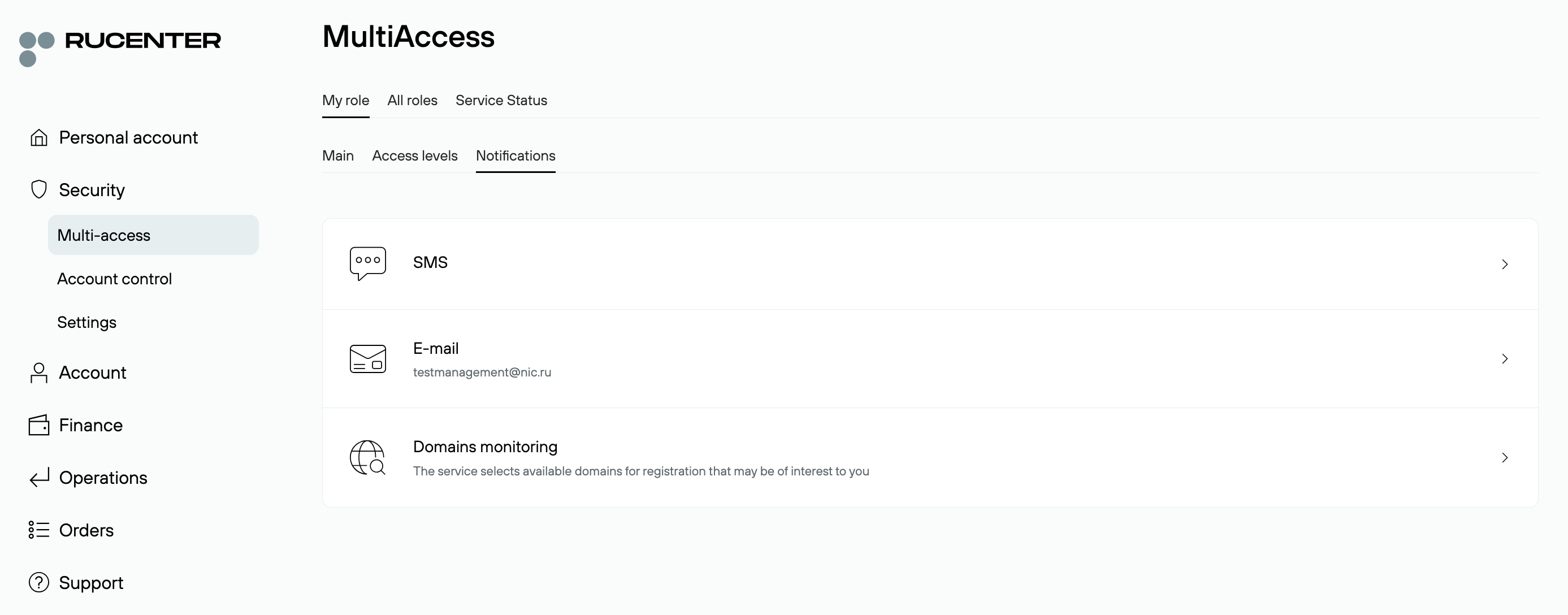
This section contains settings for managing email notifications and SMS alerts, as well as a control panel for the Domain Monitoring service.
Section «All Roles — Assigned Roles»
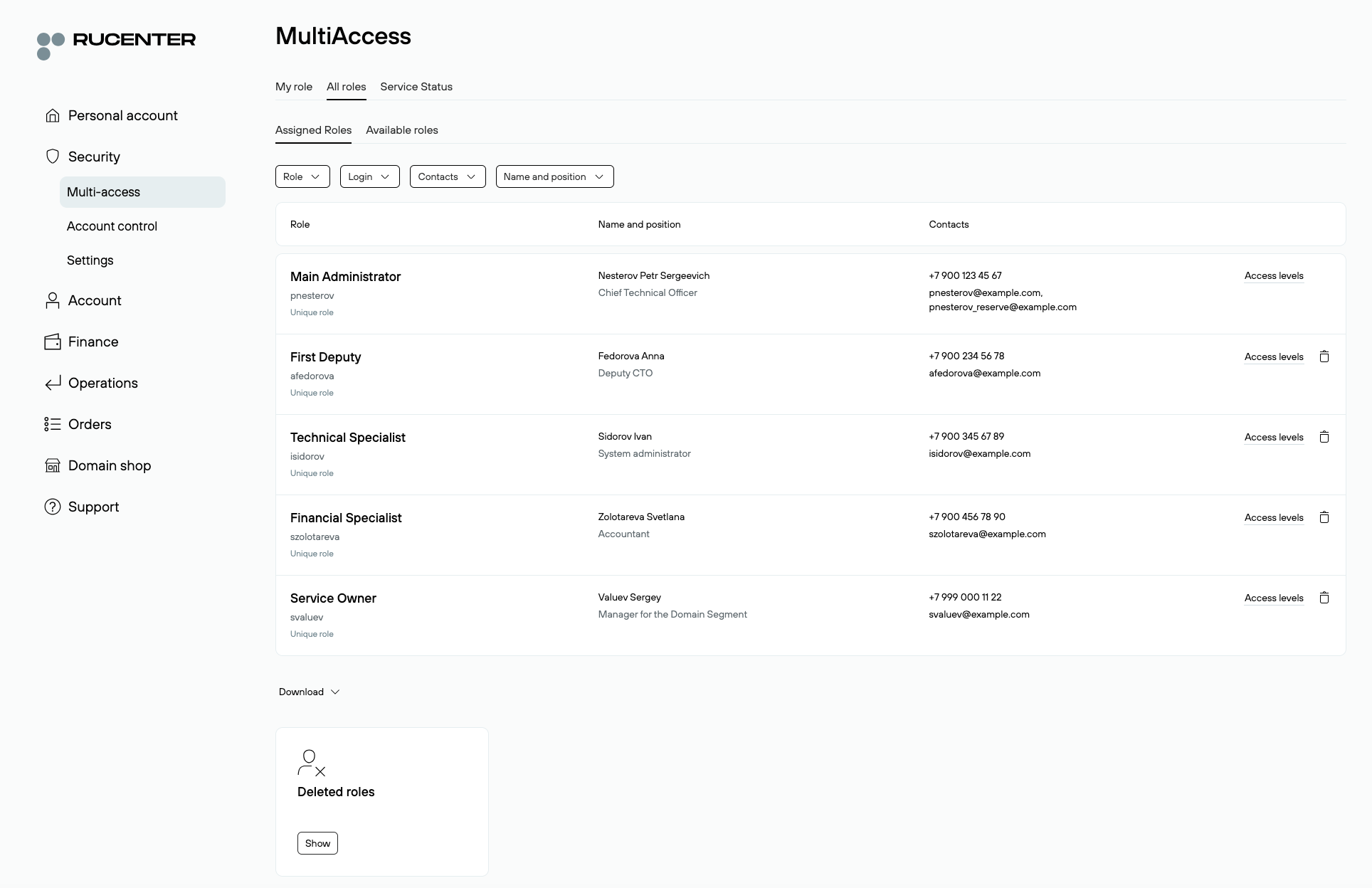
The Assigned Roles section displays all users who have already been granted roles within Multi-access. By clicking on a specific role, you can open its settings. To quickly find the required role, you can use filters by role name, login, full name, job title, or contact details.
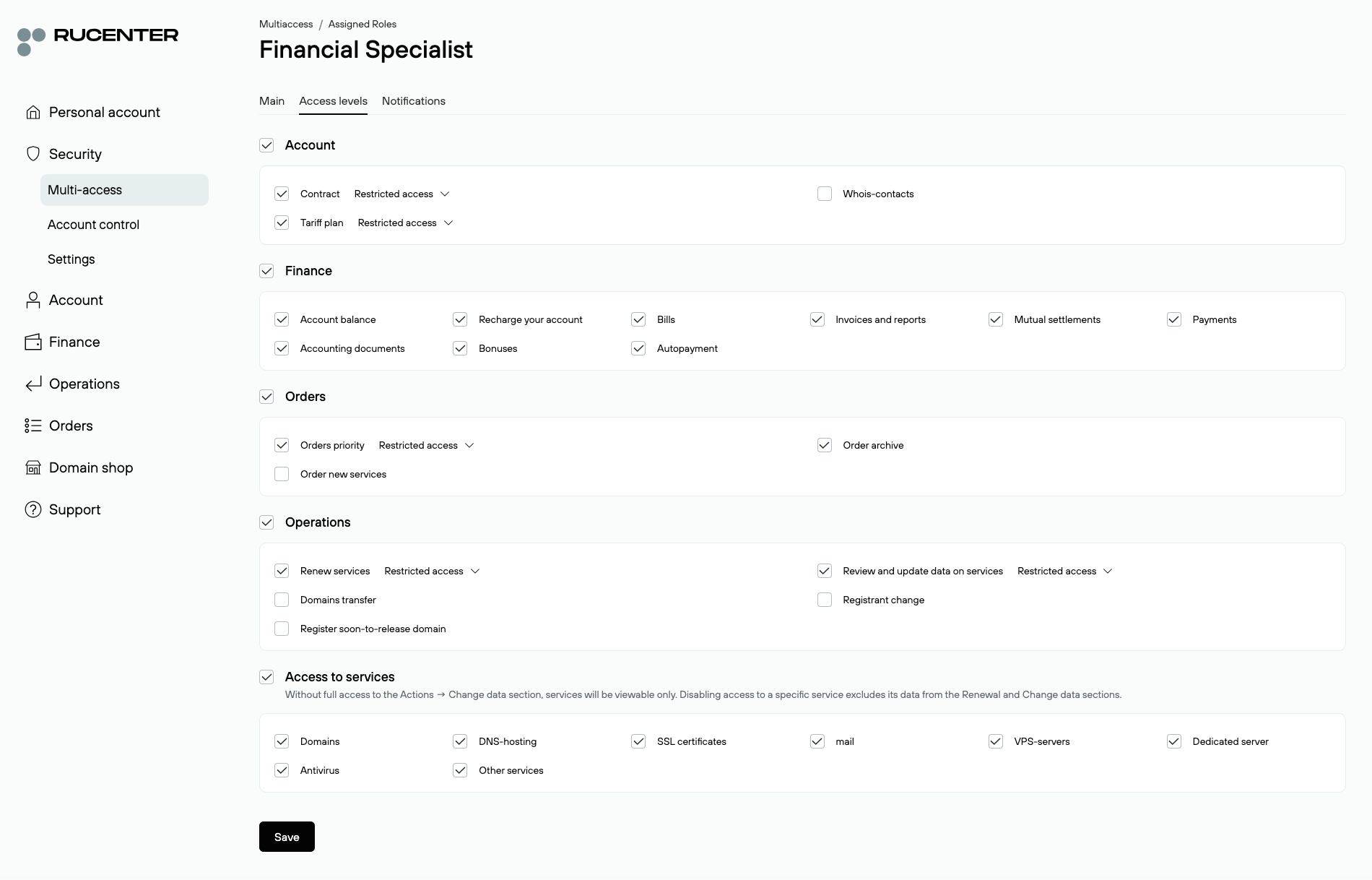
Using the «Access Levels» link for each role, you can view and edit its access levels and permissions. Access can be restricted by Control Panel sections and functions:
- Account — access to agreement details, tariff plan, and Whois contacts.
- Finance — balance management, account top-ups, viewing invoices, acts, financial statements, settlements, bonuses, and auto-payment settings.
- Orders — placing new orders, managing execution order, and viewing order history.
- Actions — renewing services, updating data, transferring domains, changing administrator, and registering released domains.
- Service Access — selecting specific services to which the user will have access.
By default, access to most subsections includes full rights (view and make changes).
For the sections «Agreement», «Price Plan», «Order processing queue», «Service Renewal», and «Data Changes», access can be either full (view and edit), or restricted (view only, without the ability to make changes).
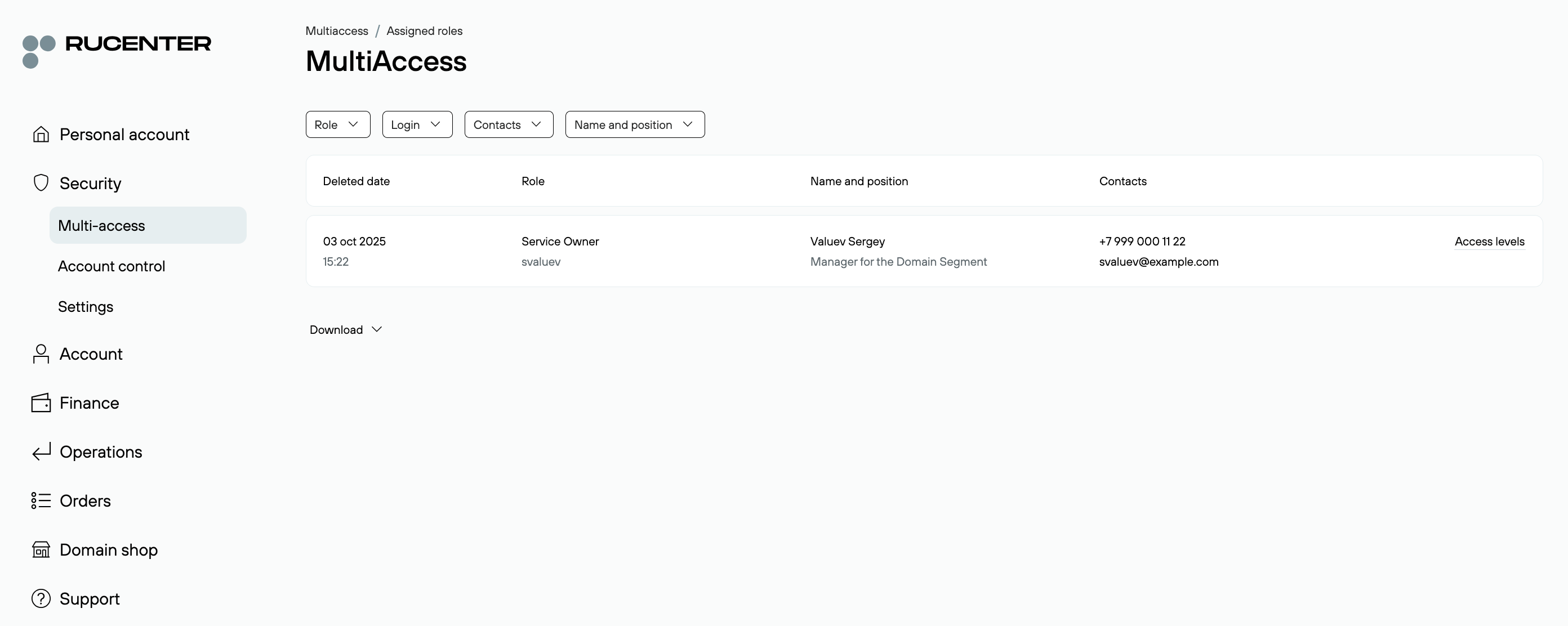
If roles are deleted, their data is preserved and available in the Deleted Roles section.
Section «All Roles — Available Roles»
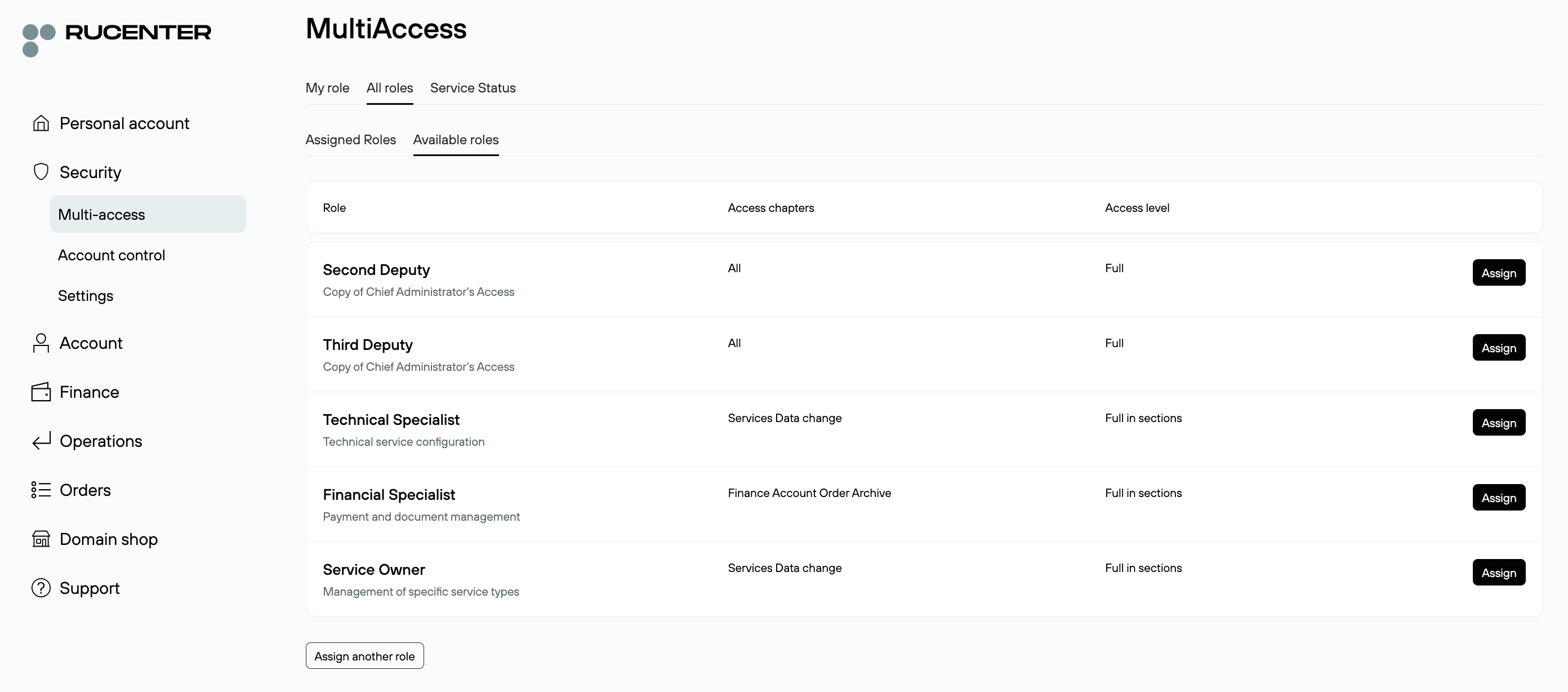
The «Available Roles» section is designed to assign roles to other account users. It contains a list of predefined roles — ready-made templates with preset access rights.
You can either select and assign roles from the list, or create a custom role by clicking the “Assign another role” button. The maximum number of roles per account is 100.
Section «Service Status»
This section provides information about the Multi-access service status, renewal periods, payment (for general price plans), and required actions for service activation.