
Ordering and Activating the Service for General Price Plans
For clients on general plans, the Multi-access service must be ordered and paid for:
1. Go to the service page.
2. Click "Enable Multi-access".
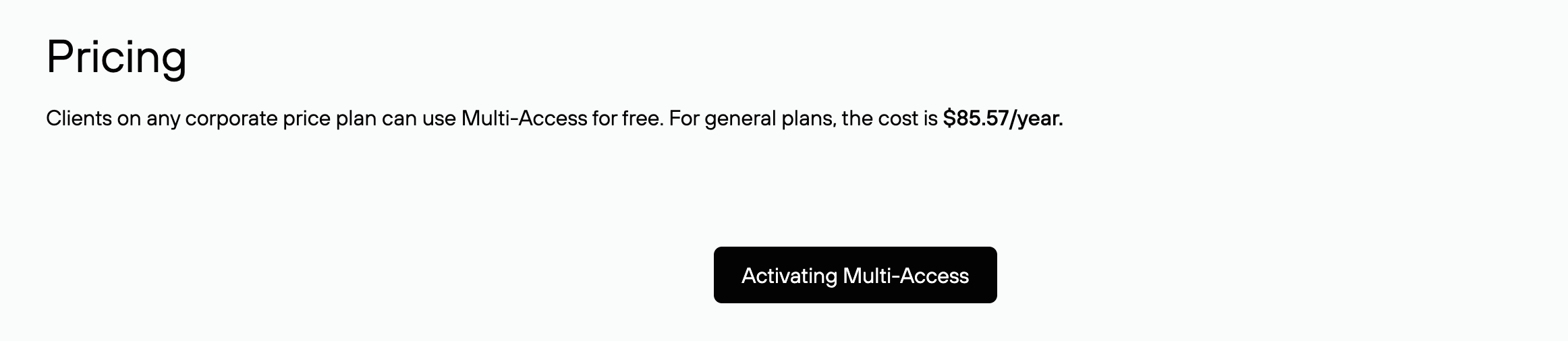
3. Pay for the order.

After ordering, the Multi-access service remains in an inactive state. To start using it, you must complete all activation requirements:
1. The agreement must be identified
Check the identification status of your agreement in the Control Panel under: Account — Agreement.
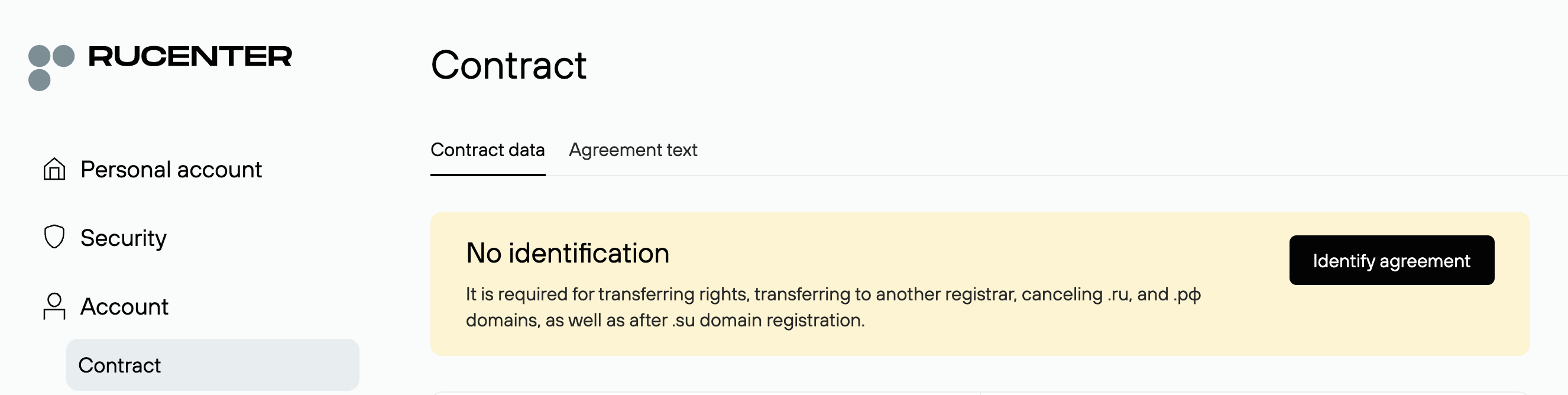
If your agreement is not identified, you must provide Rucenter with a copy of your Certificate of State Registration (OGRN) using one of the following methods:
- Through the Control Panel form: Account — Agreement — Agreement Data — Identification (upload the document and click "Submit").
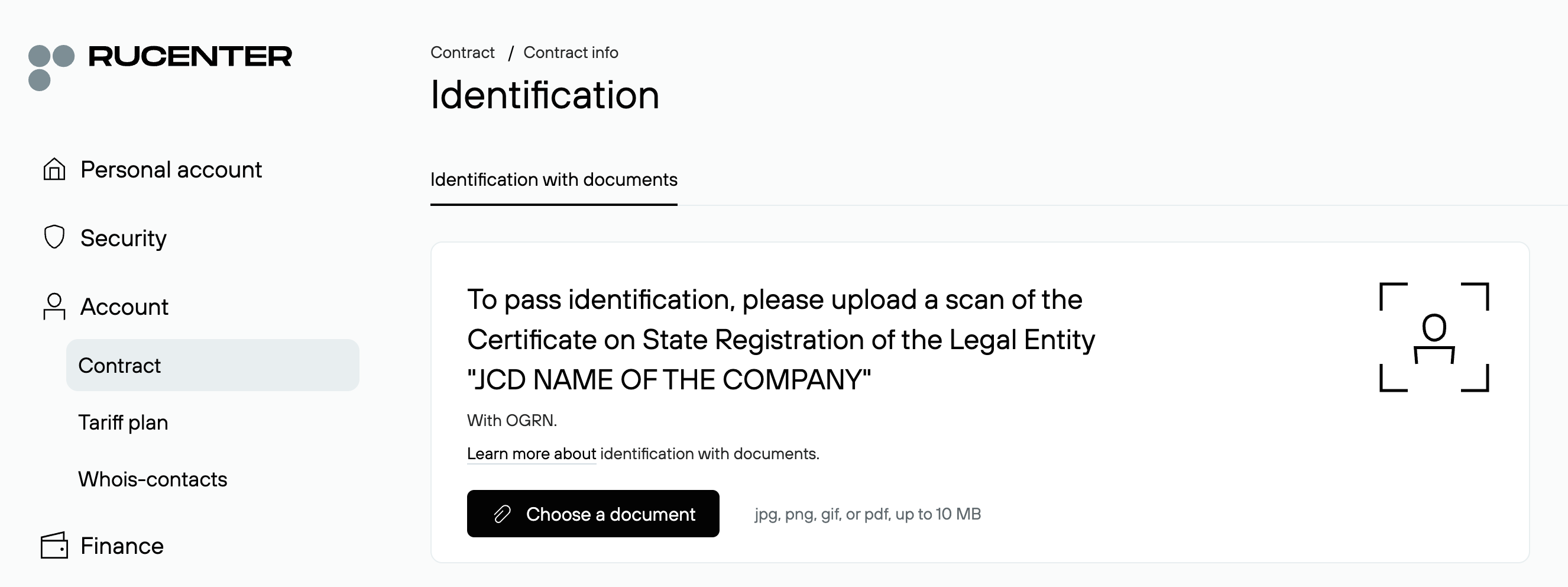
- By submitting an authorized support request.
- In person at a Rucenter office (Please make a request at info@nic.ru before visiting). In this case, verification is performed only if you provide:
— A document confirming the authority of the person visiting the office to sign the service agreement on behalf of the legal entity.
— A passport or another identity document of the person visiting the office.
2. The Main Administrator role must be set up
In the Control Panel under Security — Multi-access — My Role — General, fill in all required role fields: Full name, login, job title, email, backup email (optional), phone number.

3. Two-Factor Authentication must be enabled
Two-factor authentication is a mandatory requirement for using Multi-access. It can be set up in the Control Panel under: Security — Multi-access — My Role — General.
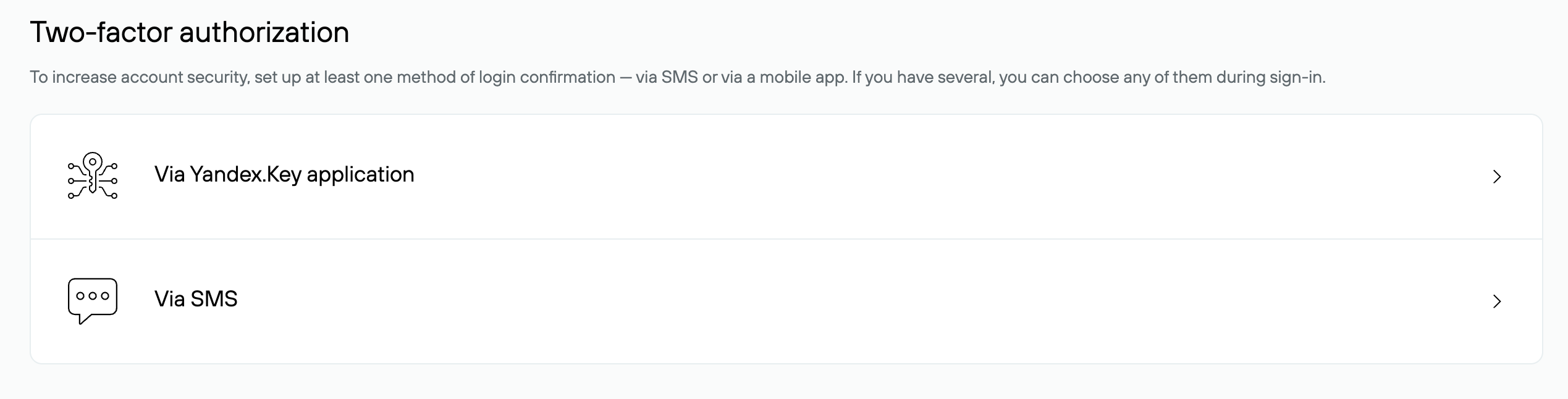
Configure at least one of the login confirmation methods. If both methods are enabled, either can be used during login.
Two-Factor Authentication via the Yandex.Key App
-
Install and launch the Yandex.Key app on your device.
-
In the app, scan the QR code or enter the setup key manually, specifying your account name as the agreement number, for example: NIC.RU 202306
-
Enter the code generated by the app into the "Code from App" field.
-
Click "Done".

Two-Factor Authentication via SMS
-
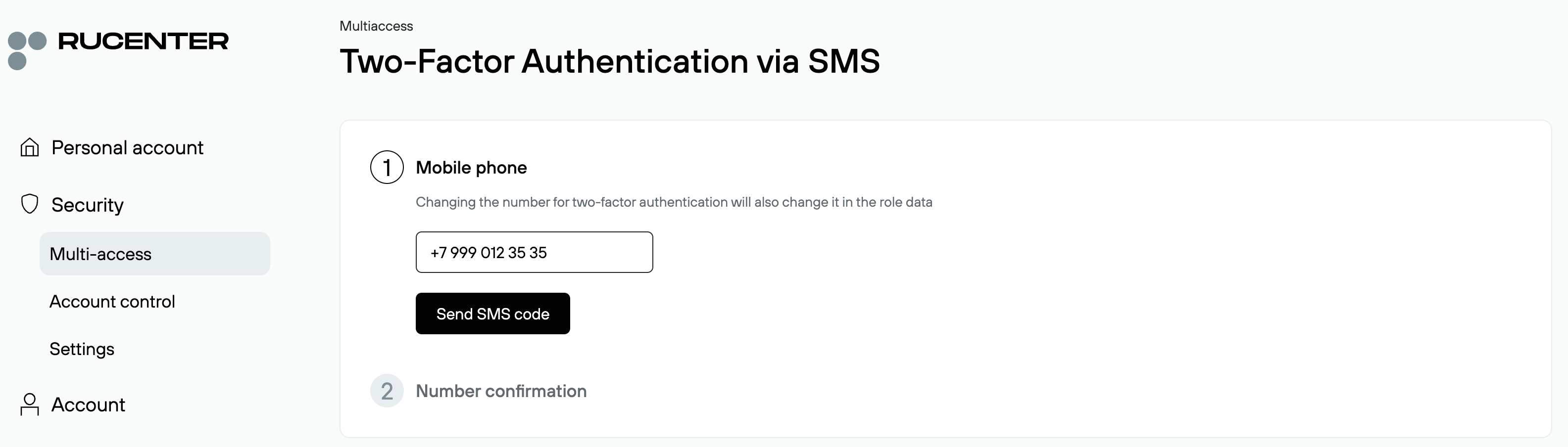
In the "Mobile Phone" field, enter the number that will receive confirmation messages.
Note: if you enter a number different from the one specified in the role data, it will automatically be updated there.
- Click "Get SMS with Code". A confirmation code will be sent to the specified number.
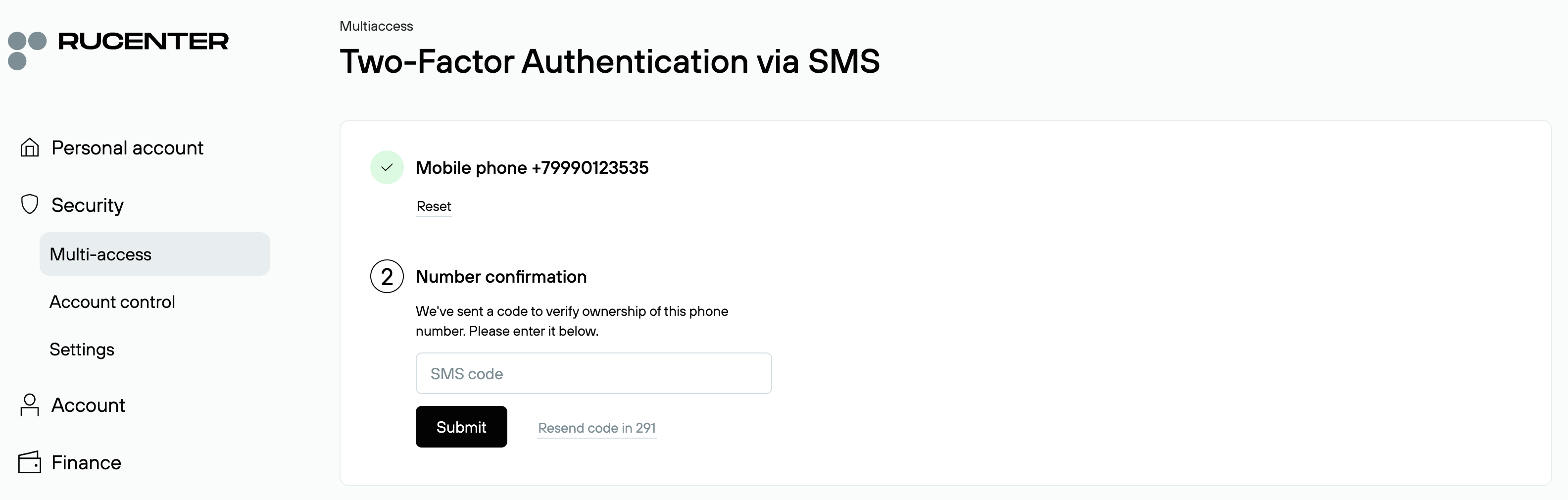
- Enter the received code in the "Code from SMS" field and click "Done".
- If you did not receive the code, click "Resend Code".
Once all three conditions are met, the Multi-access service is activated, and you can start assigning roles for multi-user account management in the Control Panel.