Resetting the Website Administrator Password for Popular CMS
1. WordPress
2. 1C-Bitrix
3. OpenCart
4. Joomla
5. Drupal
6. MODX Revolution
After resetting the password, before logging into the site’s admin panel with the new credentials, it is recommended to clear the old data stored in your browser.
WordPress
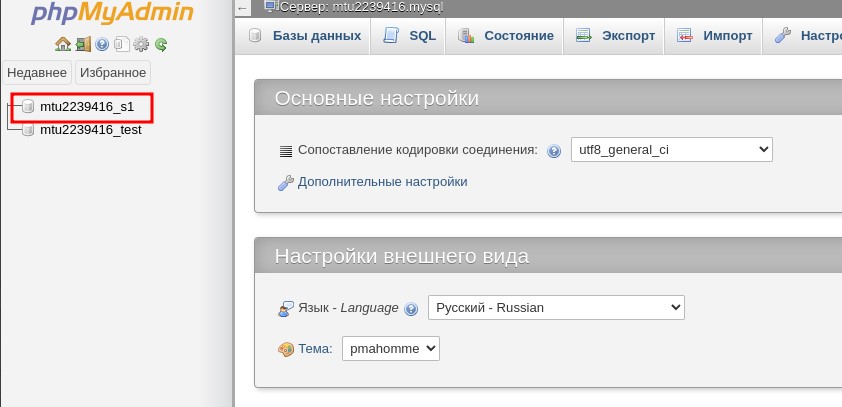
Log in to phpMyAdmin. The database access credentials are specified in the wp-config.php file, where the CMS stores connection settings. Click on your site’s database.
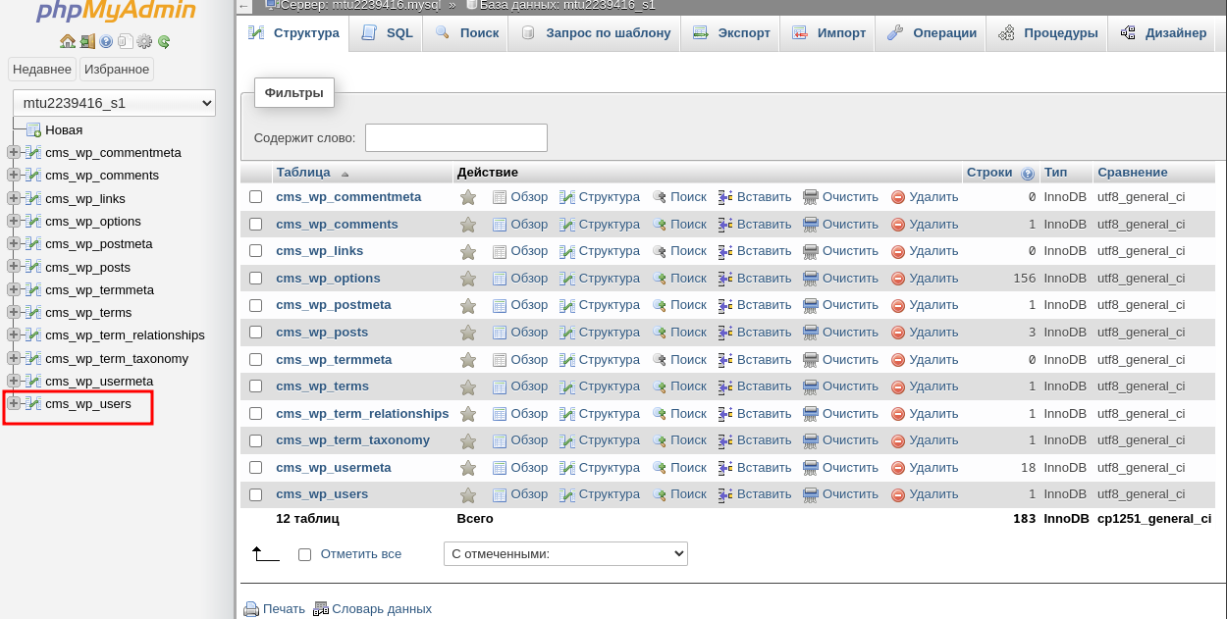
In the list of tables, click on the prefix_users table. In our example, the prefix is wp.
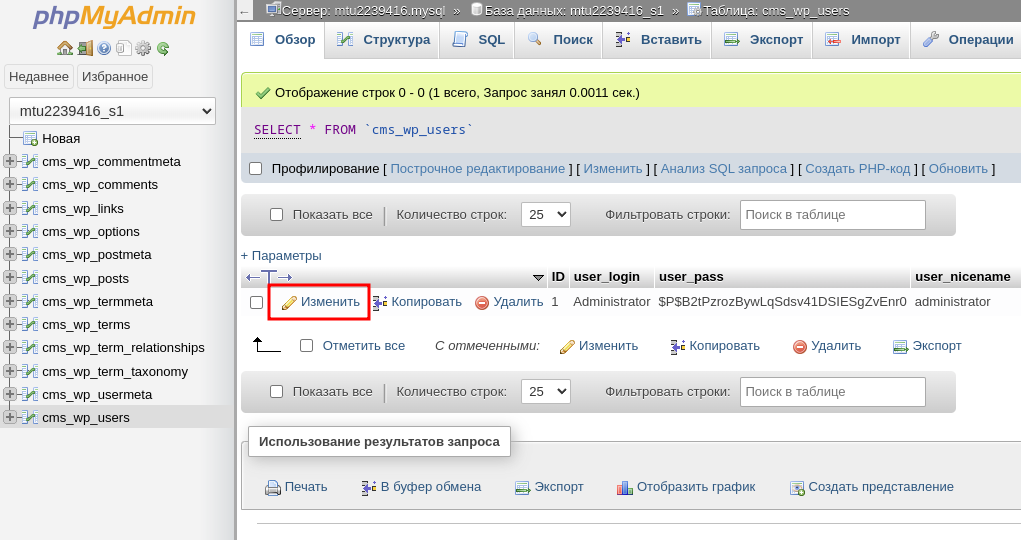
In the row with user_login = Administrator, click Edit (Изменить).
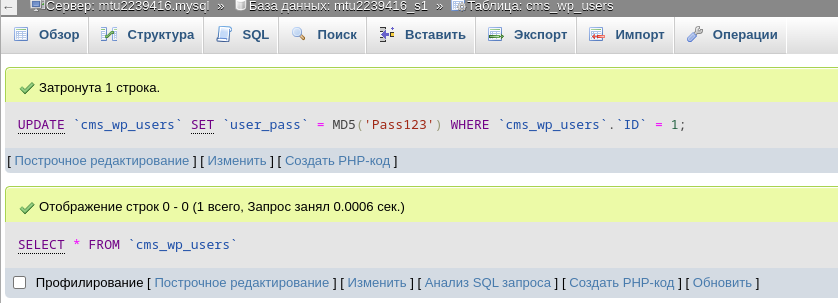
In the opened window, in the user_pass field, select the MD5 function from the dropdown menu, then enter the new administrator password in the adjacent field. Remember or write down the new password — this is what you will use to log in to the CMS admin panel. Click Continue at the bottom of the page.
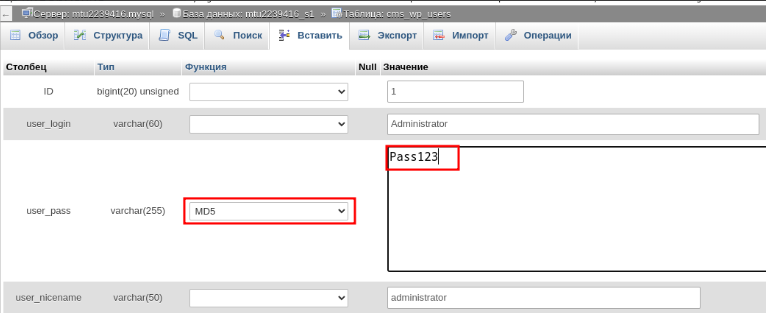
Done! You have successfully changed the WordPress administrator password.
1C-Bitrix
Log in to phpMyAdmin. The database access credentials are specified in /bitrix/.settings.php or /bitrix/php_interface/dbconn.php (depending on the Bitrix core used), where the CMS stores connection settings. Click on your site’s database.
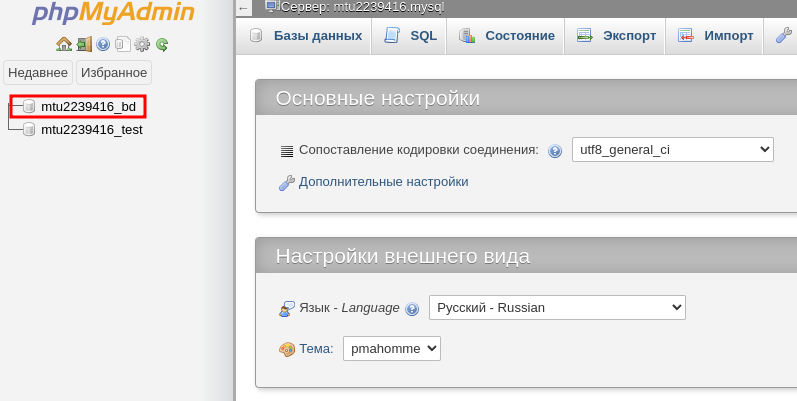
In the list of tables, click on the prefix_user table. In our example, the prefix is b.
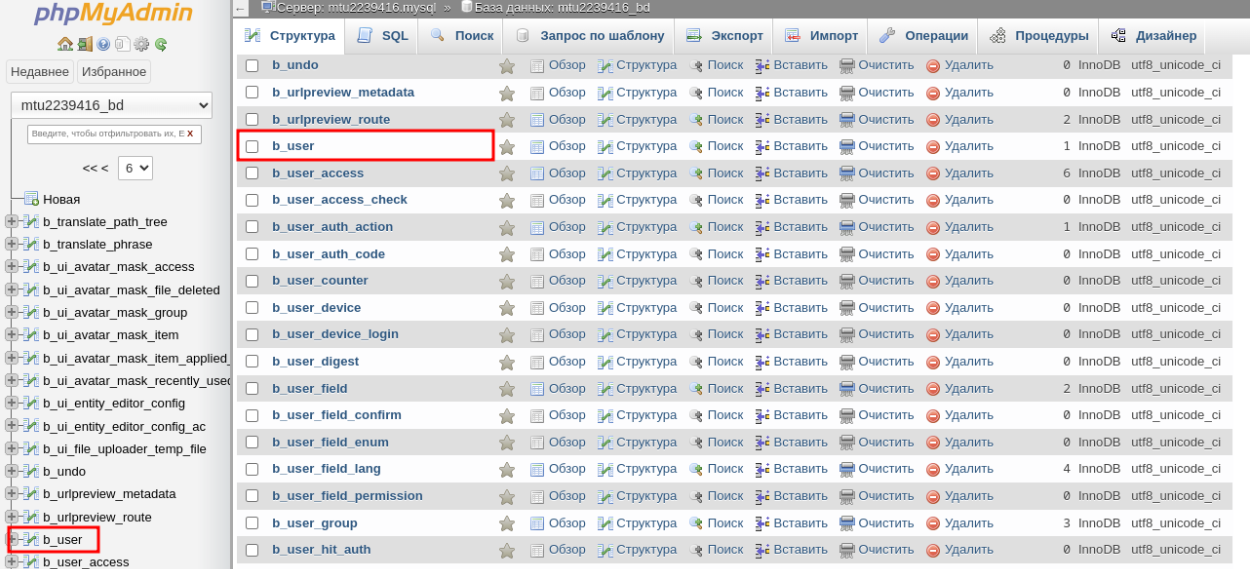
In the row with LOGIN = Administrator, click Edit.
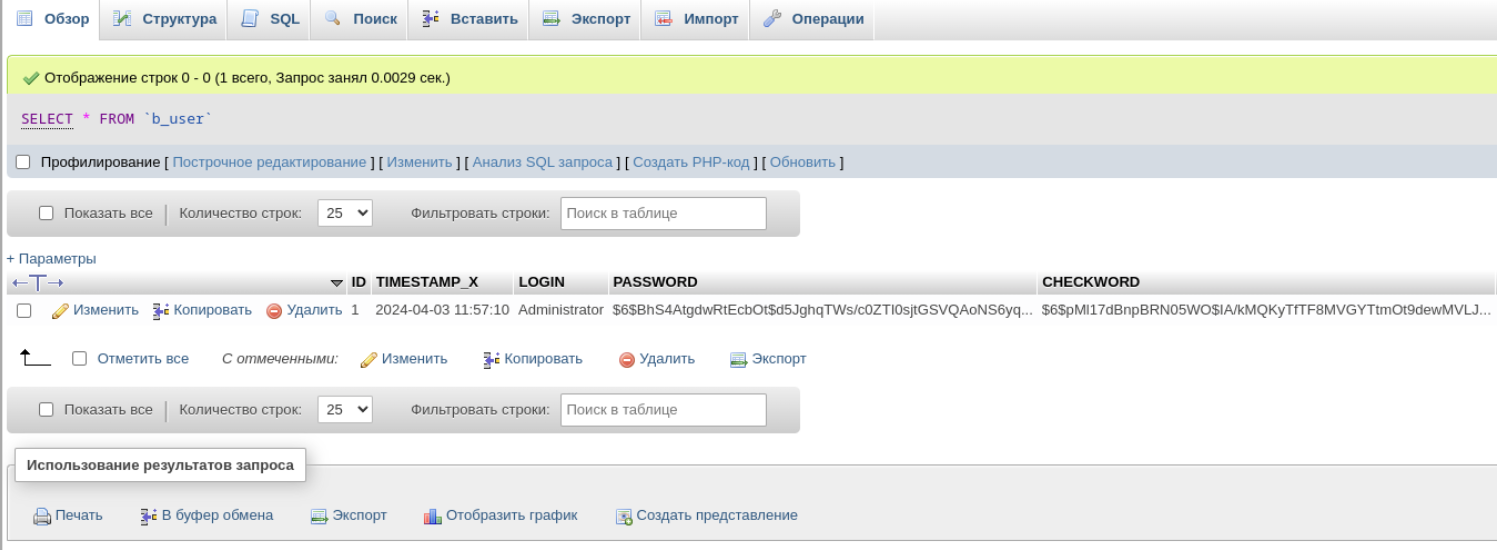
Let’s change the password. To change the password, find the row named password:
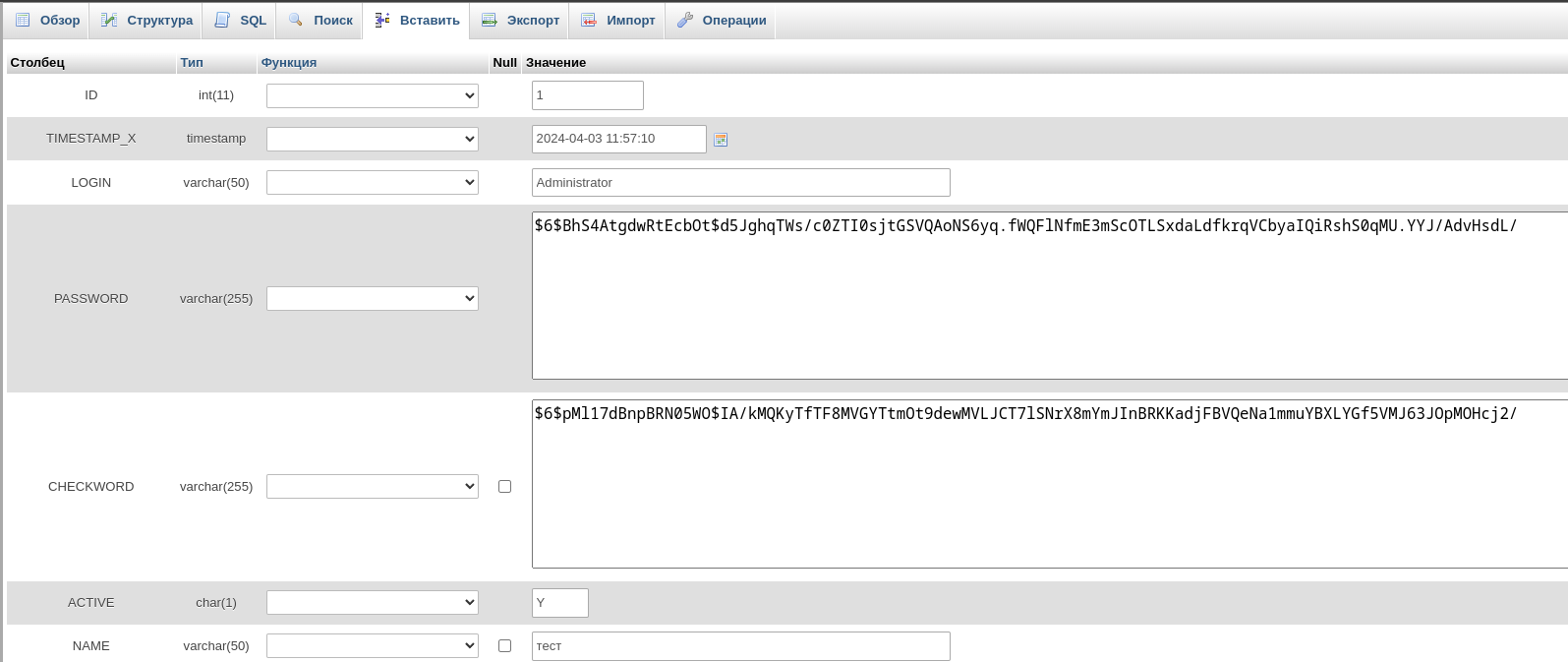
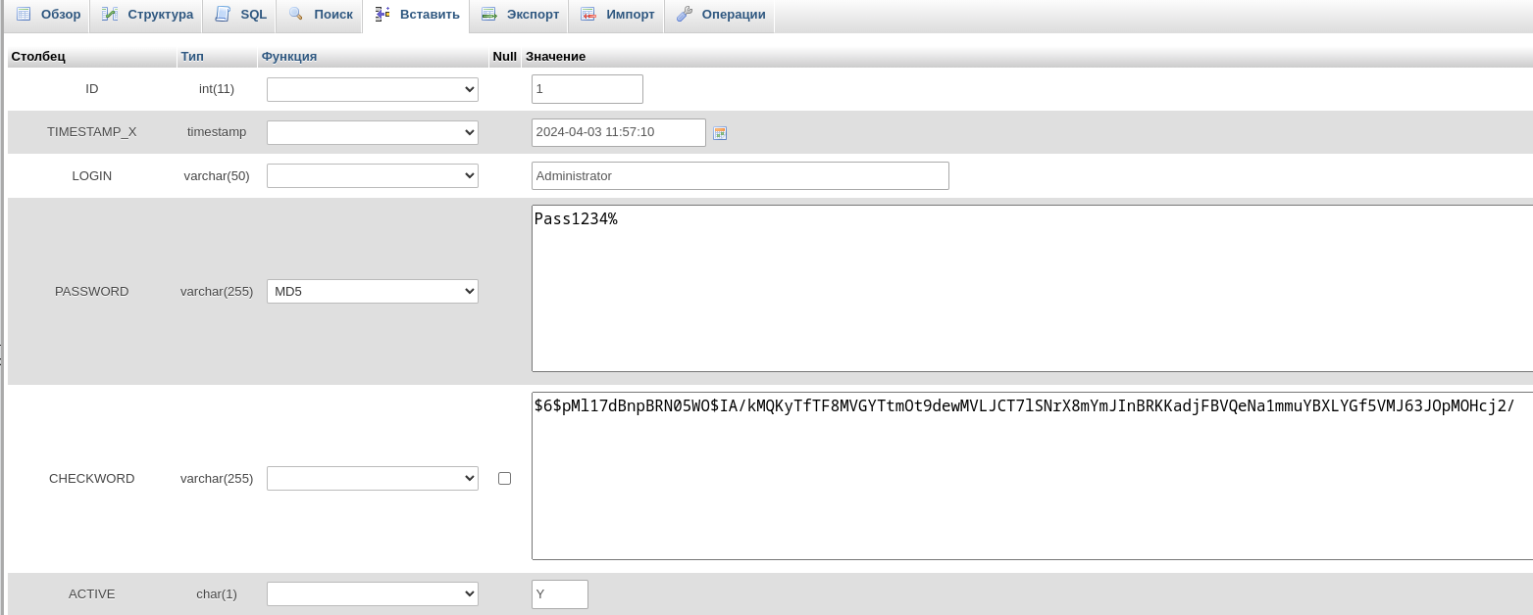
And change the following: In the Value field, delete the existing characters and enter the desired password (for example, Pass1234%). In the Function dropdown, select MD5. Click Continue at the bottom of the page to save the changes.
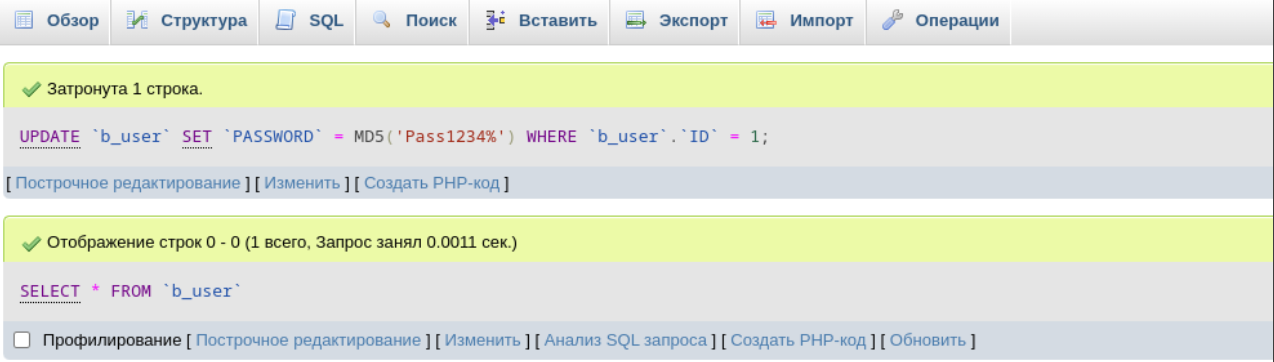
Done! You have successfully changed the 1C-Bitrix administrator password.
OpenCart
Log in to phpMyAdmin. The database access credentials are specified in the config.php file, where the CMS stores connection settings. Click on your site’s database.
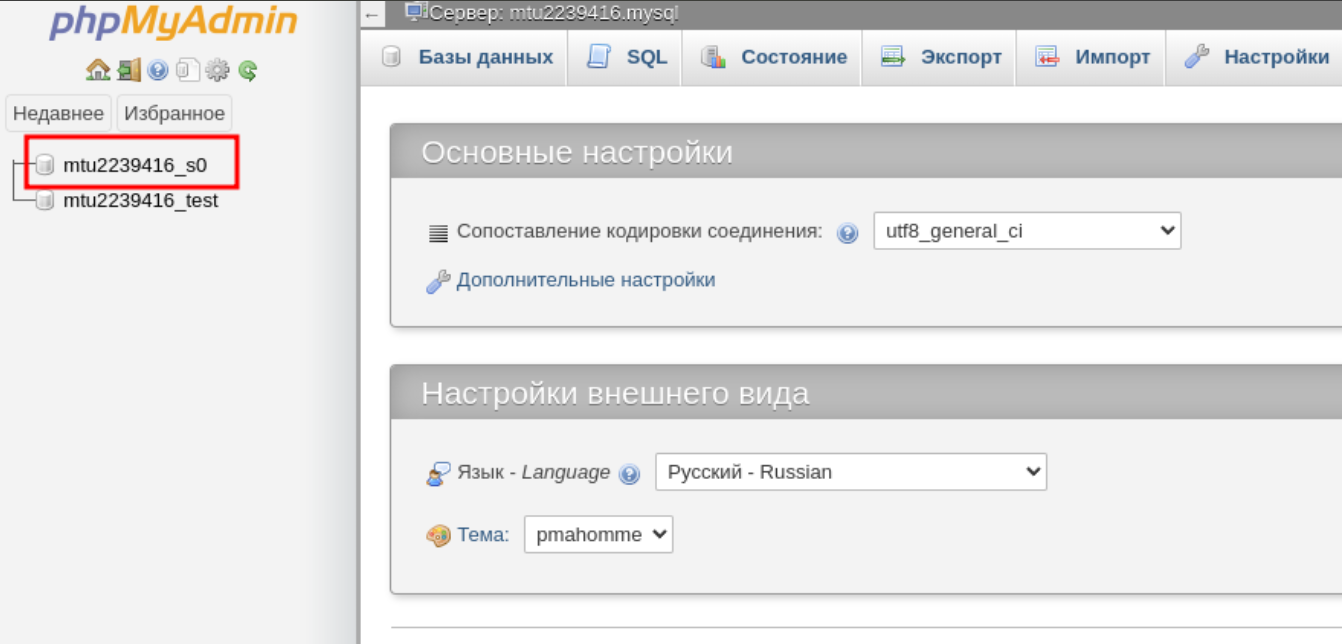
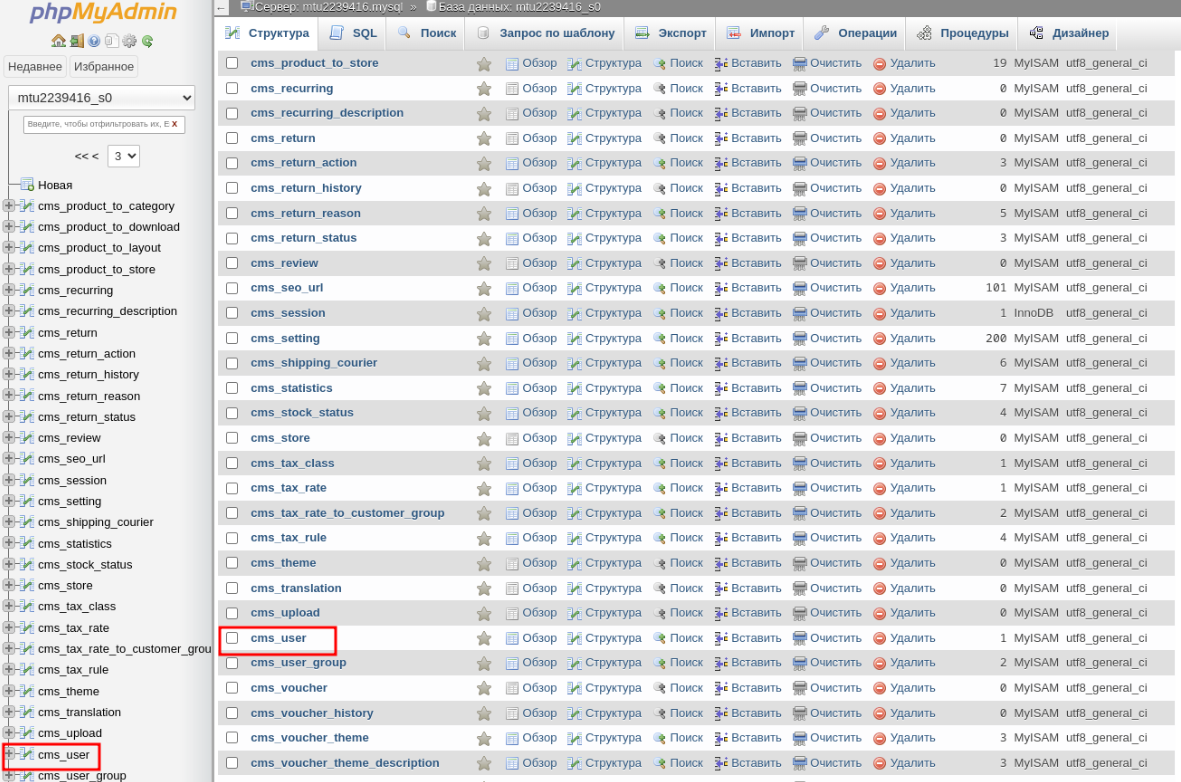
In the list of tables, click on the prefix_user table. In our example, the prefix is cms.
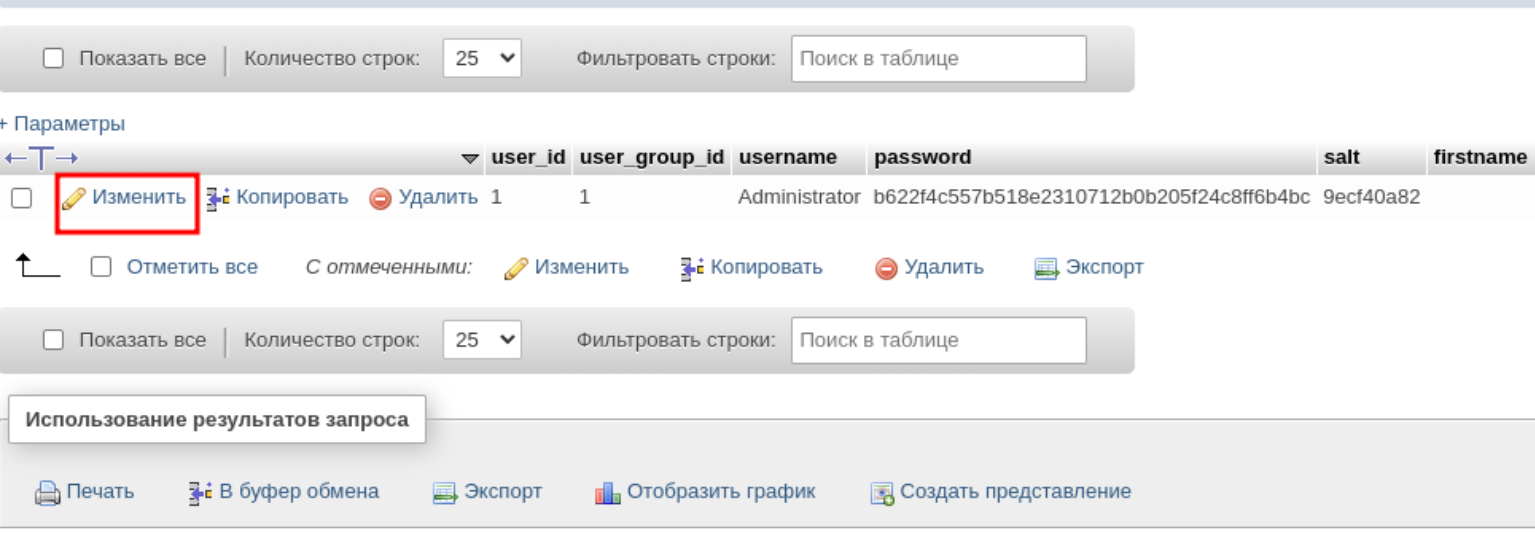
In the row with username = Administrator, click Edit.
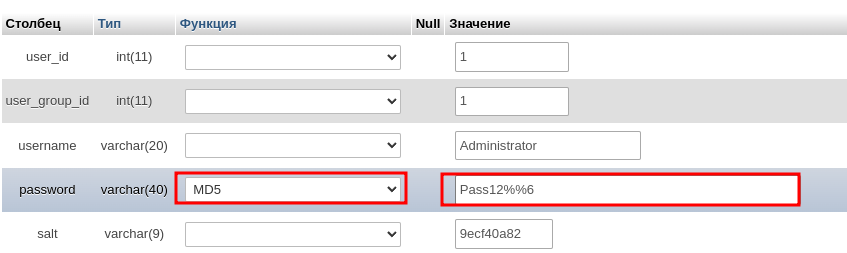
In the opened window, in the password field, select the MD5 function from the dropdown menu, then enter the new administrator password in the adjacent field. Remember or write down the new password — this is what you will use to log in to the CMS admin panel. Click Continue at the bottom of the page.
Done! You have successfully changed the OpenCart administrator password.
Joomla
Log in to phpMyAdmin. The database access credentials are specified in the configuration.php file, where the CMS stores connection settings. Click on your site’s database.
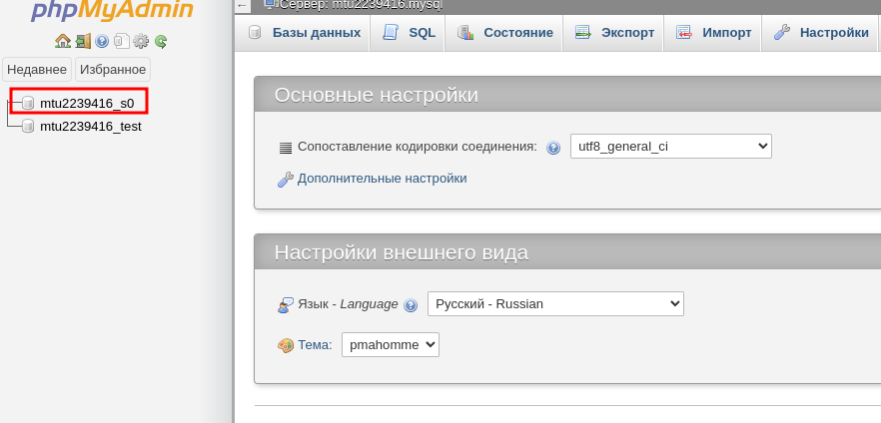
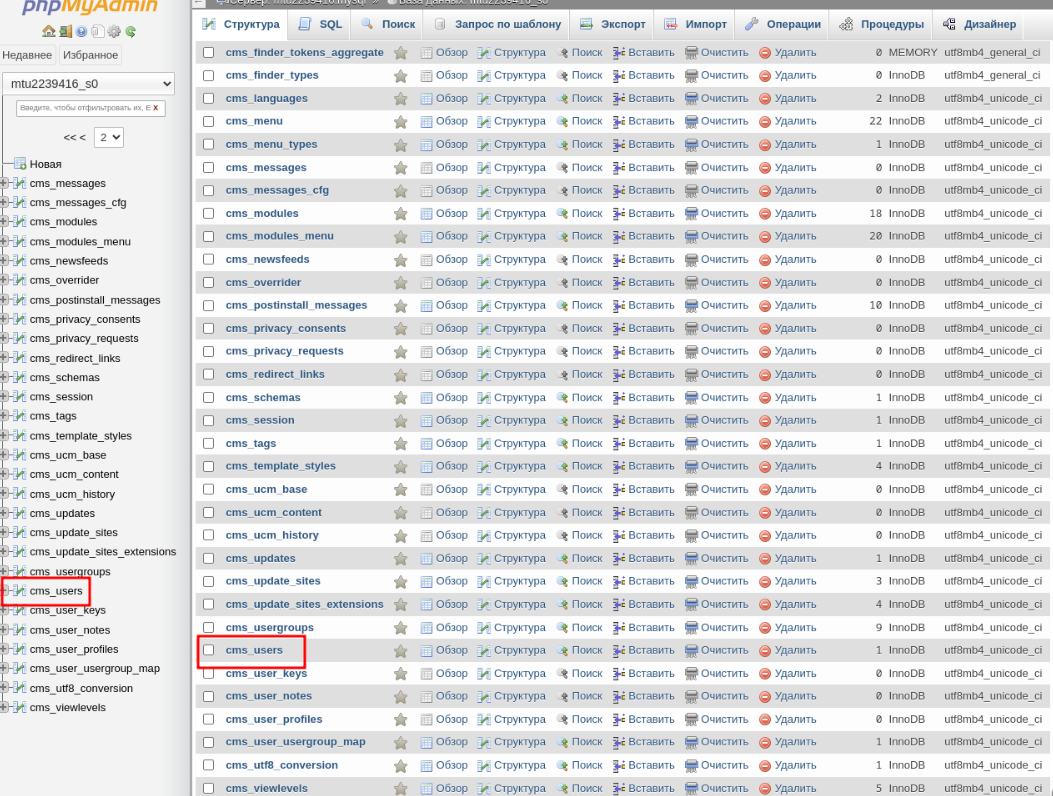
In the list of tables, click on the prefix_user table. In our example, the prefix is cms.
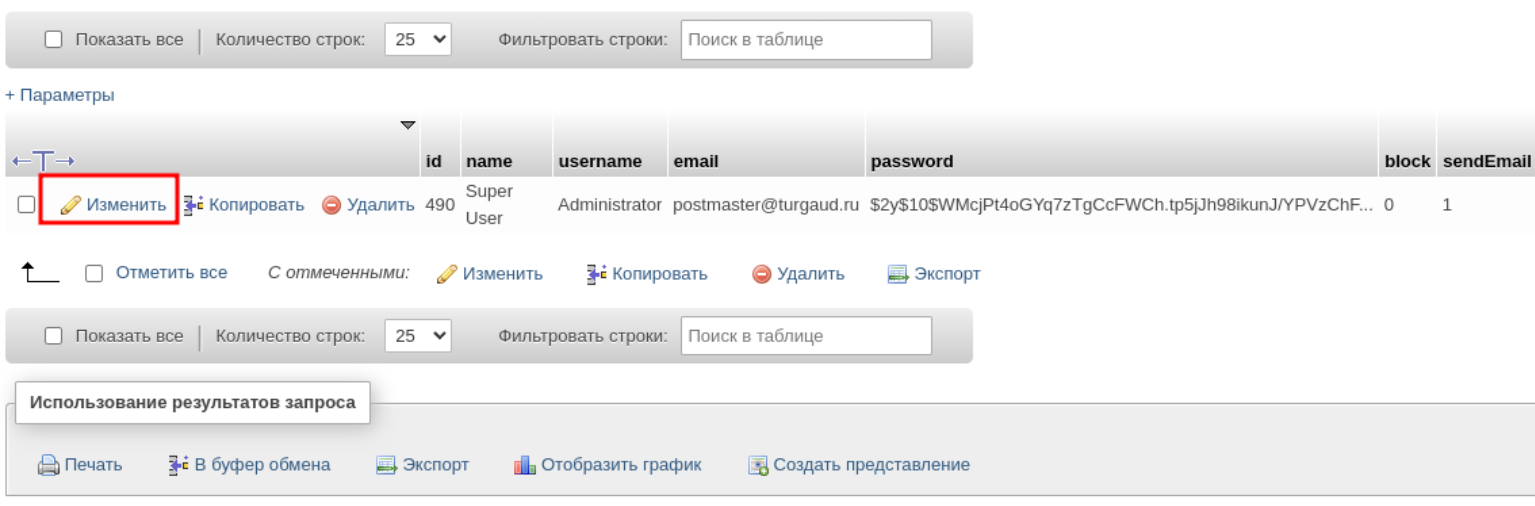
In the row with username = Administrator, click Edit.
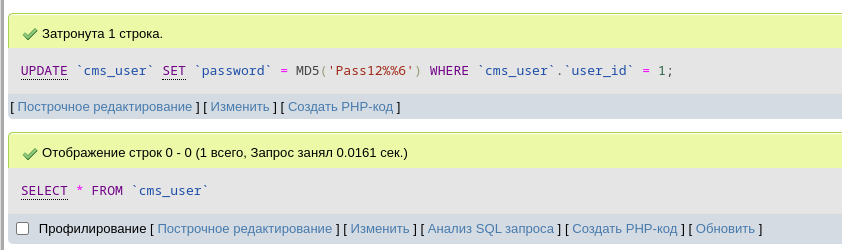
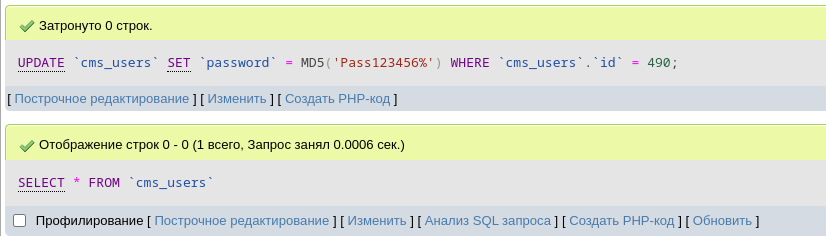
In the opened window, in the password field, select the MD5 function from the dropdown menu, then enter the new administrator password in the adjacent field. Remember or write down the new password — this is what you will use to log in to the CMS admin panel. Click Continue at the bottom of the page.
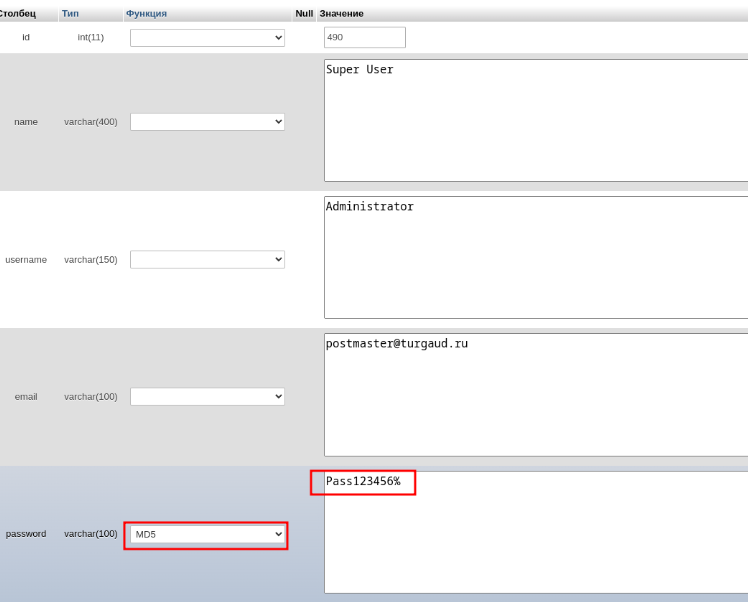
Done! Done! You have successfully changed the Joomla administrator password.
Drupal
Log in to phpMyAdmin. The database access credentials are specified in the settings.php file (in /sites/default), where the CMS stores connection settings. Click on your site’s database.

In the list of tables, click on the prefix_users_field_data table. In our example, the prefix is cms.
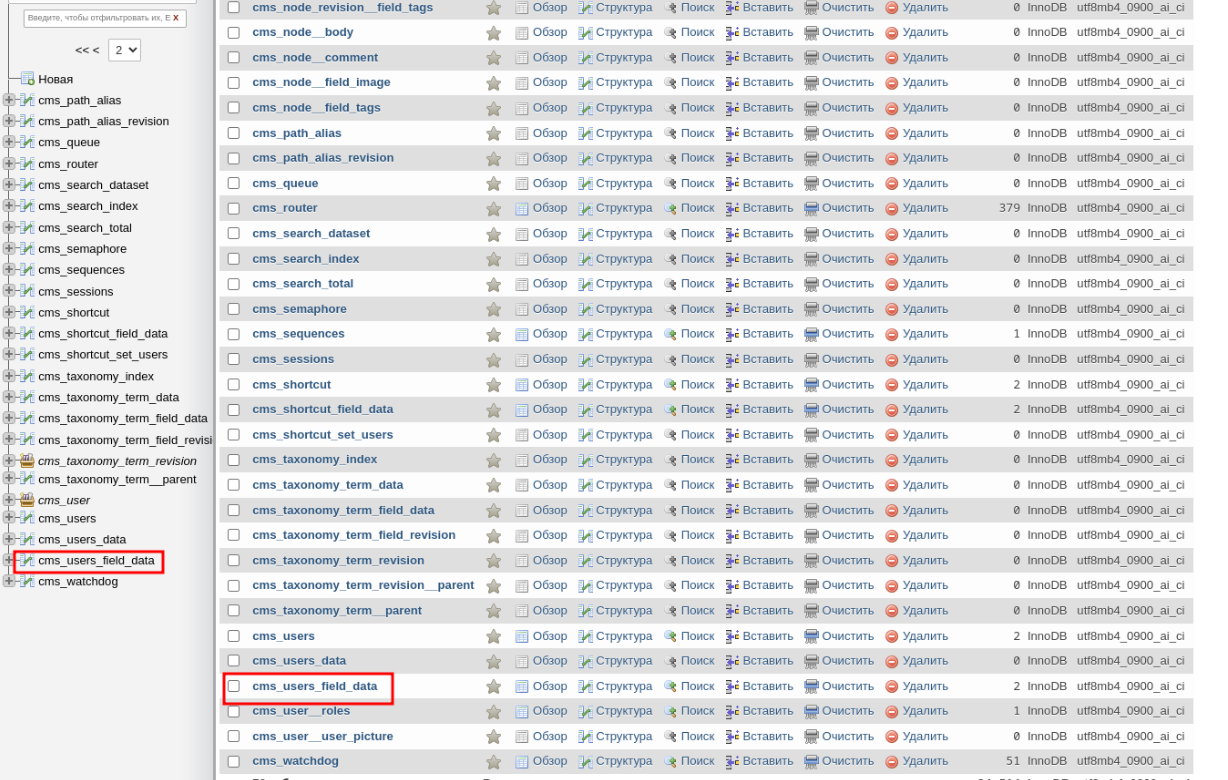
In the row where name = Administrator, click Edit (Изменить).
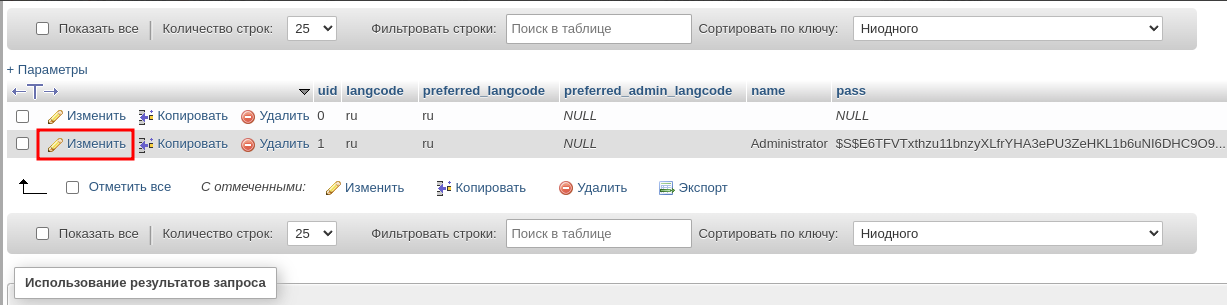
In the opened window, in the pass field under «Value», enter:
This is a hashed password that corresponds to the value «111222».
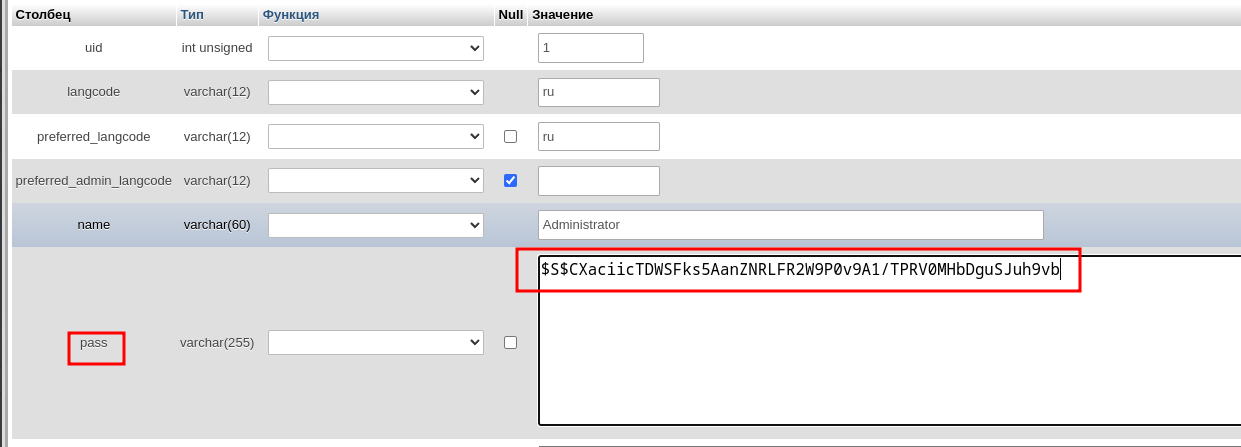
Click Continue at the bottom of the page.
Done! You have successfully changed the Drupal administrator password to «111222».

After logging into the site’s admin panel, it is strongly recommended to change the access password to a new one.
MODX Revolution
Log in to phpMyAdmin. The database access credentials are specified in the config.inc.php file (in /core/config), where the CMS stores connection settings. Click on your site’s database.
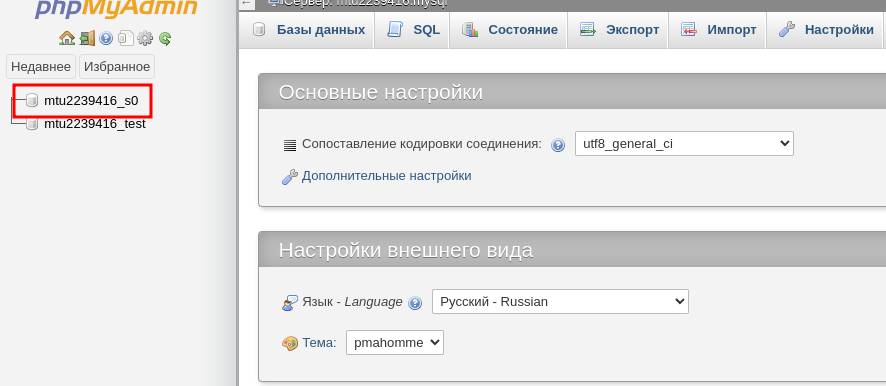
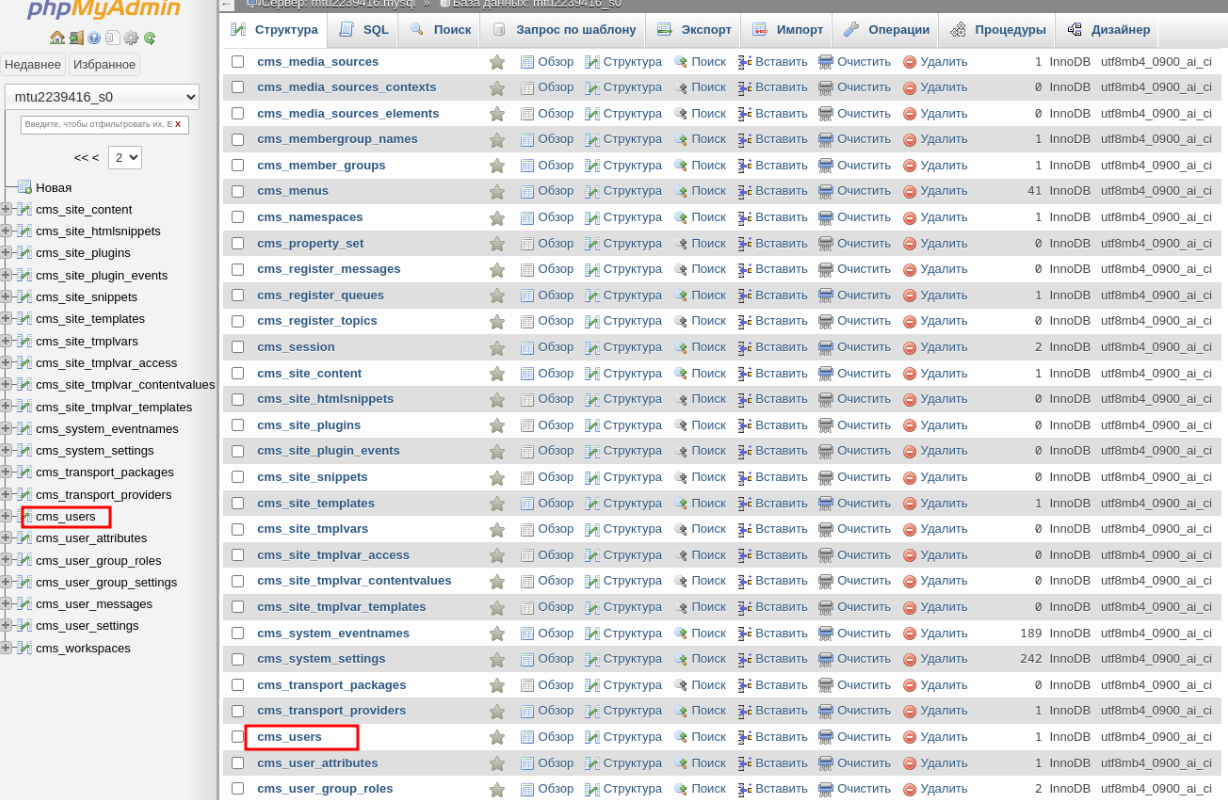
In the list of tables, click on the prefix_users table. In our example, the prefix is cms.
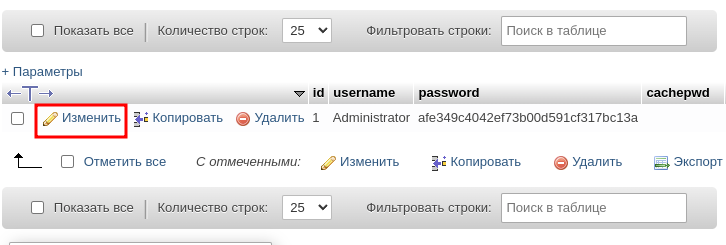
In the row with username = Administrator, click Edit.
In the opened window, in the password field, select the MD5 function from the dropdown menu, then enter the new administrator password in the adjacent field. Remember or write down the new password — this is what you will use to log in to the CMS admin panel. Click Continue at the bottom of the page.
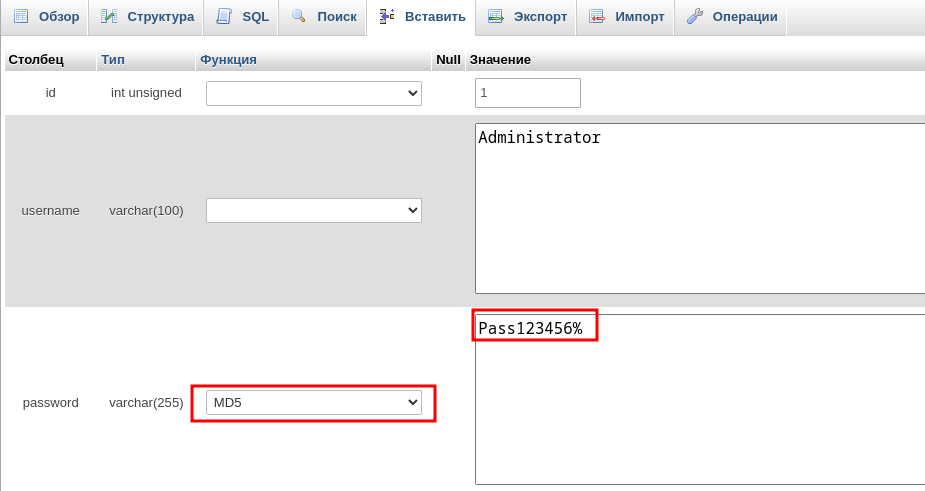
Done! You have successfully changed the MODX Revolution administrator password.