Rucenter Account: A Guide for Legal Entities
Home Page
Security
Account
Finances
Operations
Orders
Support
The Rucenter account is a user-friendly interface for managing your contracts, services, and finances. In this article, we'll explain all the sections and features available in the profile for legal entities, so you can use it as effectively as possible.
Home Page
The home page of your profile provides a quick overview of your account and allows you to navigate to other sections.
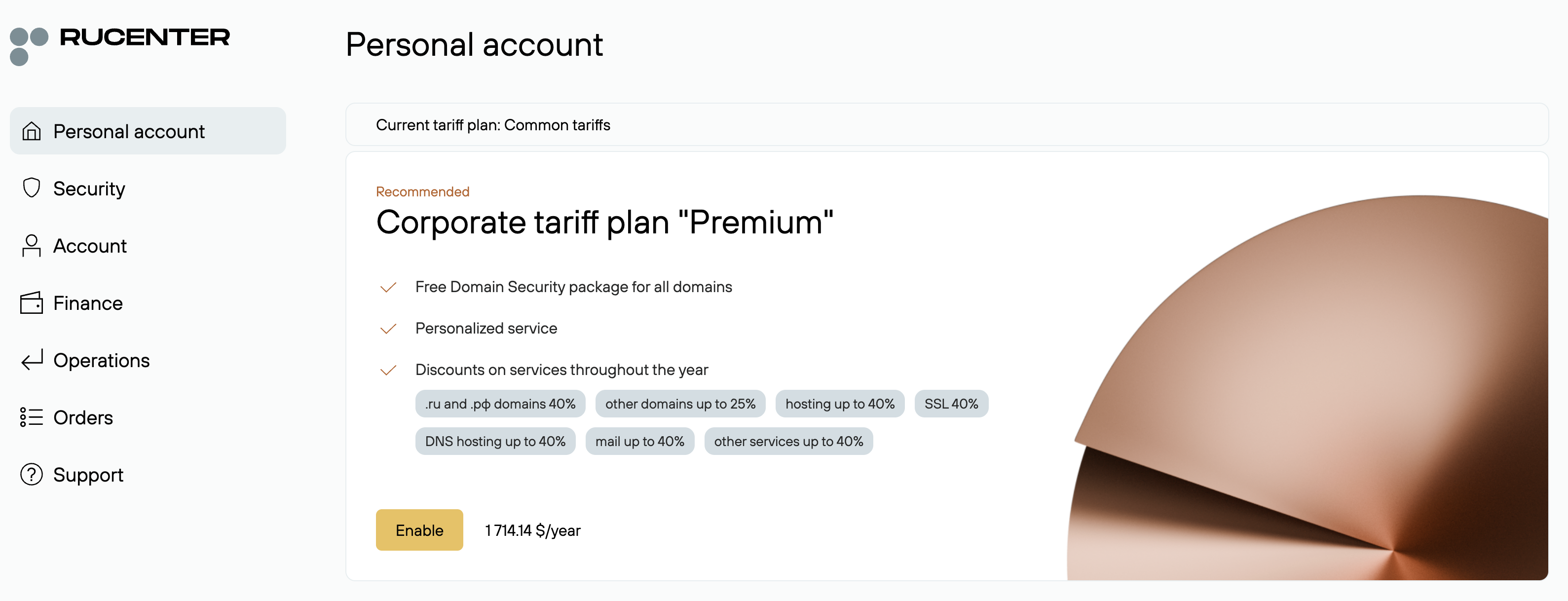
Corporate Price Plan
If you've already activated a price plan, the banner displays information about your active plan, its validity period, and renewal dates. By clicking "Learn More", you'll be taken to a page describing the plan, service prices under the plan, and the option to change your plan.
If you haven't yet activated a price plan, you'll see a recommended plan based on your current usage and potential savings as you expand and expand your service offerings. You can activate it using the link on the banner or select any other price plan.
Agreement Balance
Information about your current account balance, amount due, and bonuses. Follow the links to view detailed information about expenses, upcoming charges, or to top up your account.

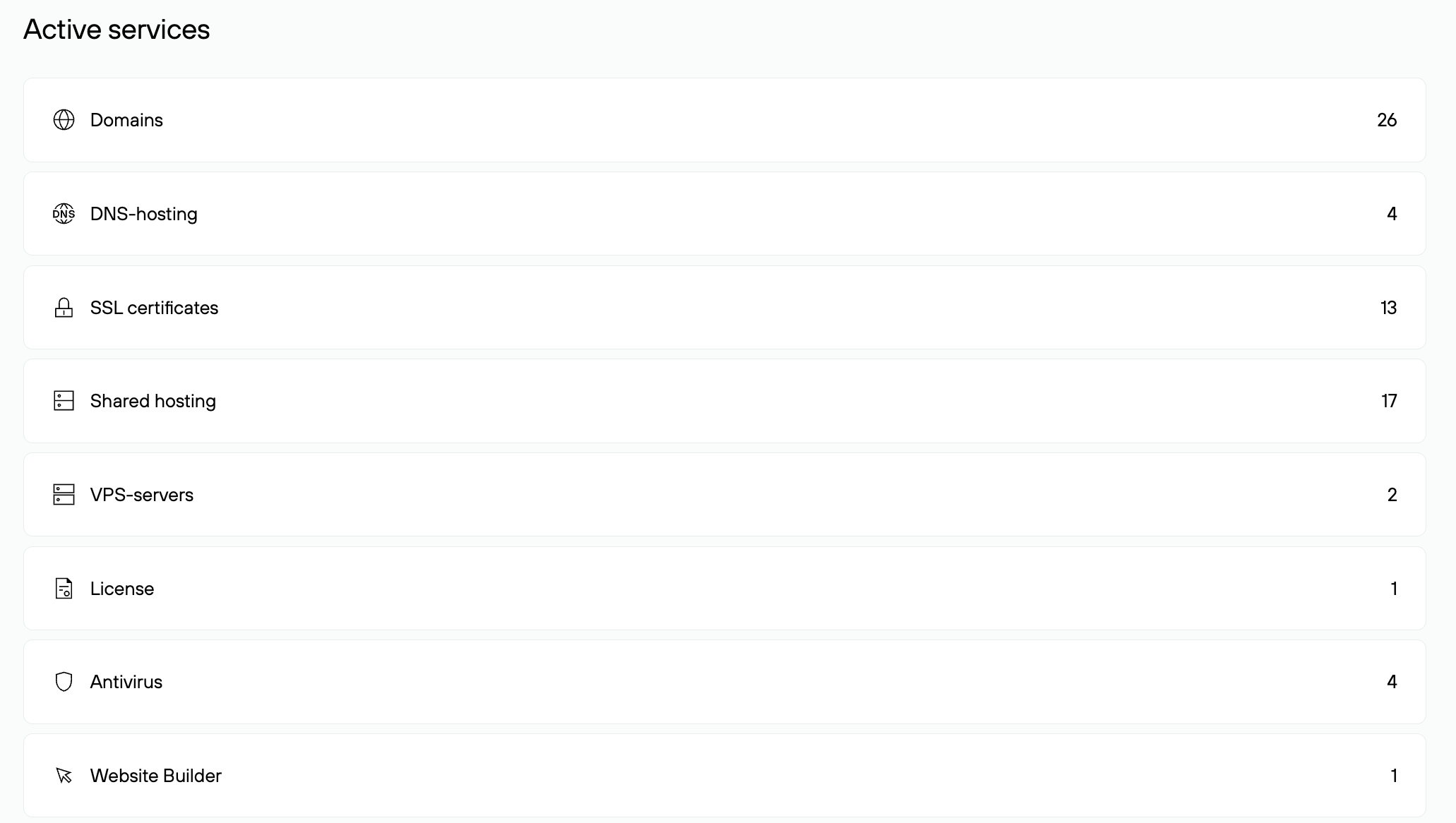
Active Services
All services currently active under your agreement. Clicking on the desired section will take you to settings, as well as information about validity periods and renewals.
Security
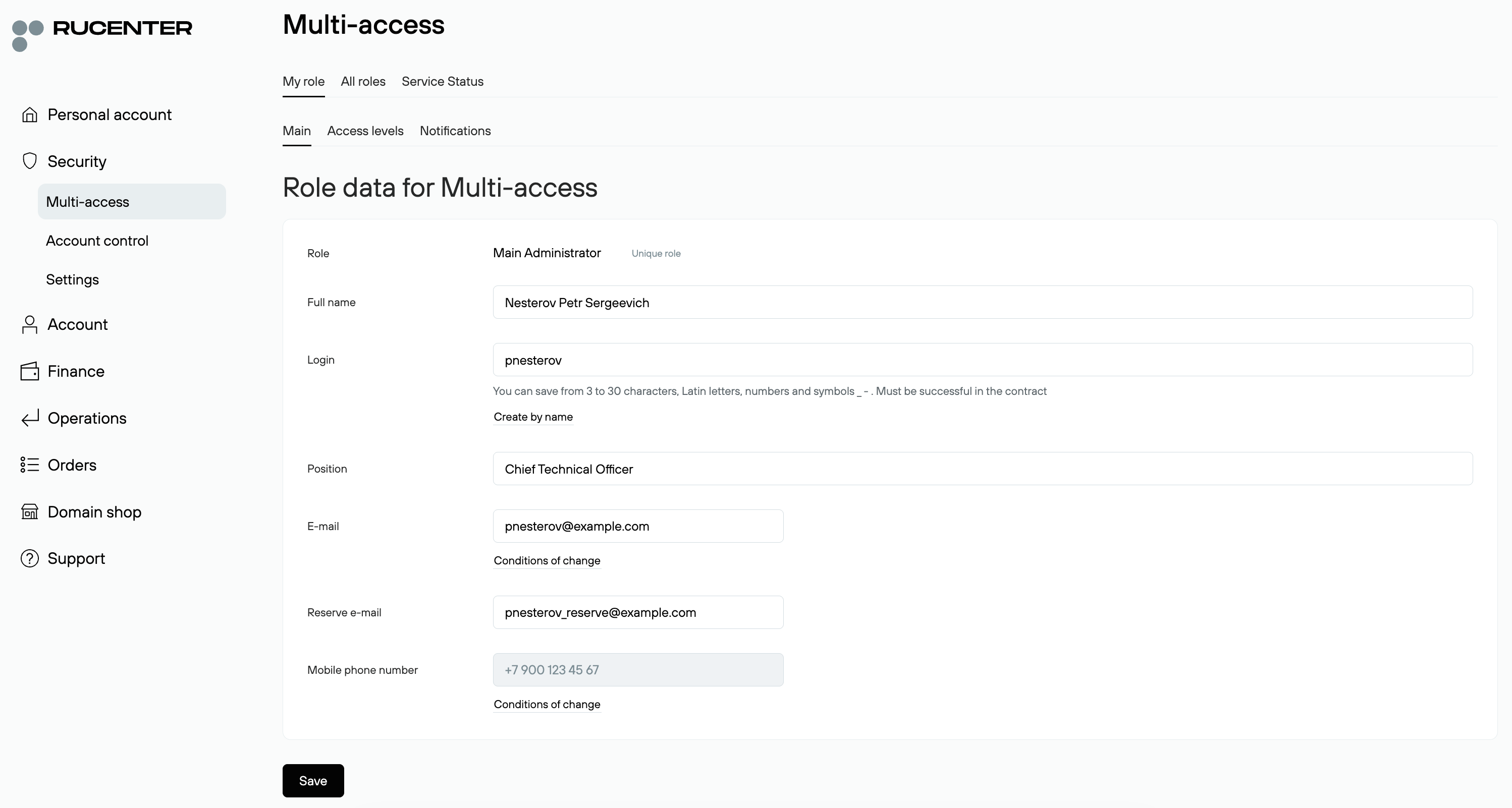
Multi-access
This section allows you to set up multi-role management for your Rucenter profile. You can organize simultaneous access for different employees, dividing their rights according to their areas of responsibility.
If you have a corporate plan, the Multi-access service is provided free of charge. Customers on general plans can order Multi-access separately.
Learn more about activating and using the Multi-Access service.
If you are not using Multi-Access, the main page of this section displays your agreement contact information—it is important to keep it up-to-date.
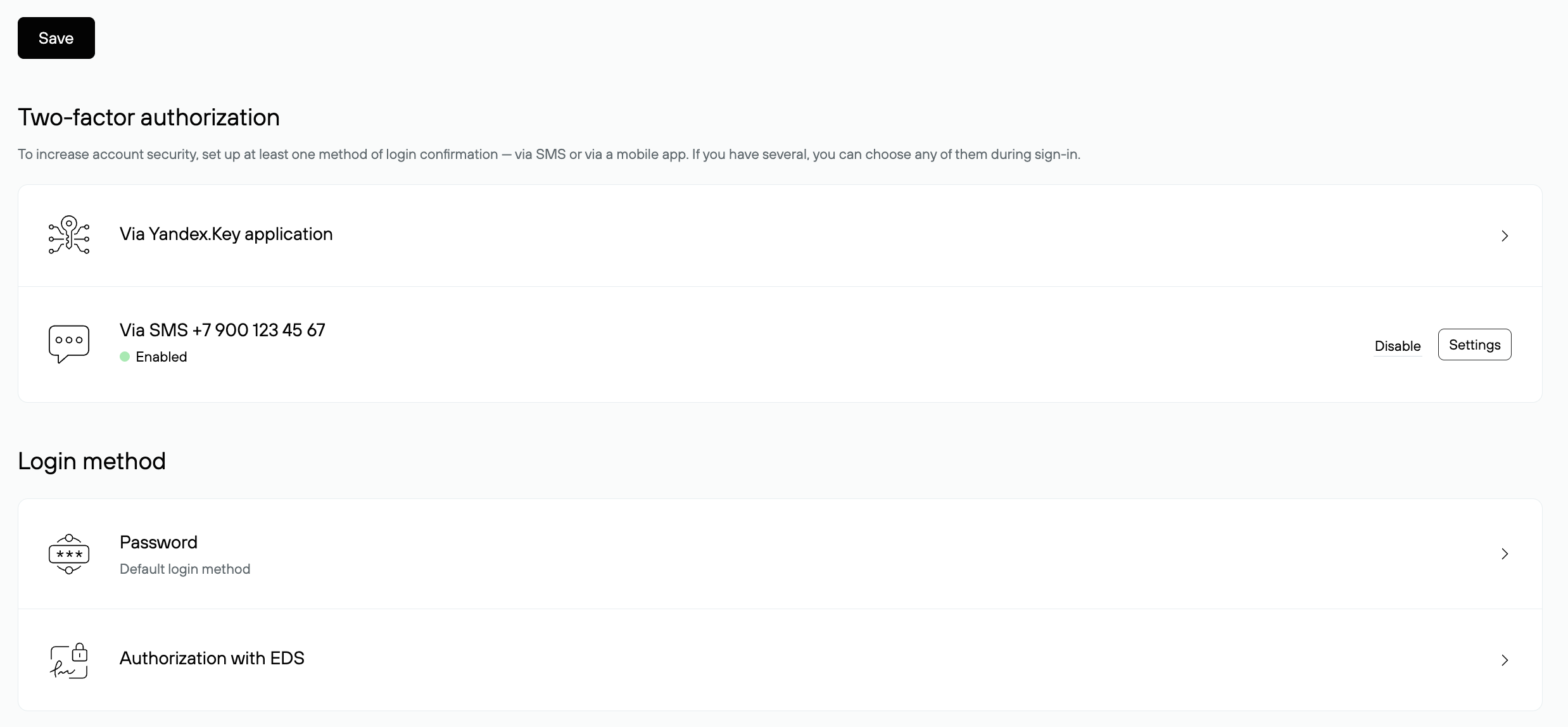
This section also allows you to set up two-factor authentication, enable digital signature authorization, and manage your password.
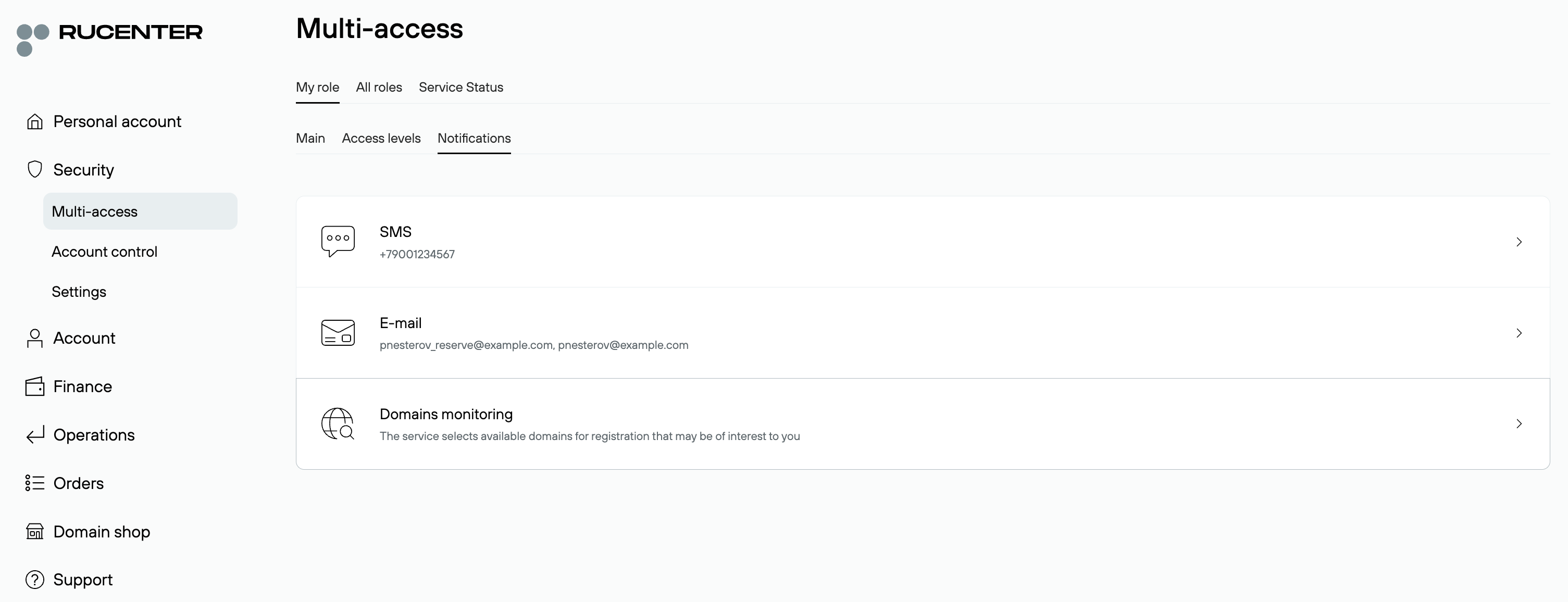
The Notifications tab allows you to manage SMS and email alerts for various types of events. You can configure the status of your domains in the Domain Monitoring section.
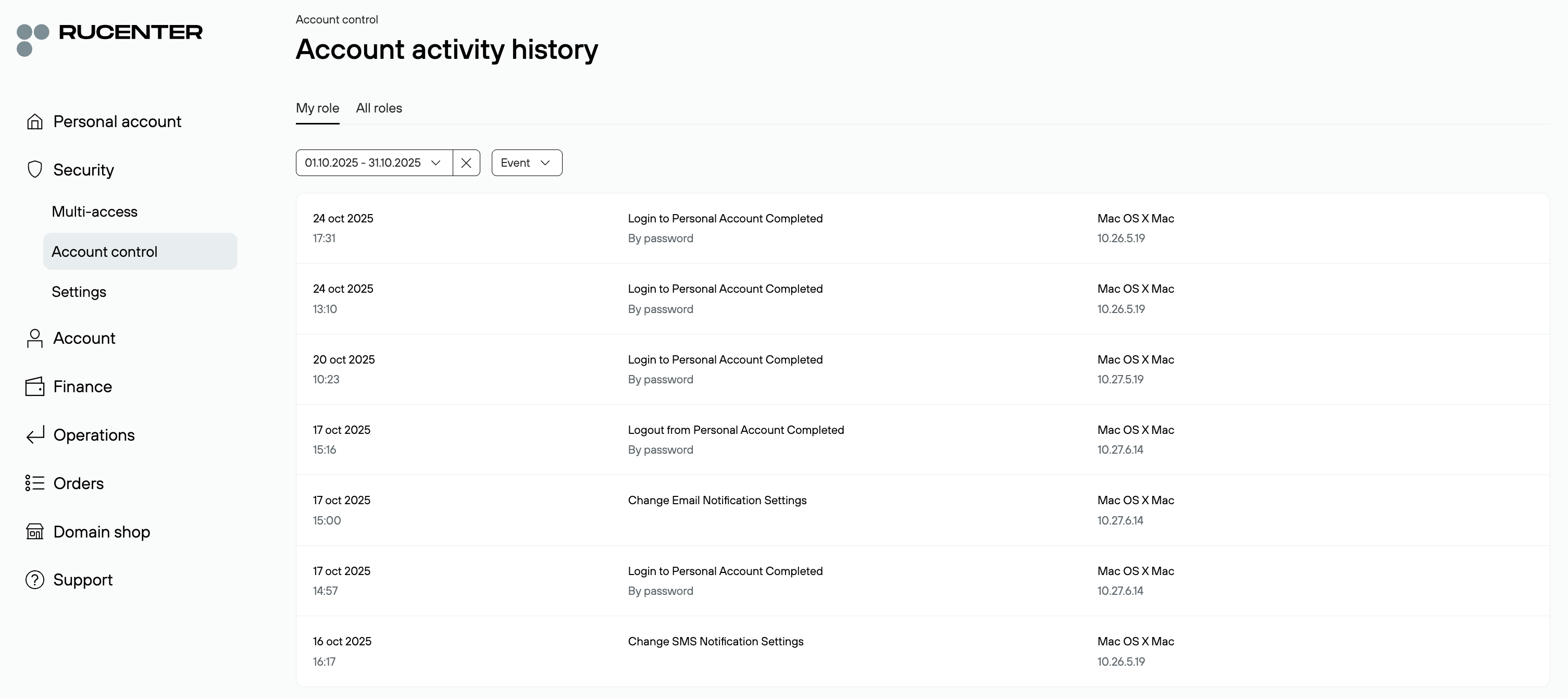
Account Control
In this section, you can track information related to your account activity. The "Action History" subsection provides information on all completed transactions (e.g., service renewals or deletions, administrator changes, balance top-ups, etc.). Data can be filtered by date and event type.
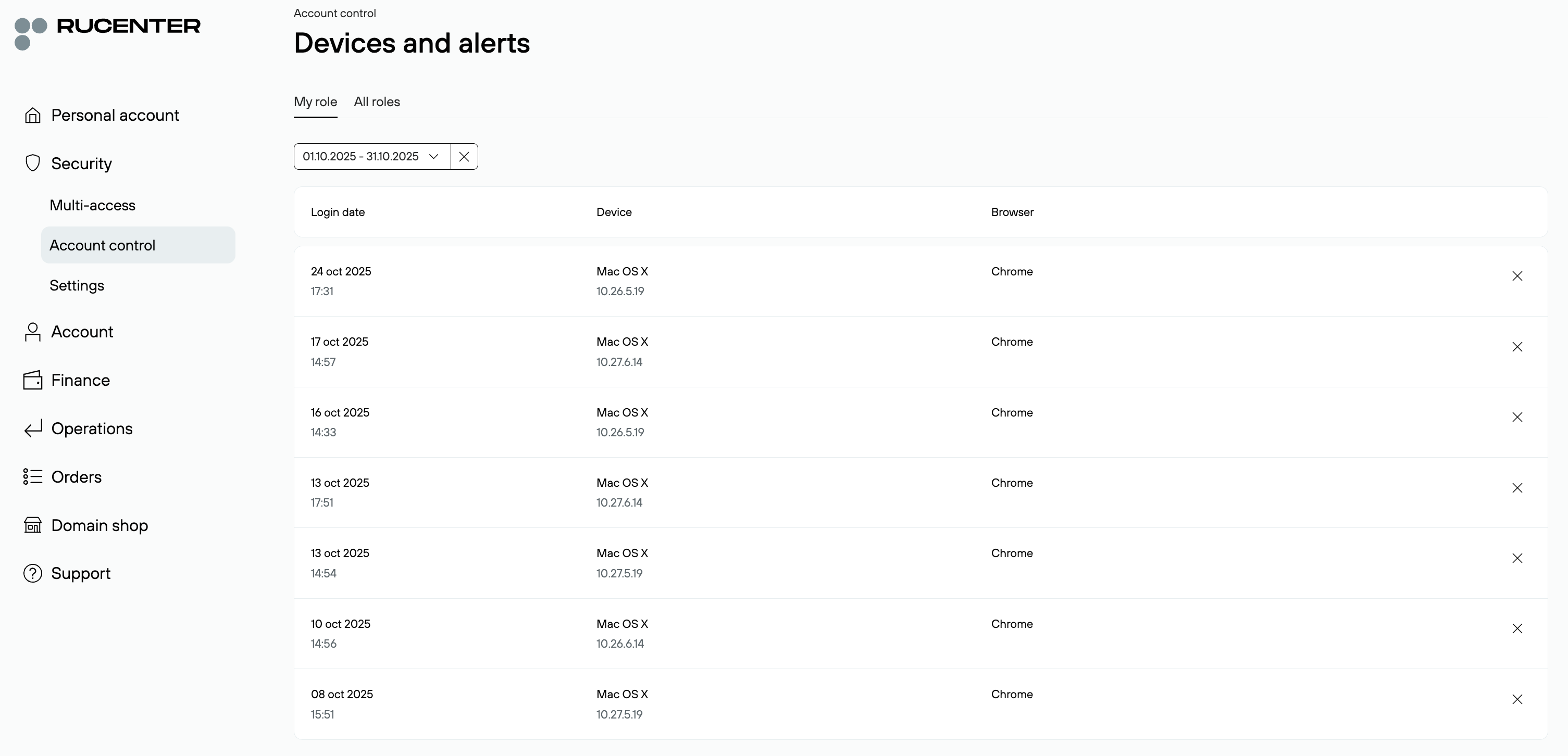
The "Devices and Notifications" subsection contains information on the devices and browsers used to log in to your account. Data can be filtered by date. Here you can also enable notifications about first-time logins from new devices. To do this, click "Enable" in the information message below the list of devices.
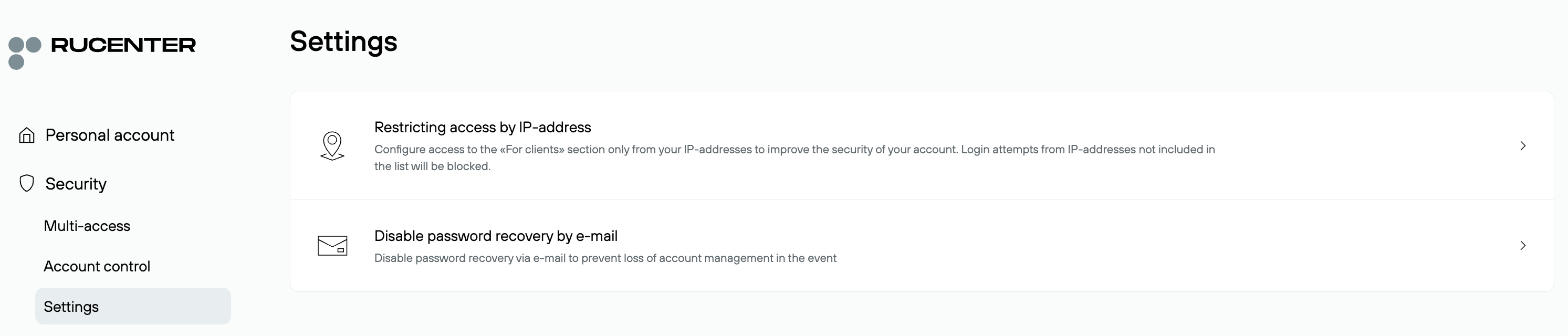
Settings
In this section, you can configure options such as "IP address access restriction" and "Disable password recovery via email.”
Account
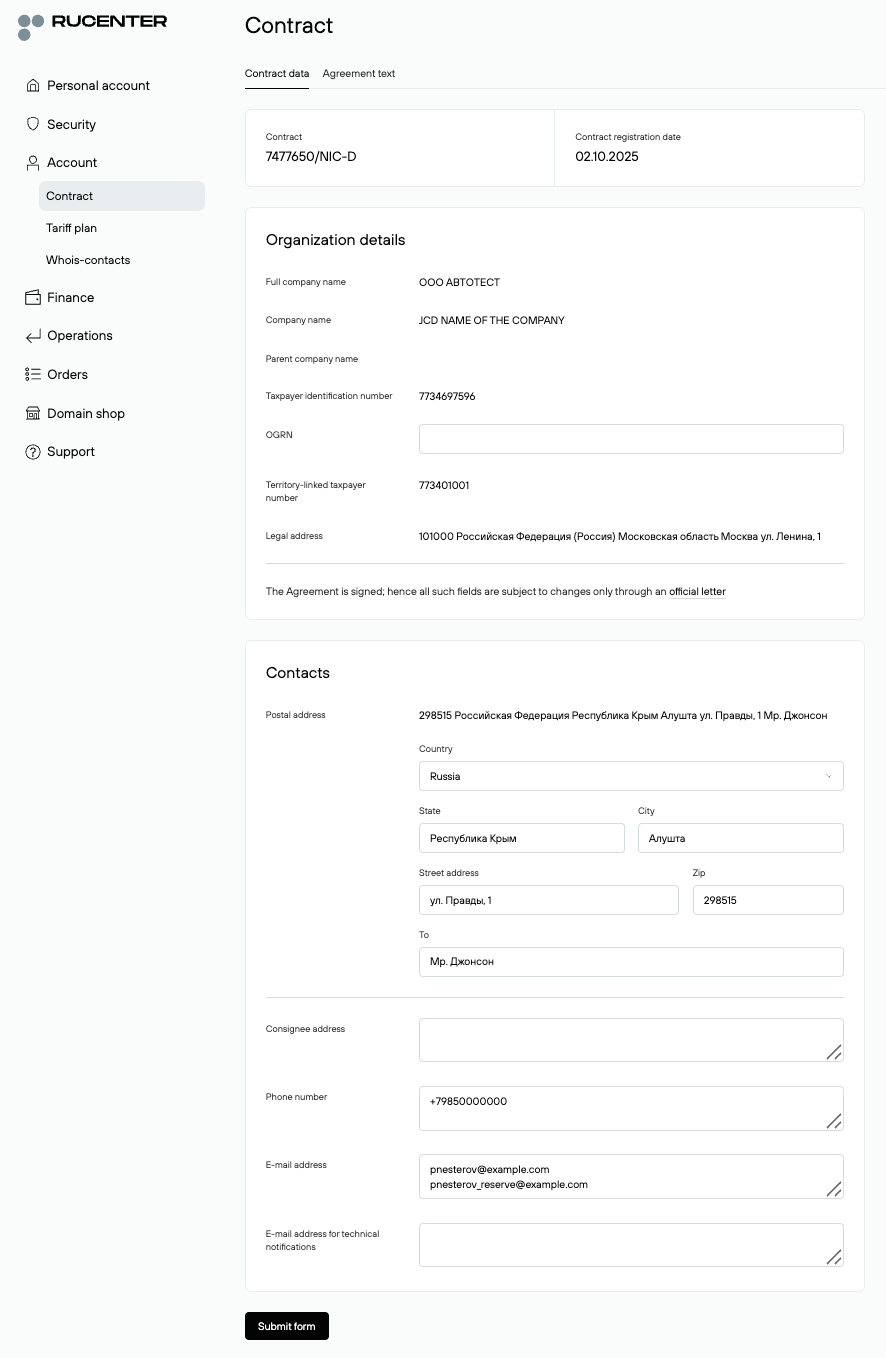
The "Account" section allows you to manage your agreement details, security settings, contacts, and notifications.
Agreement
Full terms of the agreement, including managing your organization's data and contacts. We especially recommend keeping your email address up to date to avoid missing service renewal and status notifications.
Price Plan
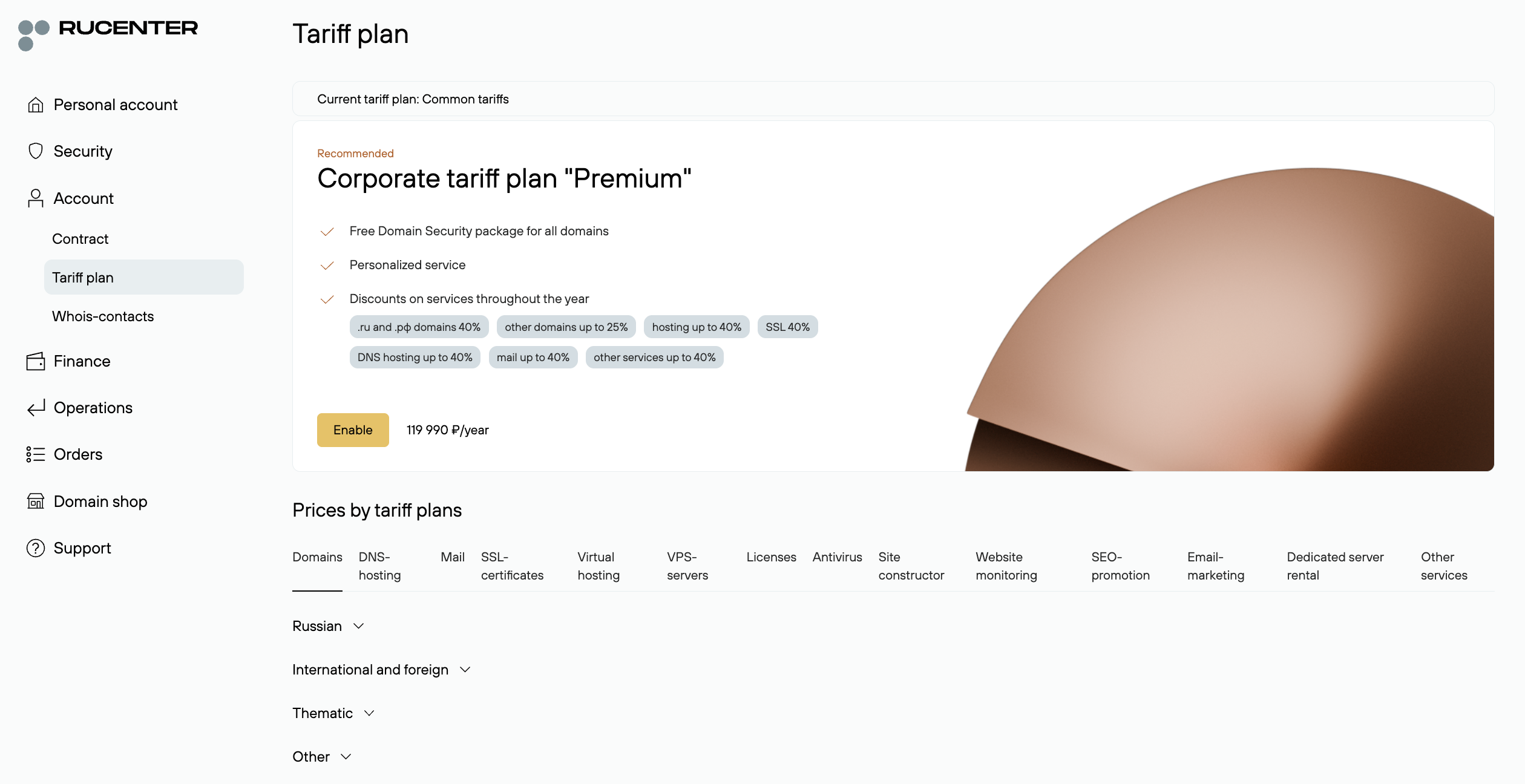
If you've already activated a price plan, the banner displays information about your active plan, its validity period, and renewal dates.
If you haven't yet activated a price plan, you'll see a recommended plan based on your current usage and potential savings as you expand and expand your service offerings. You can connect via the link in the banner.
Below is information on service prices for the specified price plan.
To view information on all plans, click the "All prices and price plans" link.
Whois Contacts
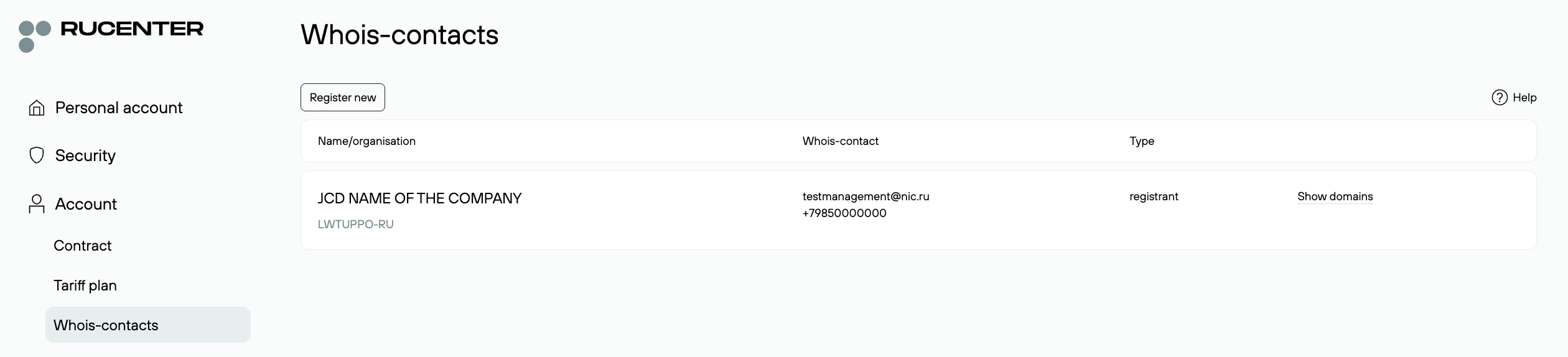
Whois settings for domains managed through your profile. You can update the domain owner's contact information or register a new contact.
Finances
The "Finances" section provides comprehensive information about your account status, upcoming payments, and reporting documents.
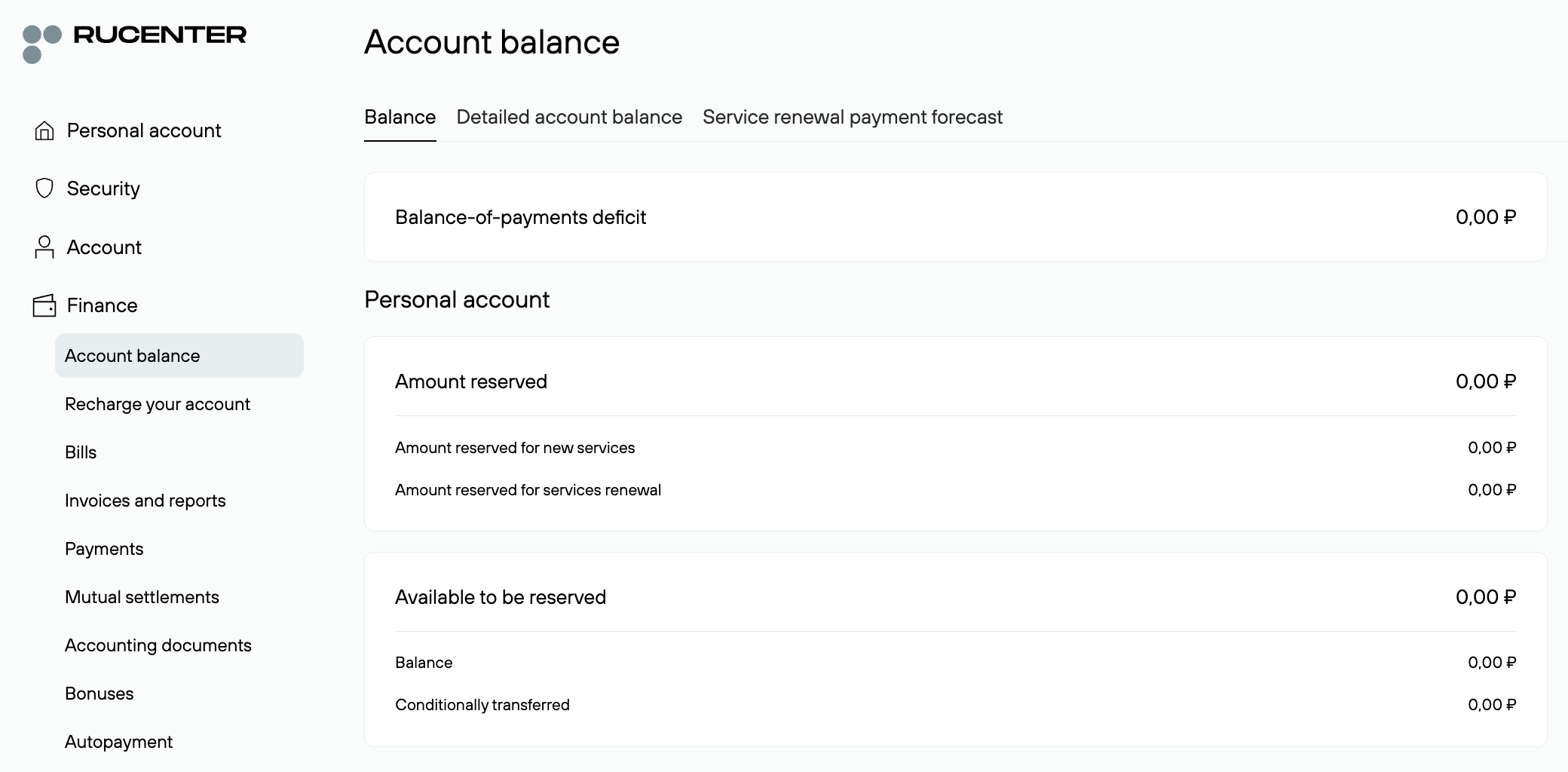
Account Balance
Your current account balance, a detailed statement of spent funds, and a forecast of upcoming charges.
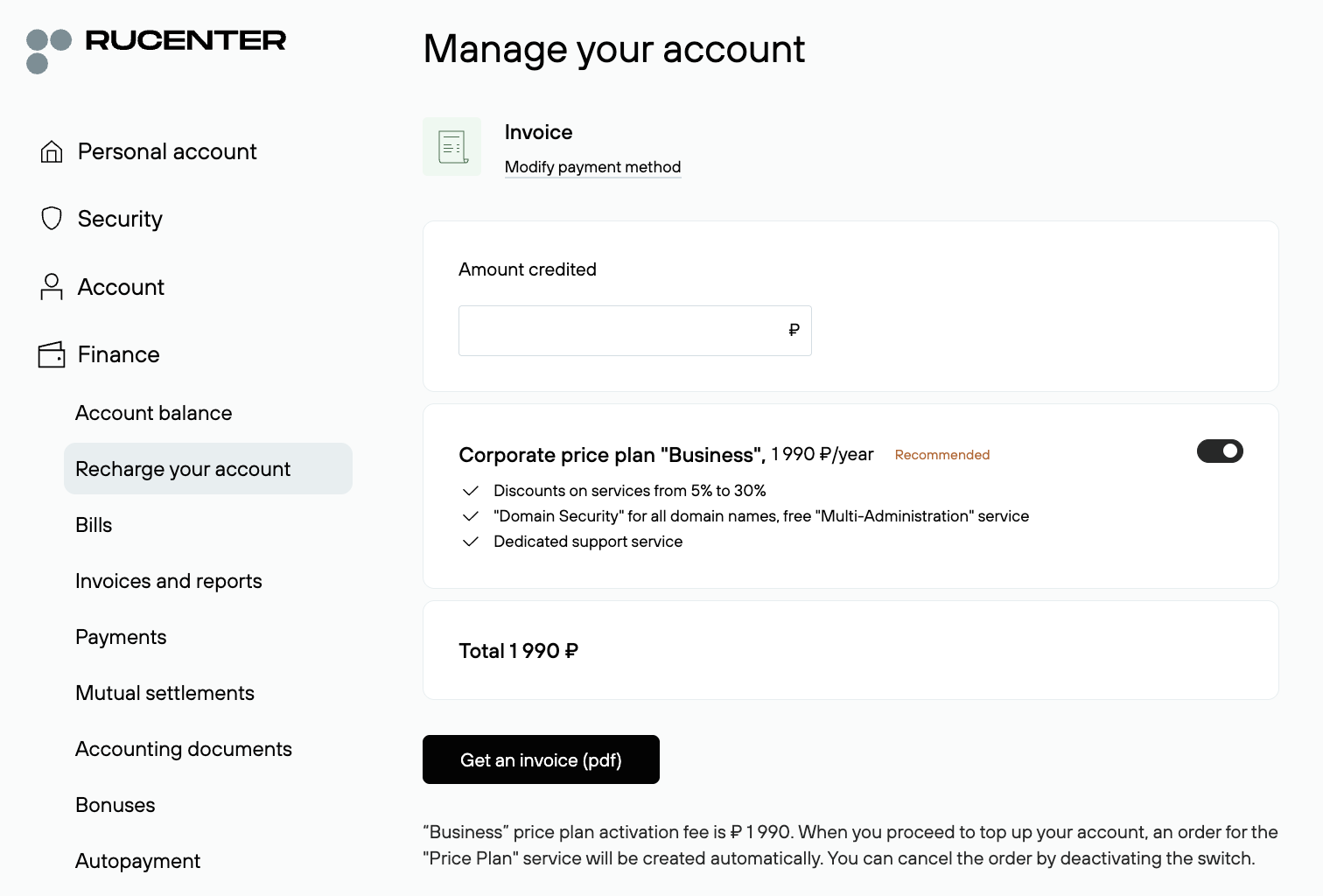
Recharge your account
To top-up your contract account, select a payment method (invoices, bank cards, e-wallets, and other payment options), enter the amount, and proceed to payment.
Bills
A list of all issued invoices with their status and the option to download them as PDFs. To quickly find the desired invoice, click the "Search" button and use the filters: invoice number, issue date, and status. You can also create a new invoice in this section.

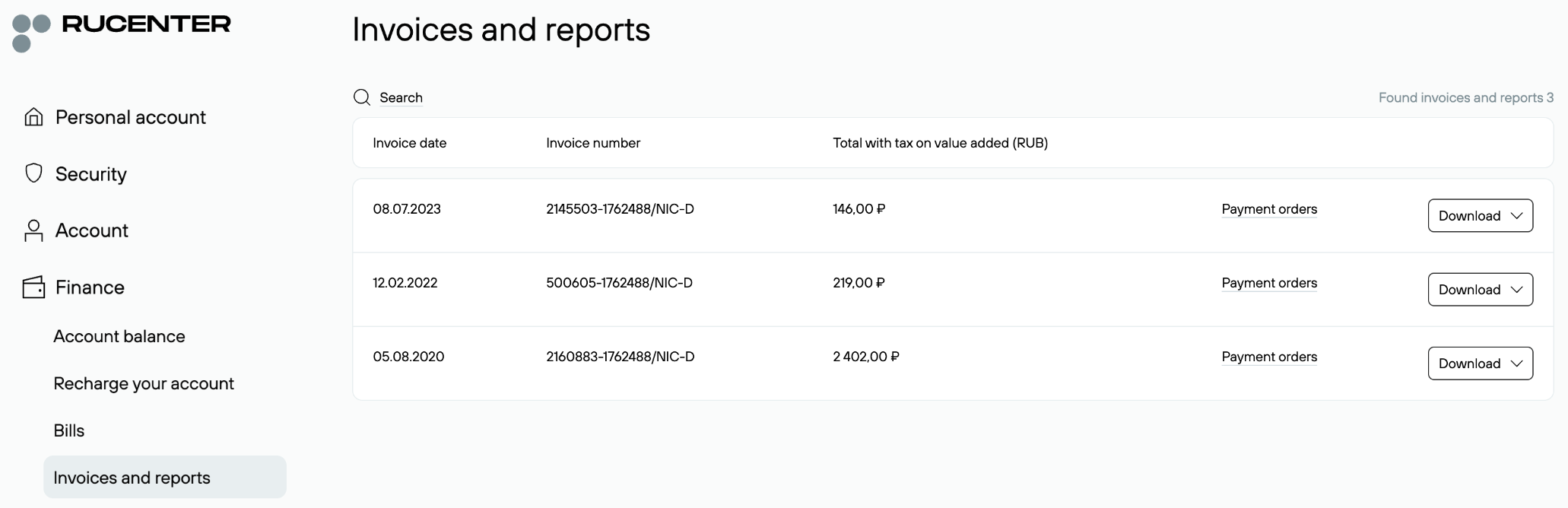
Invoices and reports
Access official financial documents, such as invoices and service statements, which can be downloaded. To quickly find the document you need, click the "Search" button and use filters: period, invoice number, service type, domain, and year.
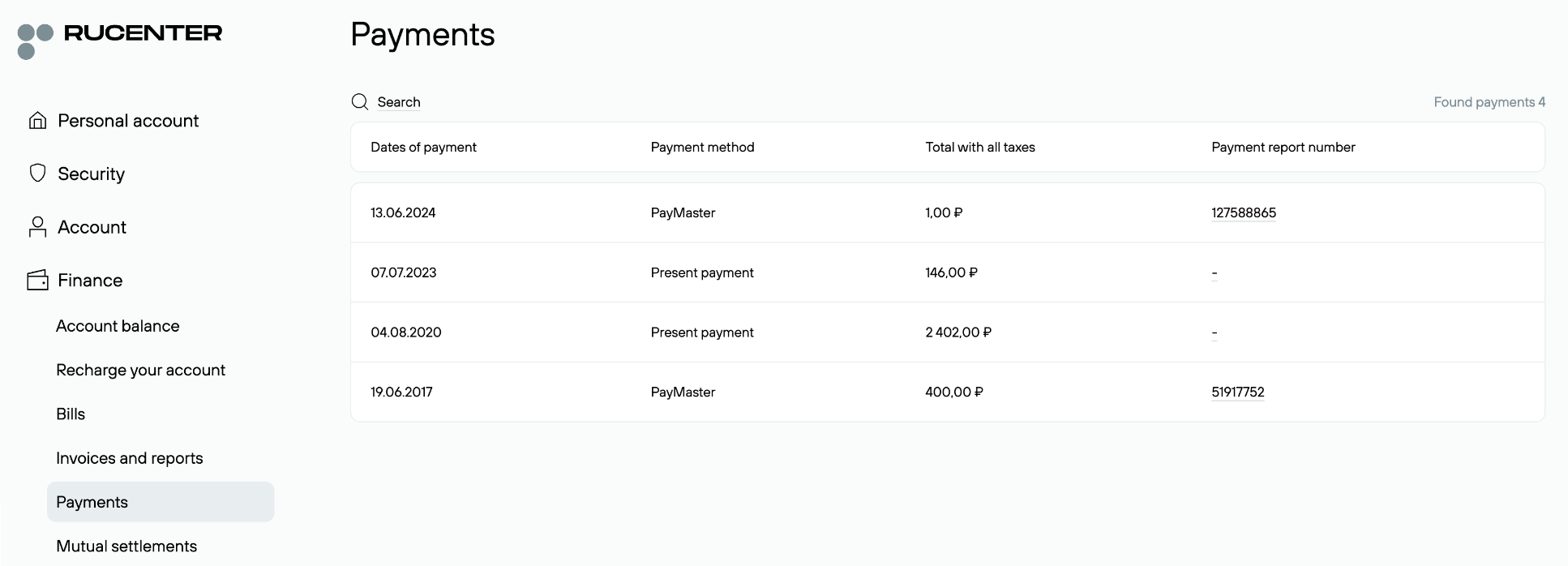
Payments
Information about completed payments, including date, payment method, and payment document number. To quickly find the payment you need, click the "Search" button and use the filters: payment type, amount, payment number, and period.
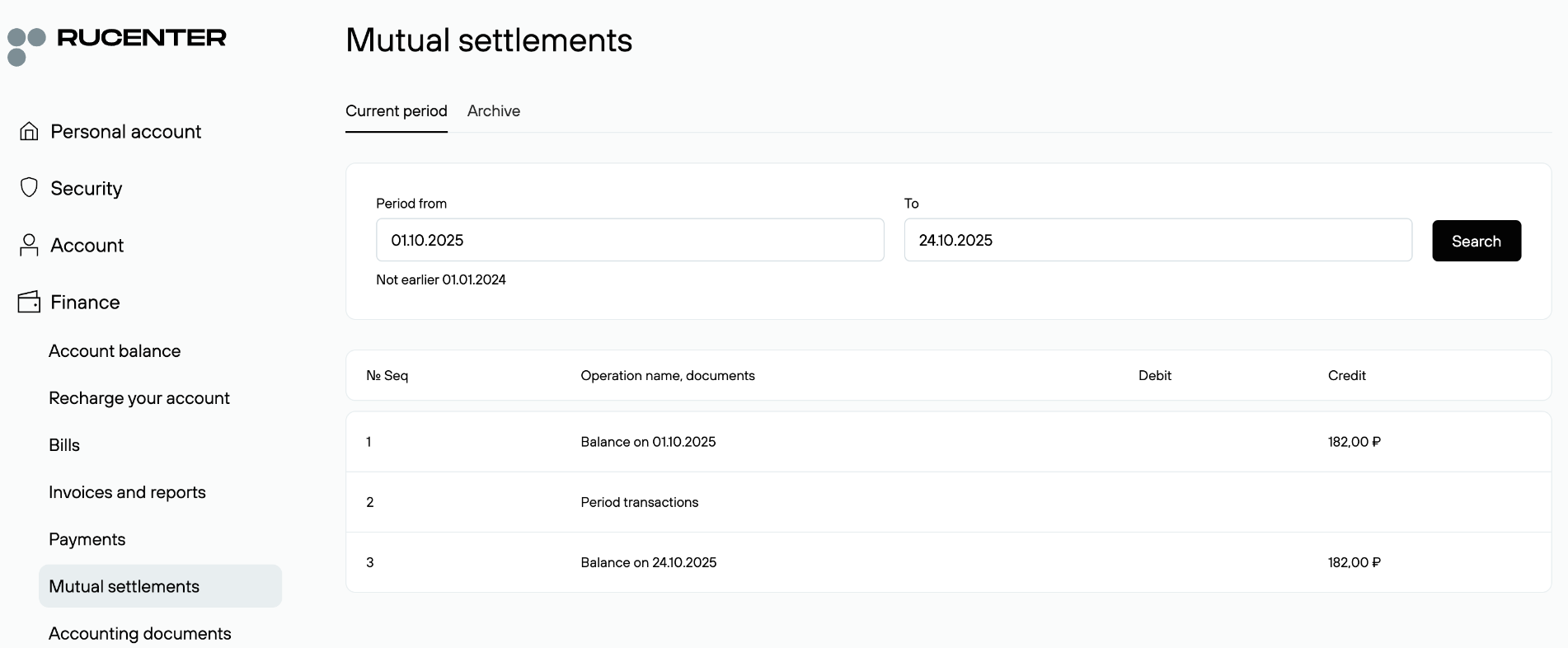
Mutual settlements
Information on all mutual settlements with the company. Information is available for the current period and an annual archive, with the option to download a reconciliation statement.
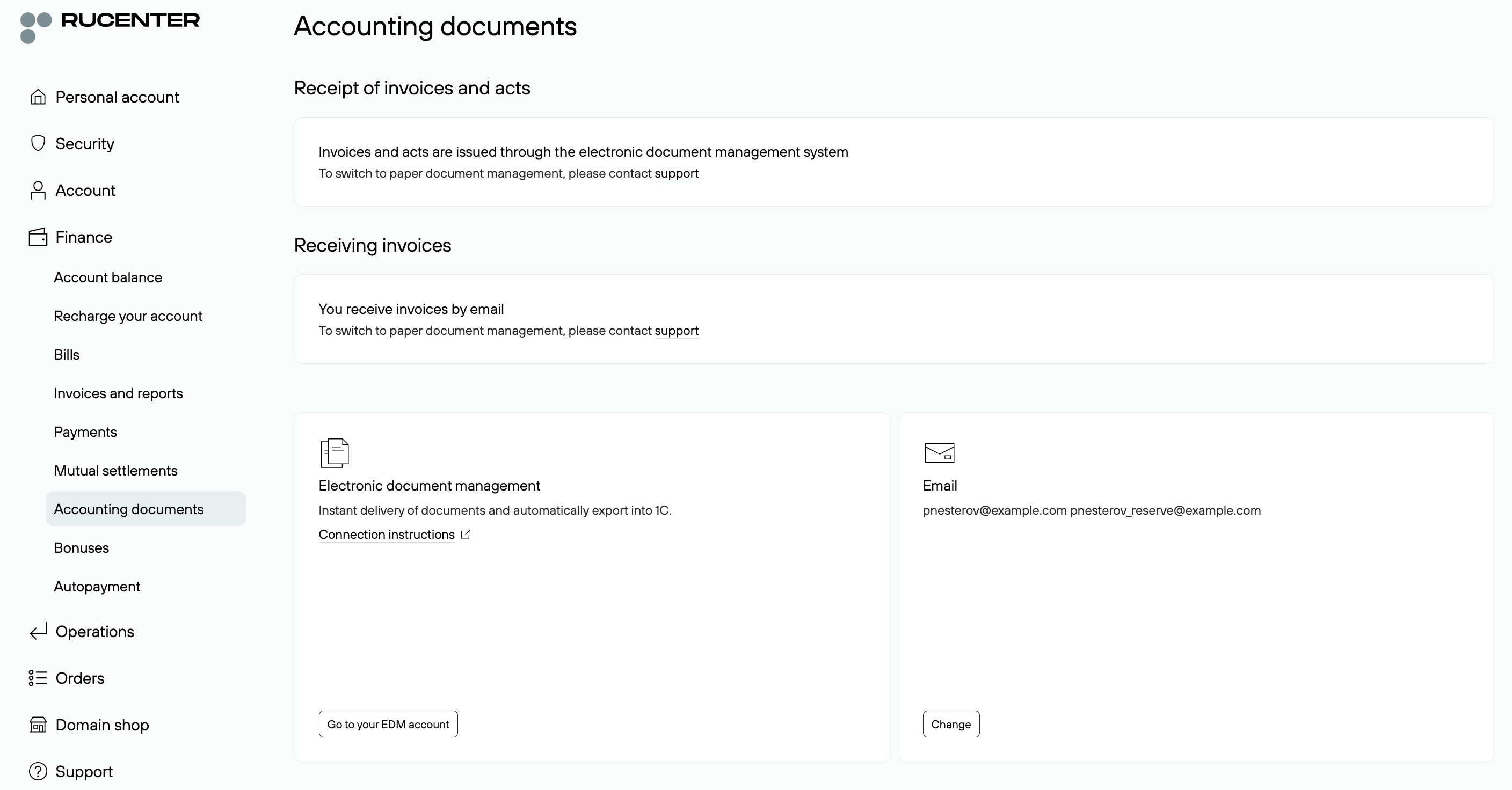
Accounting documents
This section contains information about the current method for receiving reporting documents. You can also change the contact email address for receiving reporting documents. Instructions for connecting to the electronic document management system are also available in your profile.
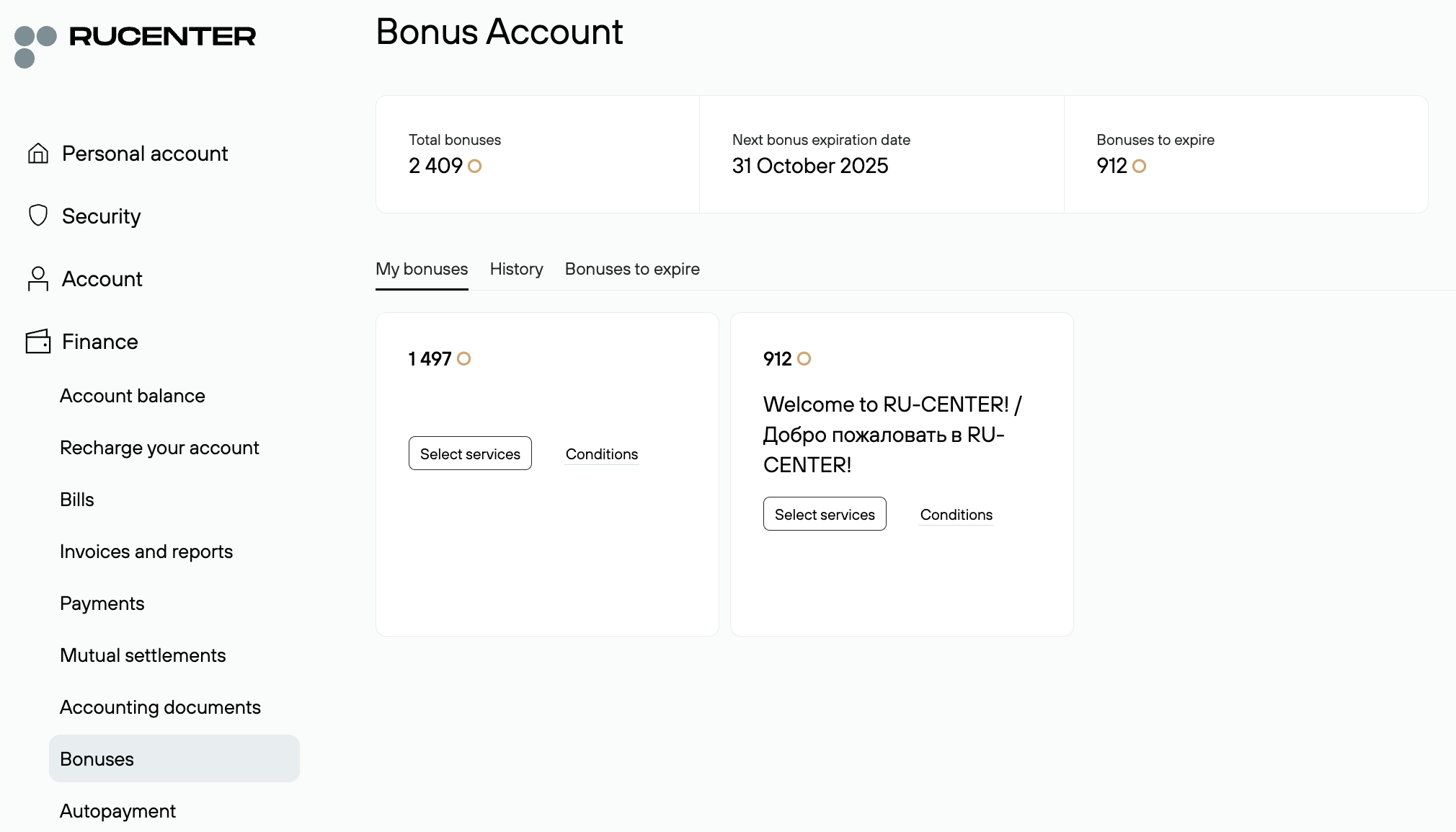
Bonuses
Information on accrued bonuses that can be used to pay for Rucenter services, transaction history, and bonus expiration.
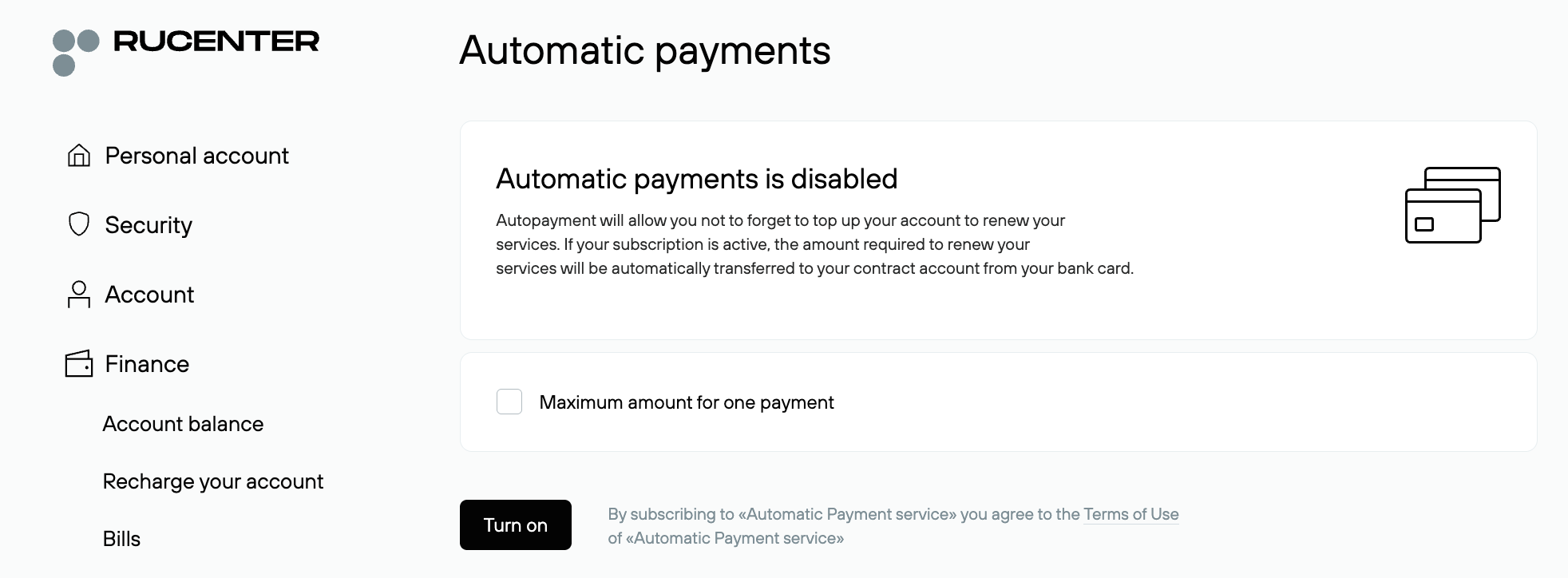
Automatic payment
Manage the automatic debit service from your bank card when you renew your service.
Operations
In the "Operations" section you can manage all processes related to your services.
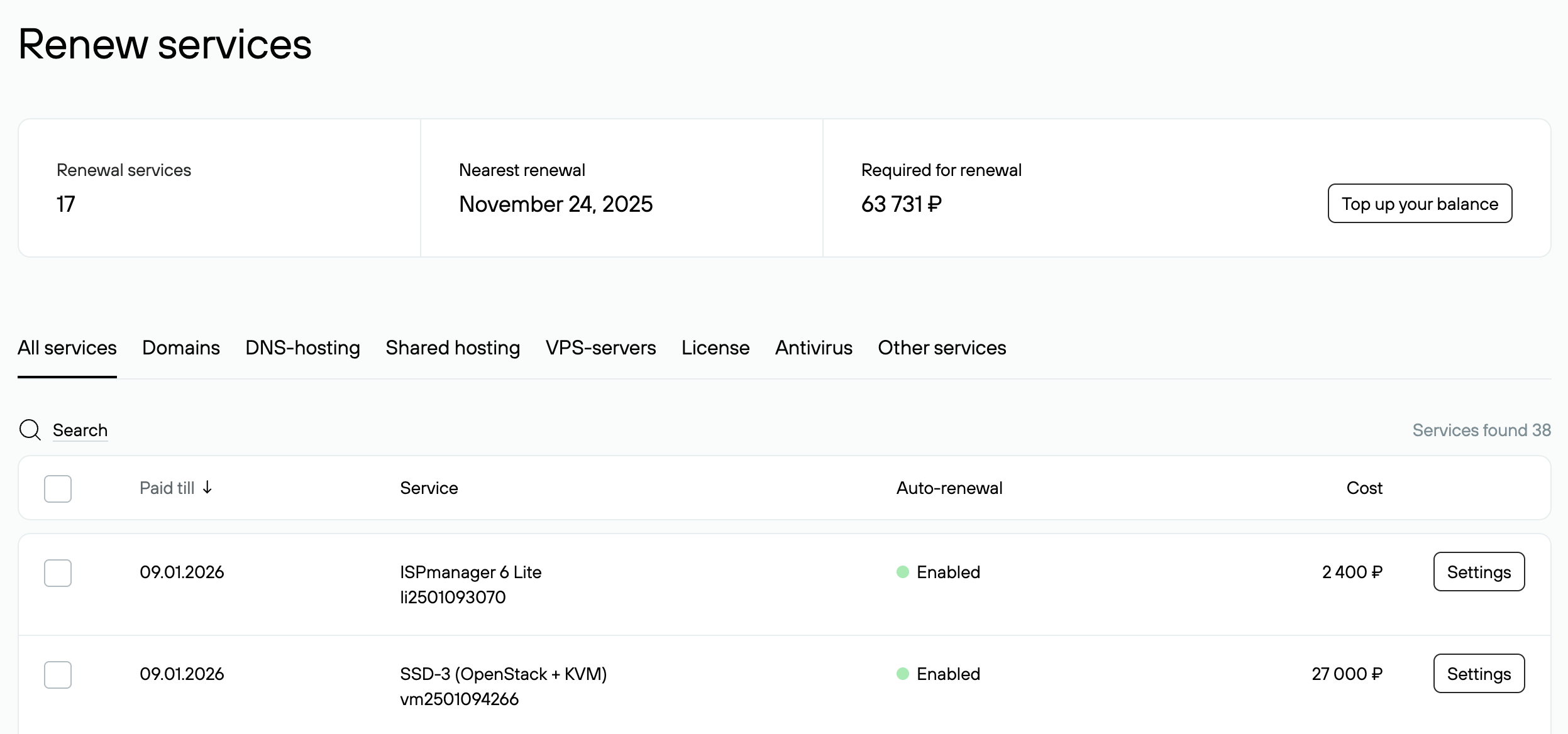
Service Renewal
Services requiring renewal, the next renewal date, and the required amount. You can renew services early or enable/disable auto-renewal.
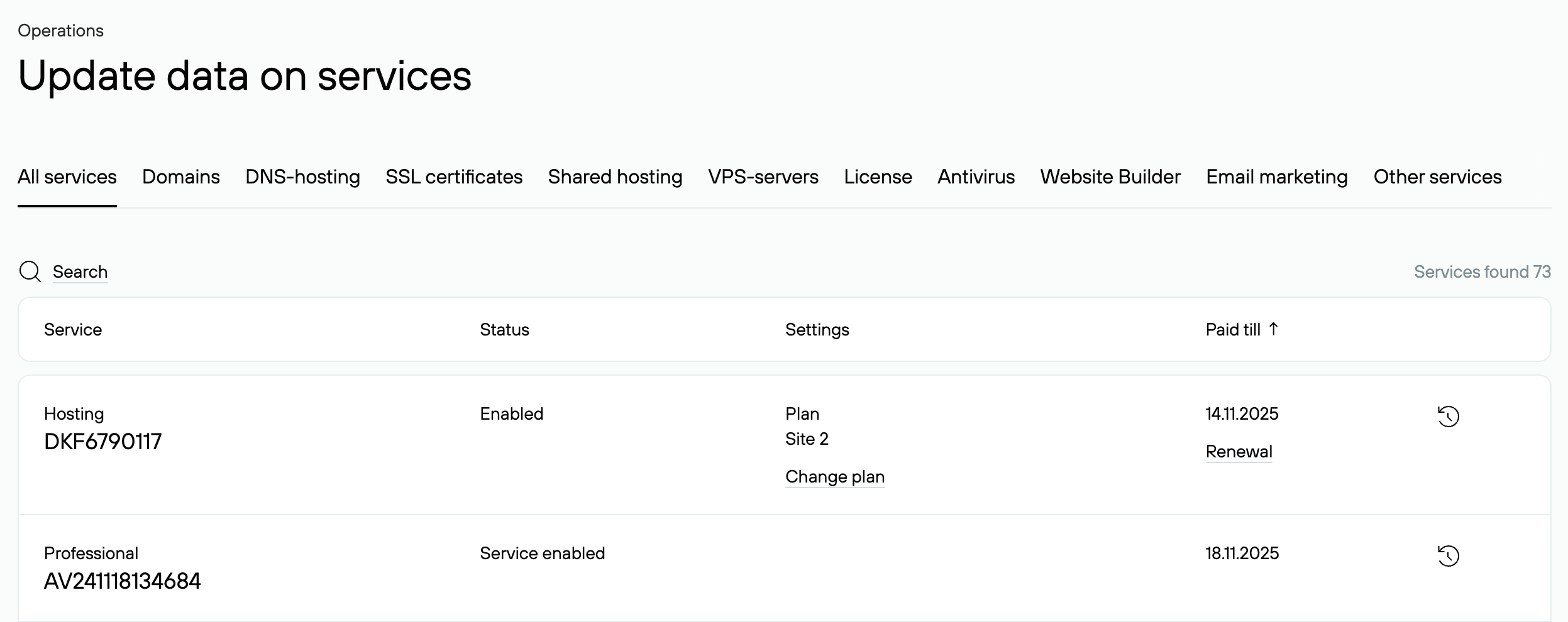
Review and update data on services
Making changes to the settings of existing services. Go to the tab with the service name and click the link with the domain name or service ID to access the settings. For example, you can change the list of DNS servers for a domain.
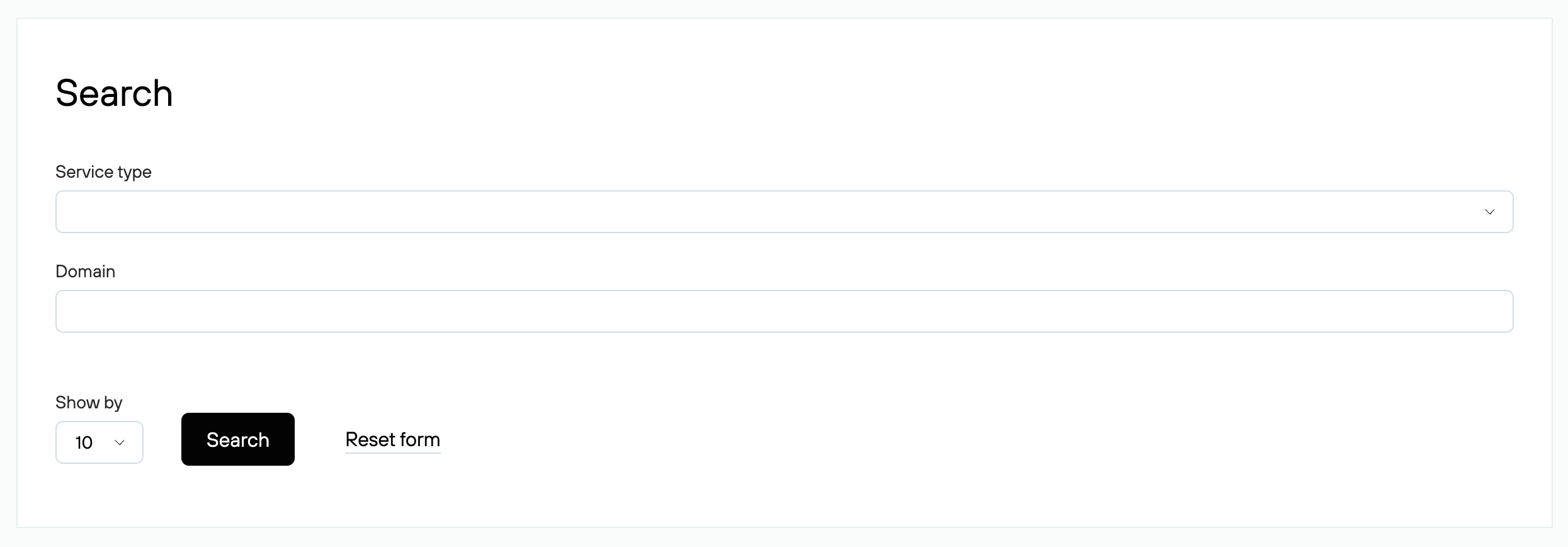
Use filters to find the service you need. Sorting is performed by renewal status, domain, and expiration date. You can also specify the number of items to display in the search results.
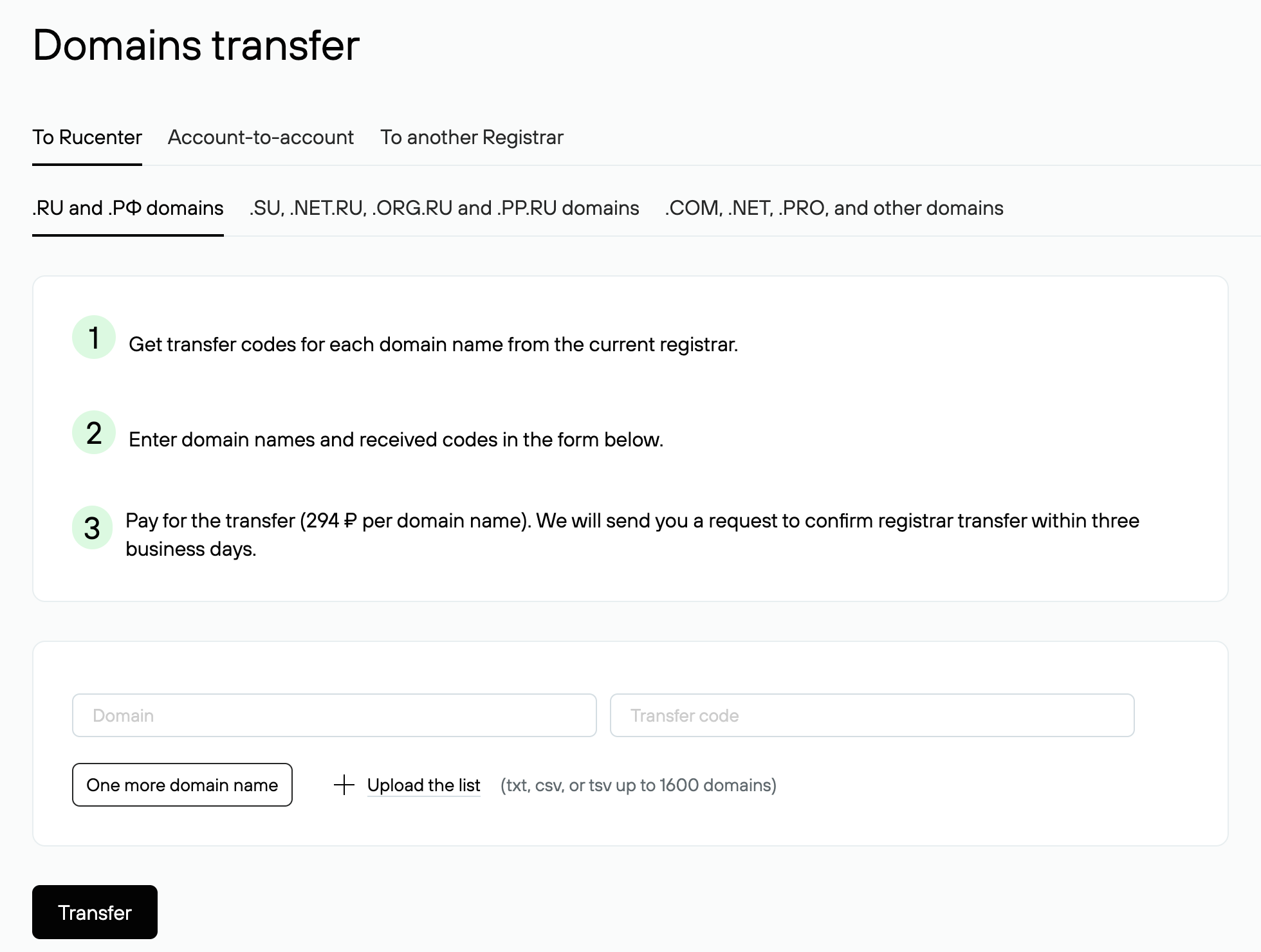
Domain Transfer
Instructions and forms for transferring domains to us or from us to another registrar.
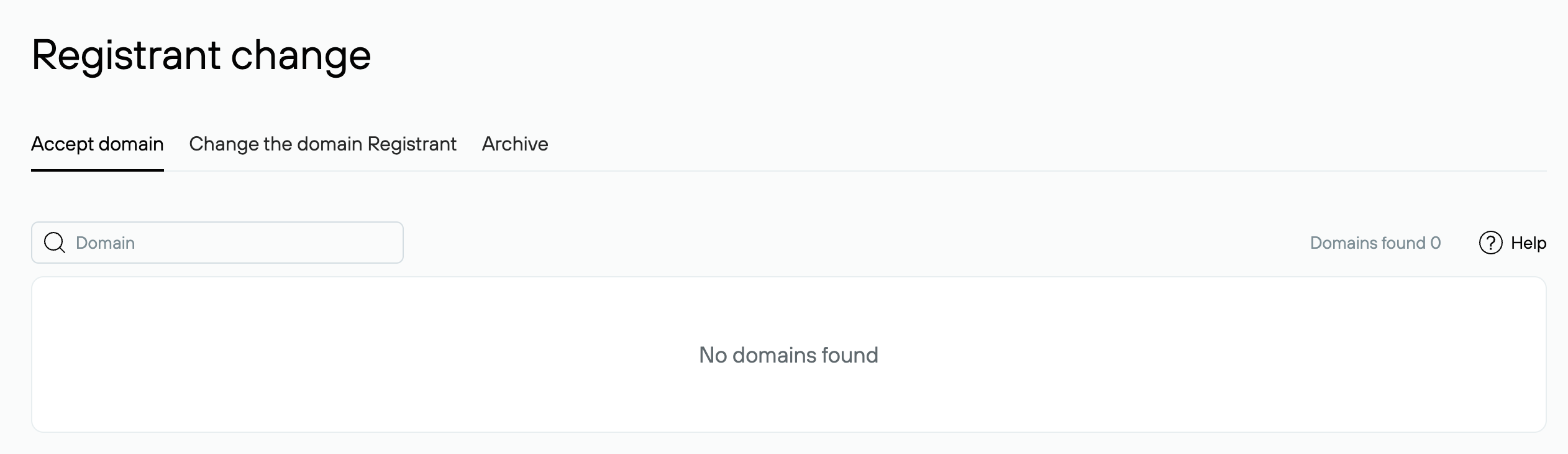
Registrant Change
Acceptance or transfer of a domain to another person within Rucenter.
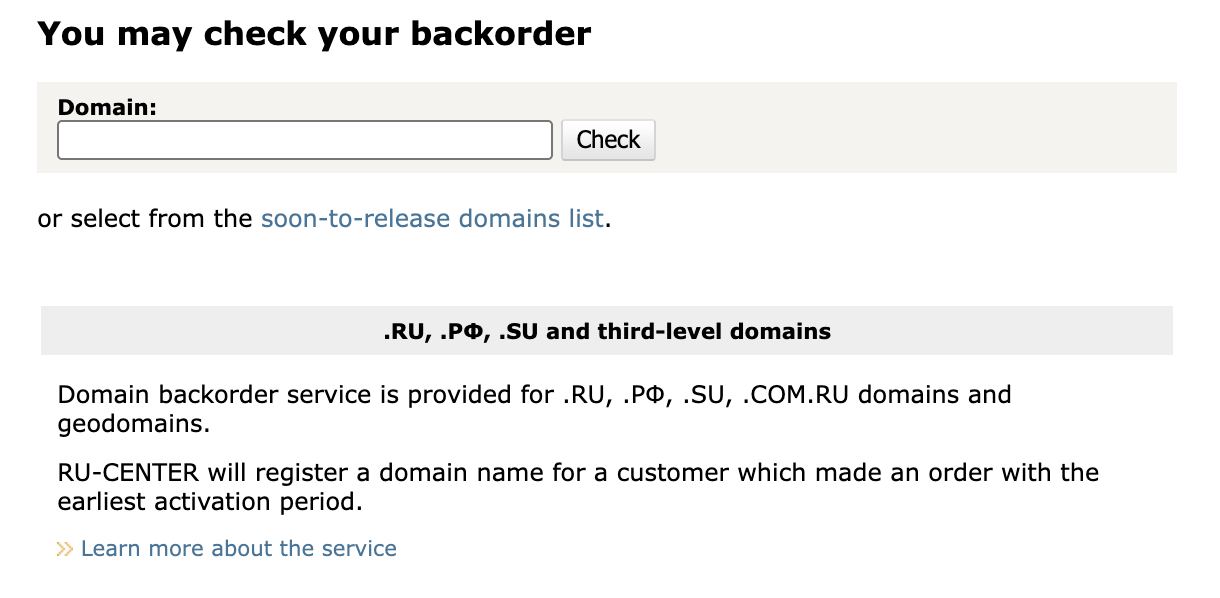
Register soon-to-release domain
A service for ordering domains that have not been renewed by the registrant before they are deleted from the registry.
Orders
In this section you can track the status of your orders and their fulfillment.
Orders priority
The current status of orders and their processing queue. This allows you to track when your orders will be fulfilled.

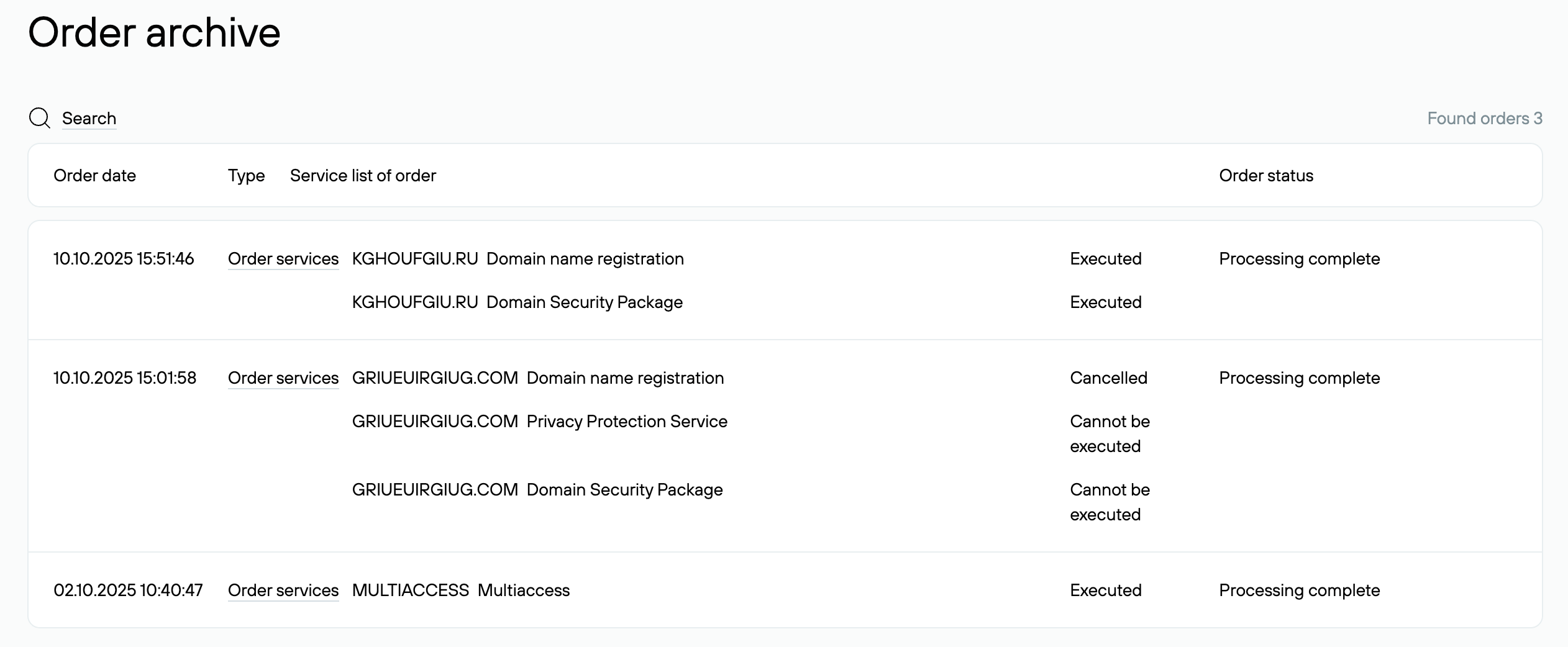
Order Archive
A list of all your orders, including their status.
Support
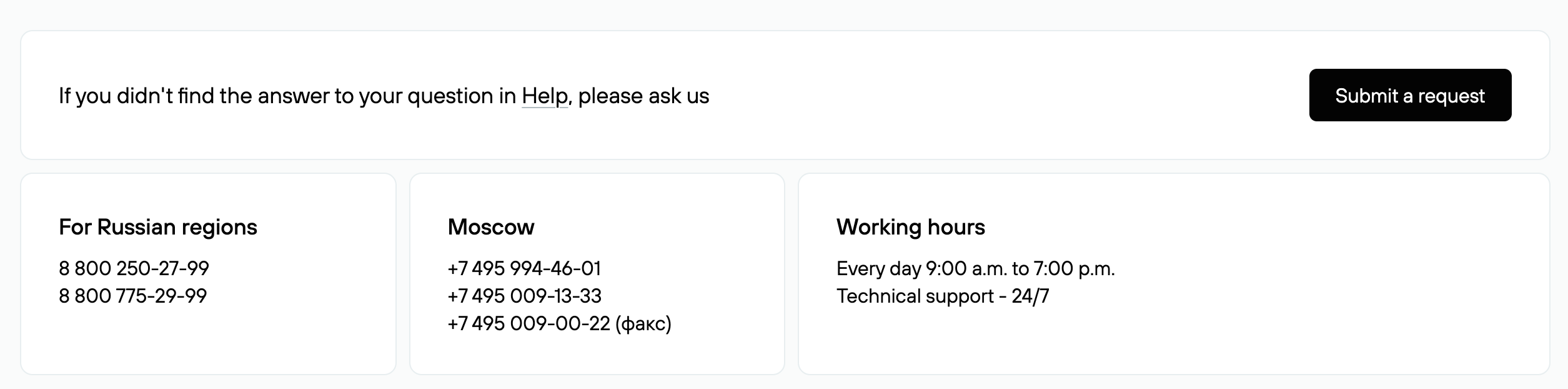
Contact Us
Customer support phone numbers and current business hours. To submit an online request, click "Submit a Request.”
Tickets
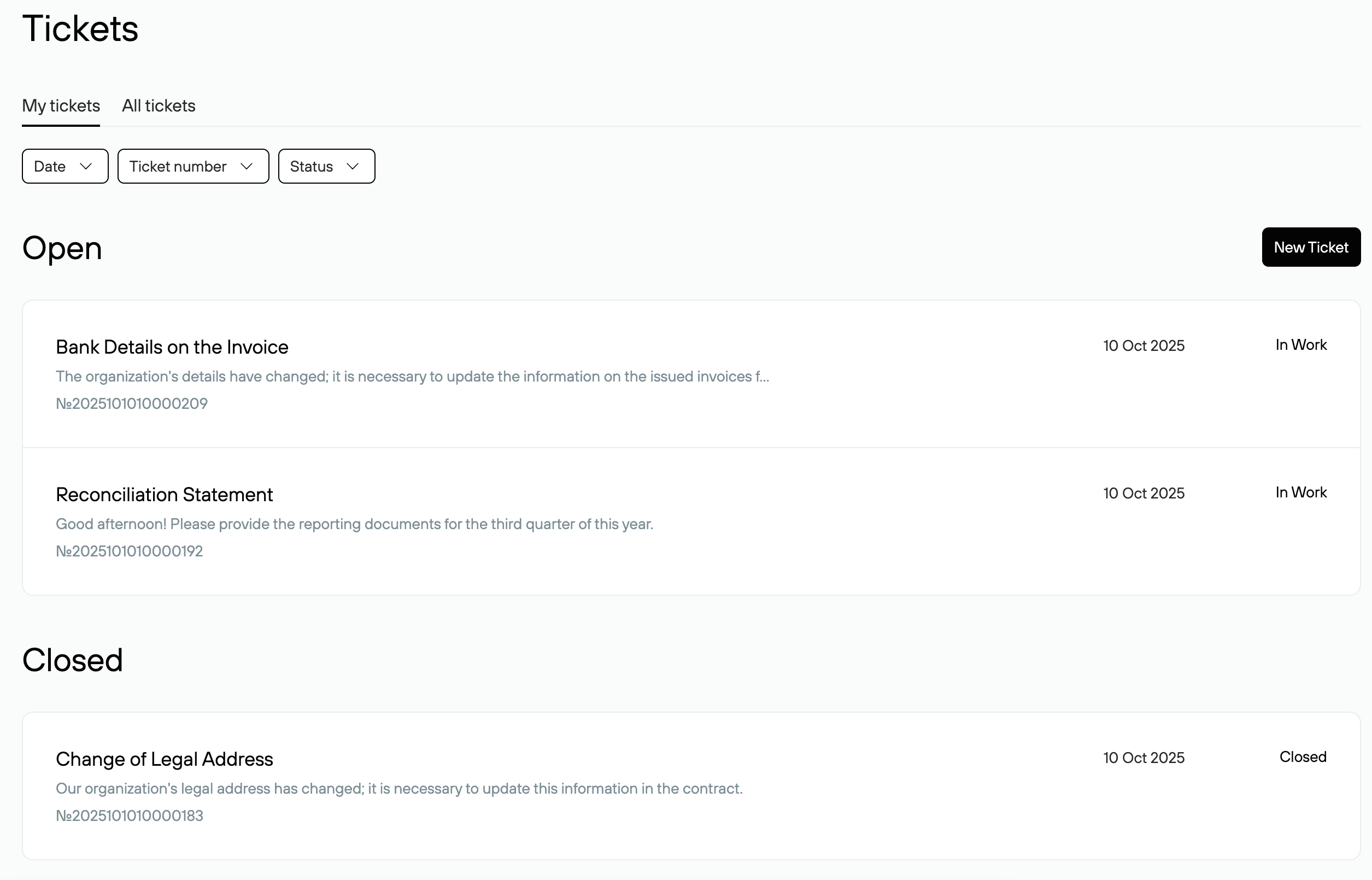
All open and closed tickets you've submitted to date.