
Setting up SSH clients (PuTTY, WinSCP)
Please note. FTP access to the secure hosting service is only possible through a VPN gateway using a certified "ViPNet" VPN client.
A license for the "ViPNet" Client software must be purchased specifically to connect to secure hosting networks. The license is not included in the service and must be purchased independently.
For additional connection instructions, contact technical support.
PuTTY SSH client
To access your virtual web server, use the address ssh.identifier.nichost.ru.
The username for connection matches the hosting service identifier.
To change the password, use the FTP and SSH section of the hosting control panel.
Configuration of PuTTY SSH client
You can download the program from the developer's page. Select the putty.zip archive or the putty.exe file.
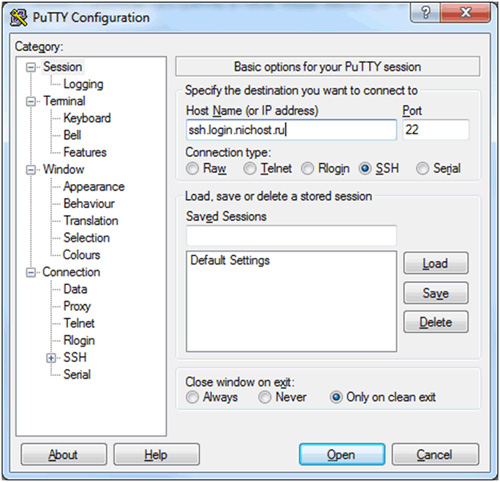
After installation, run the program. On the first page, in the Host Name (or IP address) field, specify the server address ssh.identifier.nichost.ru (the login identifier is used as an example). Then select the SSH protocol and click the Open button.
In the PuTTY Security Alert dialog box that appears, click Yes.

In the next window, in the login as: line, specify the identifier, then enter the password (the password entry is not displayed) and press Enter on the keyboard. The connection will be established.

WinSCP SFTP client
To access your virtual web server, use the address ssh.identifier.nichost.ru.
The username for connection matches the hosting service identifier.
To change the password, use the FTP and SSH — SSH section of the hosting control panel.
Setting up the SFTP client «WinSCP»
You can download the program from the developer's page.
After installation, run the program. On the first page, select File Protocol — SFTP, in the Host Name (or IP address) field, specify the server address ssh.identifier.nichost.ru (the hosting identifier login is used as an example). As the User name, specify the identifier. In the Password field, specify the password for access via SSH. Then click the Login button.

In the dialog box with a warning that appears, click the Yes button. After that, the program's working interface will open.