
Automatic Installation of Joomla
1. Website creation
2. Additional information
1. Website creation
1. First, you need to point your domain to the hosting according to the instructions. If the domain name is not yet registered, you can use the service (temporary) name.
2. Log in to the hosting control panel using your contract number and password.
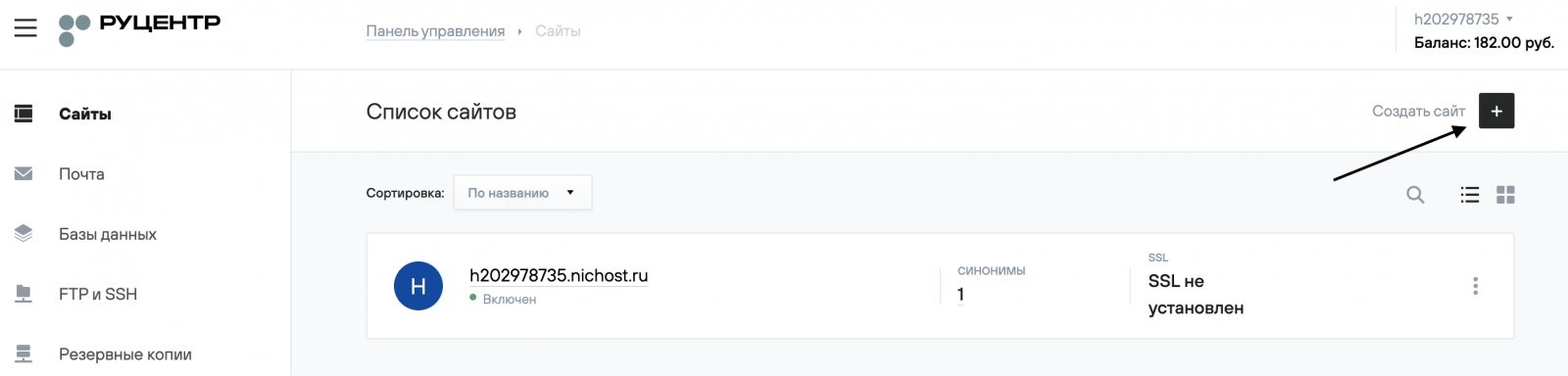
3. Go to the Sites (Сайты) section.
4. Click the Create Site (Создать сайт) button in the top right corner.
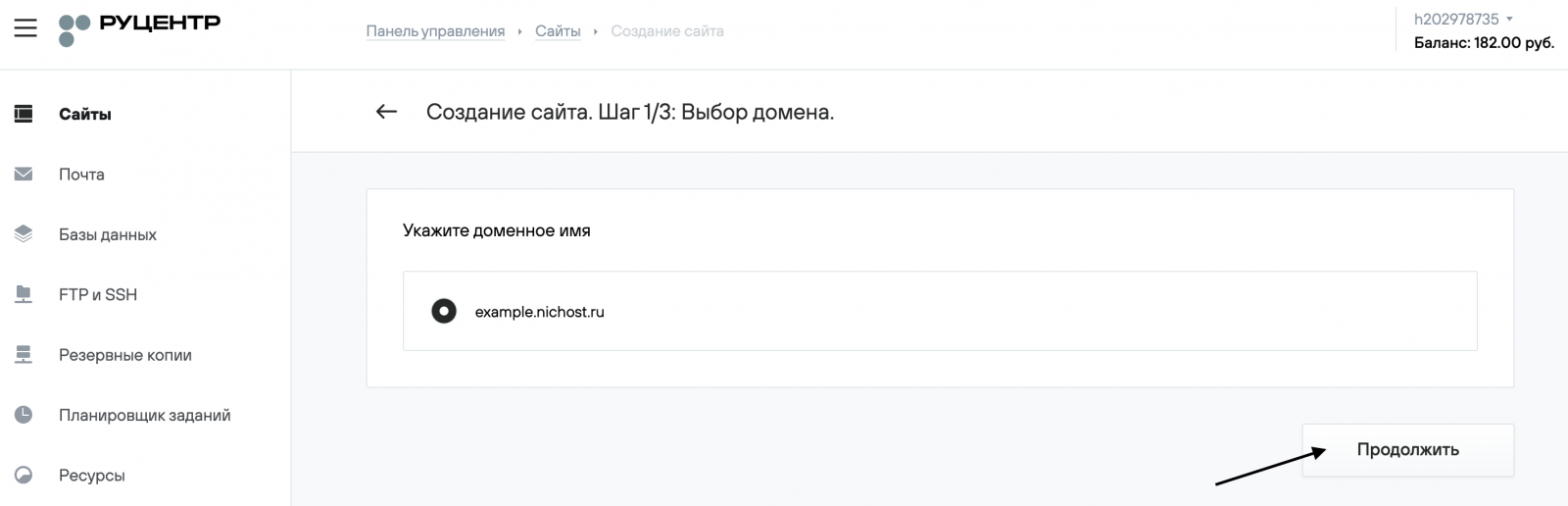
5. Choose a domain from the list of domains registered under your contract or enter the site name manually, then click Continue (Продолжить).
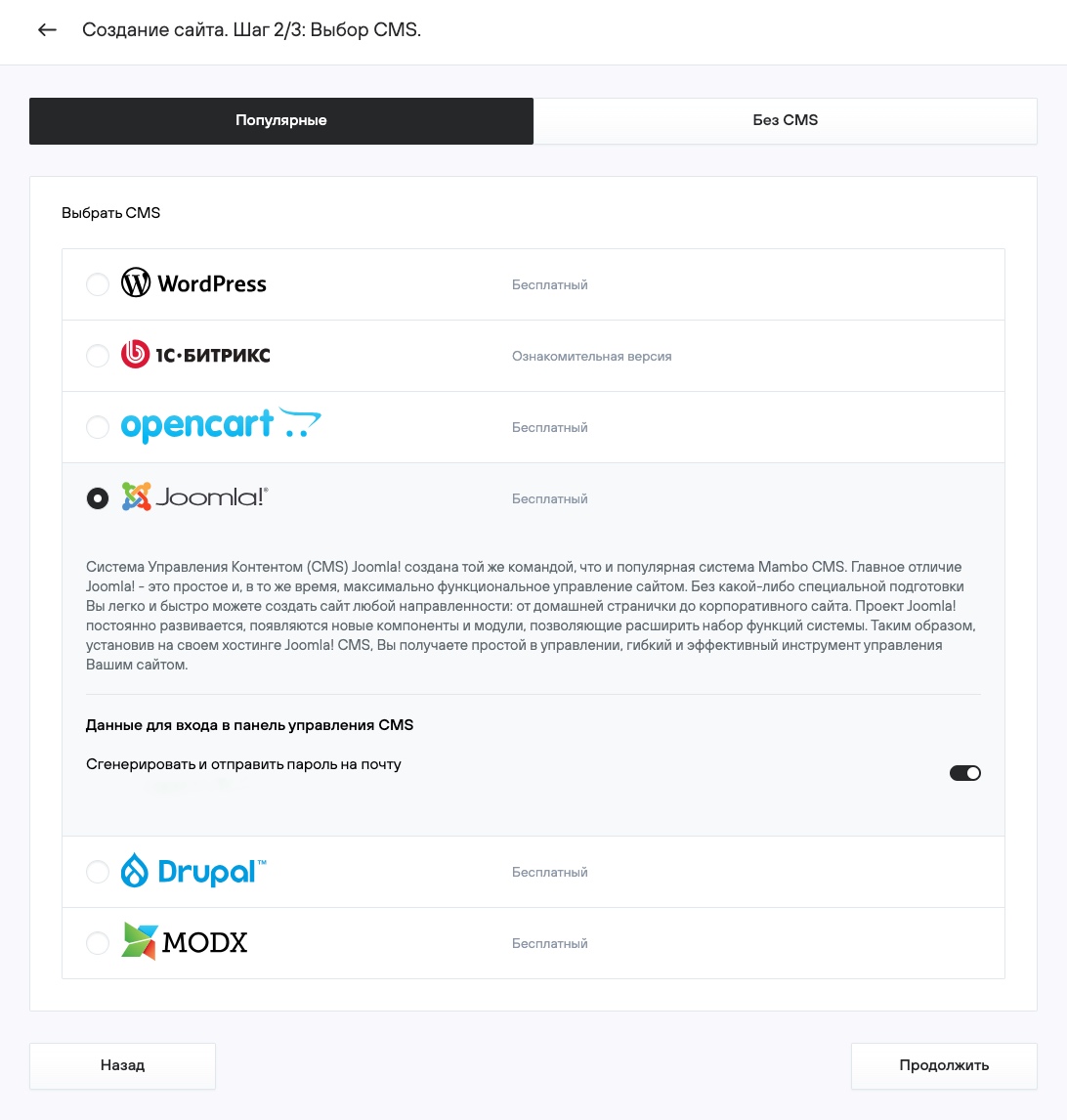
6. Select Joomla as the CMS, enter the required data for automatic installation, and click Continue (Продолжить).
7. On the final page, you will see the main details needed to start working with the site.

8. Refer to your website by address http://your_domain/. If the domain delegation has been completed, you will see the homepage of your site.
You can continue working on the site from the admin panel of your CMS. To access it, click the Go to control panel (Перейти в панель управления) button. The administrative section is also available at http://your_domain/user/login.
9. On the login page, enter your username and password, then click Log In (Войти).
.png)
10. Further instructions on configuring Joomla and managing your website can be found at https://www.joomla.org/.
2. Additional Information (Joomla)
When installing Joomla! on the hosting, the latest PHP version is enabled with the following extensions:
- curl
- gd
- hash
- json
- mbstring
- mysql
- session
- simplexml
- timezonedb
- xml
- zip
- zlib
When installing additional modules (plugins) for Joomla!, extra PHP extensions may be required. You can check the list of required extensions in the module’s documentation or from the module developer.