
Hosting a Website
- with automatic CMS installation
- without automatic CMS installation
1. Domain setup for hosting
See the article «How to point a domain to hosting»
2. Creating a website with automatic CMS installation
- Log in to the hosting control panel using your contract number and password.
- Go to the Sites (Сайты) section.
- Click the Create Site (Создать сайт) button in the top right corner.

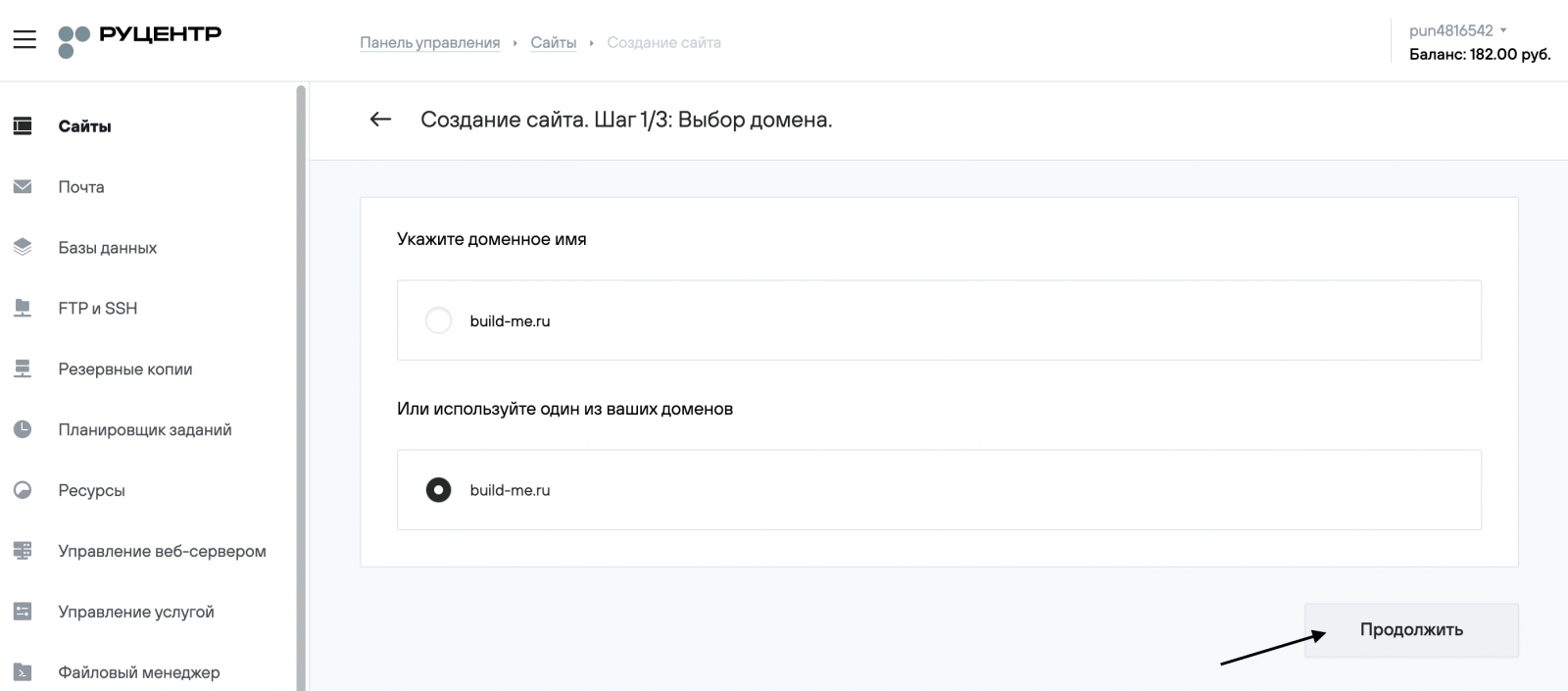
- Choose a domain from the list of domains registered under your contract or enter the site name manually, then click Continue (Продолжить).
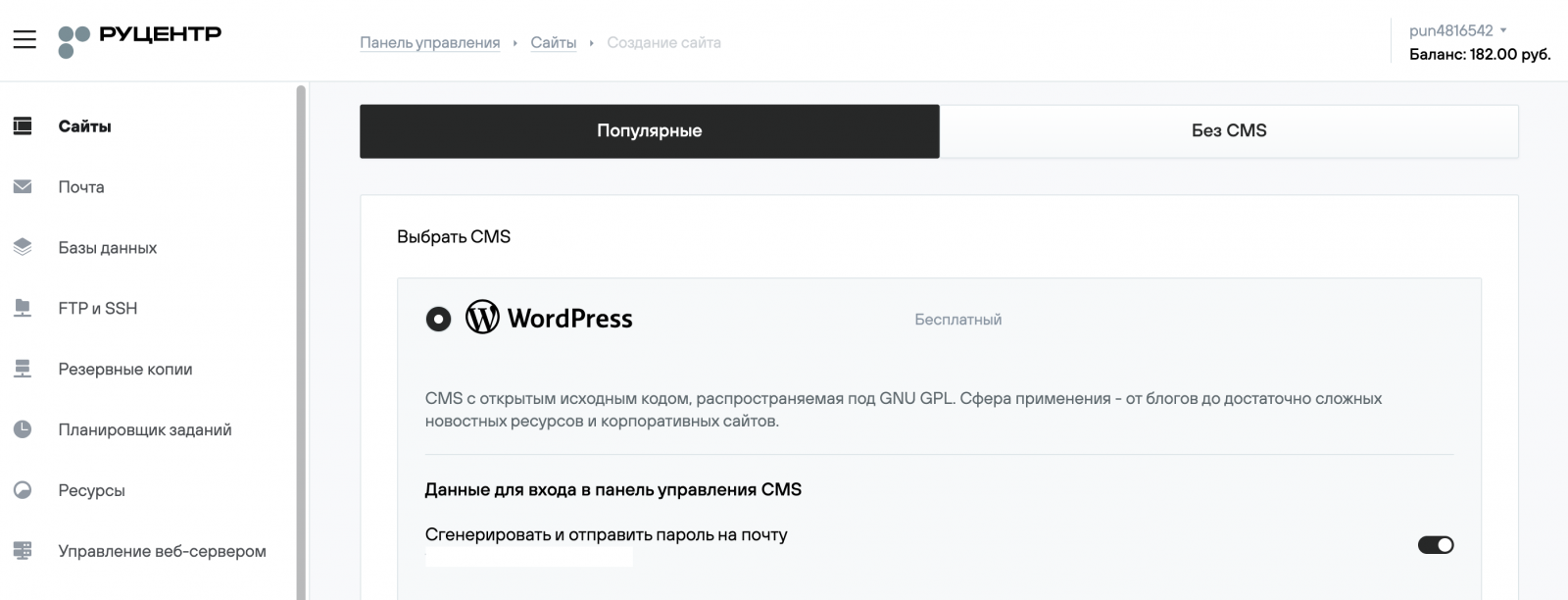
- Select a CMS from the available options. As an example, CMS WordPress will be installed. Enter the required information for automatic installation and click Continue (Продолжить).
- On the final page, you will see the main details needed to start working with the site.
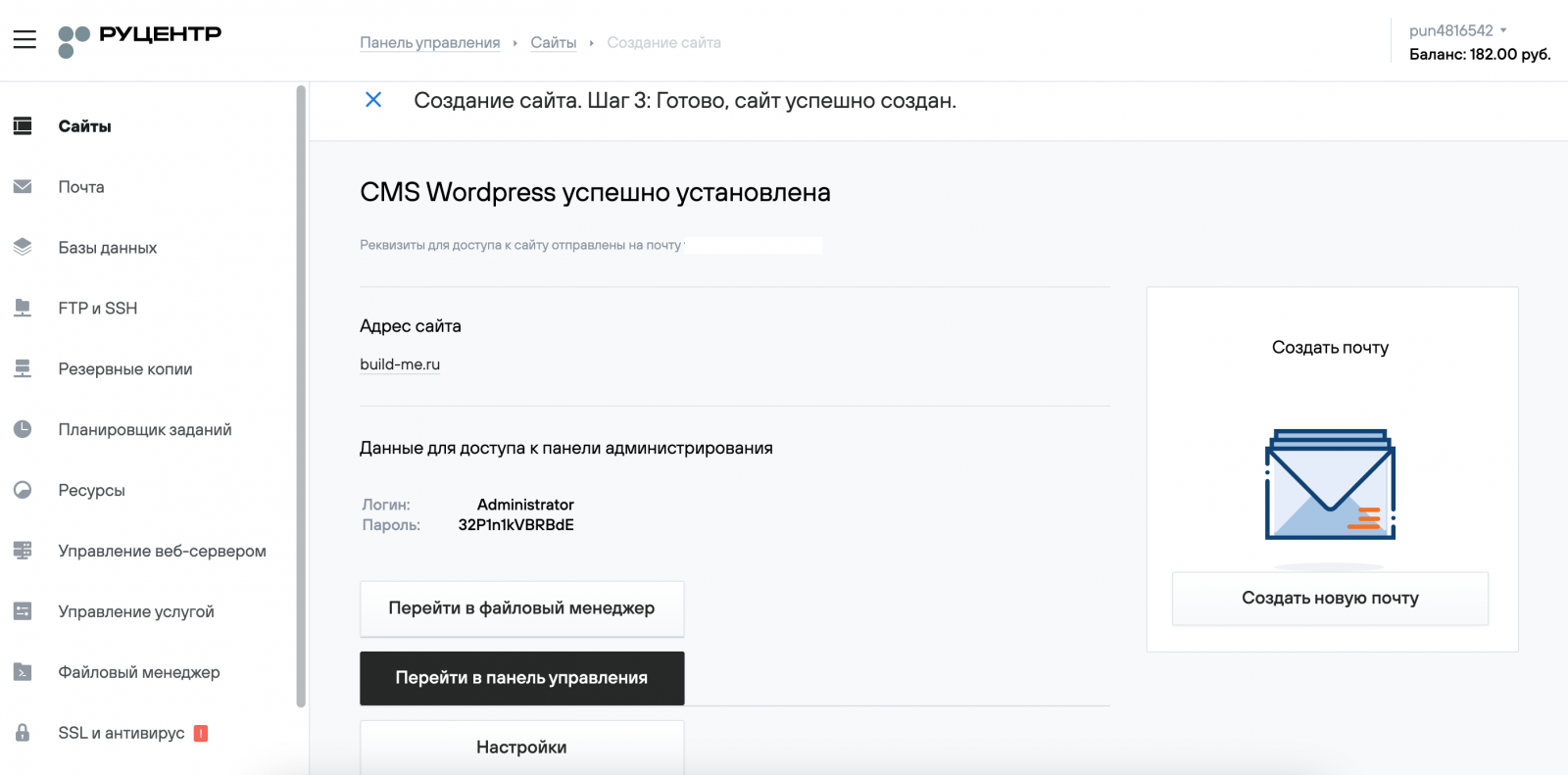
- Refer to your website by address http://your_domain/. If the domain is pointed to hosting, you will see the homepage of your website.
You can continue working on the site from the admin panel of your CMS. To access it, click the Go to control panel button.
Without automatic CMS installation
- Log in to the hosting control panel using your contract number and password.
- Go to the Sites (Сайты) section.
- Click the Create Site (Создать сайт) button in the top right corner.
- Choose a domain from the list of domains registered under your contract or enter the site name manually, then click Continue (Продолжить).
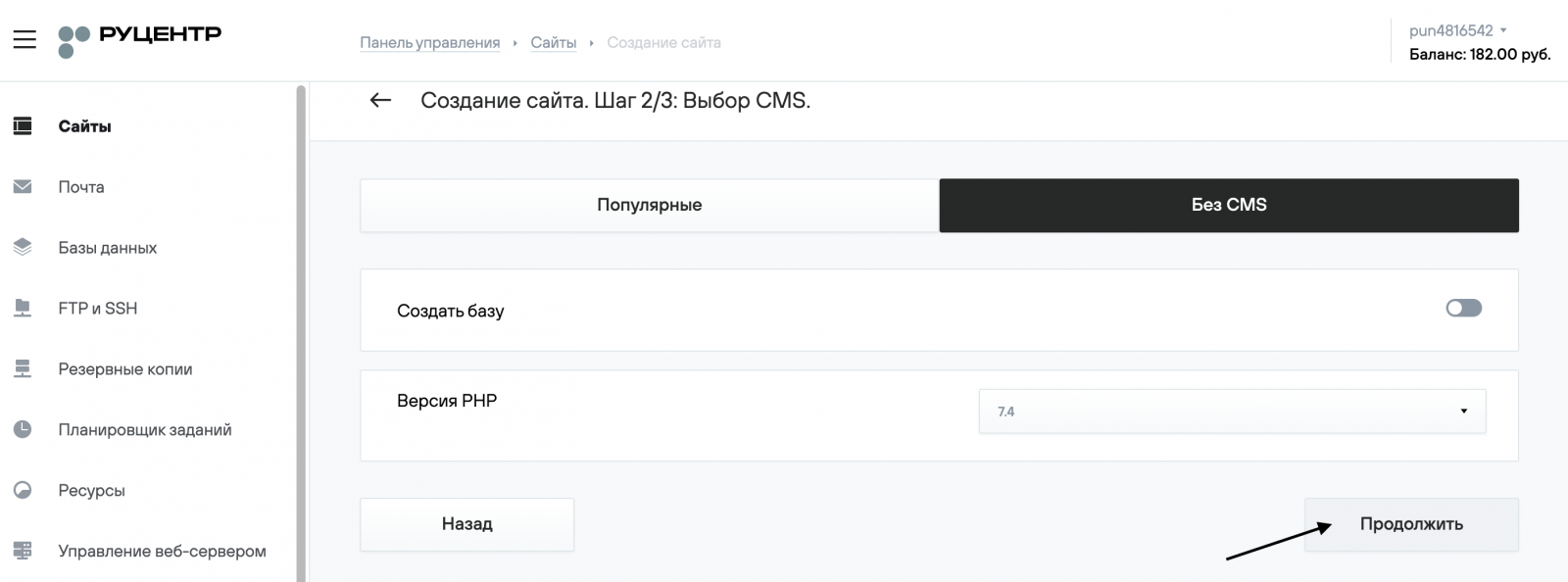
- Next, select the Without CMS (Без CMS) tab. To create a database, enable the Create database (Создать базу) slider, enter the database name, username, and password, then click the Continue (Продолжить) button.
- After creating the site, a directory named after the site will appear on the hosting. Files should be placed in the your_domain/docs directory. You can do this using the file manager in the control panel or an FTP client.
- Refer to your website by address http://your_domain/. You will see main page of the website or CMS installation wizard. If necessary, follow the CMS installation wizard’s instructions.
- In some cases, additional web server configuration may be required for the site to function properly. You should check the system requirements with the site developers or refer to your CMS documentation. We also recommend reviewing the setup guides for popular CMS.
- Basic web server settings can be configured in the Web Server Management (Управление веб-сервером) section of the hosting control panel. In the PHP Module Management tab, you can select the PHP version and modify key PHP settings.