
How to migrate a website to Rucenter from another hosting provider
We will migrate up to 20 of your websites to Rucenter hosting free of charge when you order or renew hosting plans participating in the “Website Migration” promotion.
To migrate a website from another hosting provider to Rucenter on your own, follow the instructions below.
- Obtain a copy of the website files from the old hosting provider
- Create a website in the control panel
- Create a mail server in the control panel
- Upload the website files to the hosting
- Import the database dump to Rucenter hosting
- Configure the web server according to the website’s requirements
- Test the website operation
- Configure the domain to work with the hosting DNS servers
1. Obtain a copy of the website files from the old hosting provider
To migrate, you will need a copy of the website files (PHP scripts, static files) and a MySQL database dump, if the website uses one. The database dump must be created with the parameter:
-O max_allowed_packet=1M2. Create a website in the control panel
1. Log in to the hosting control panel using your contract number and password;
2. Go to the Websites section;
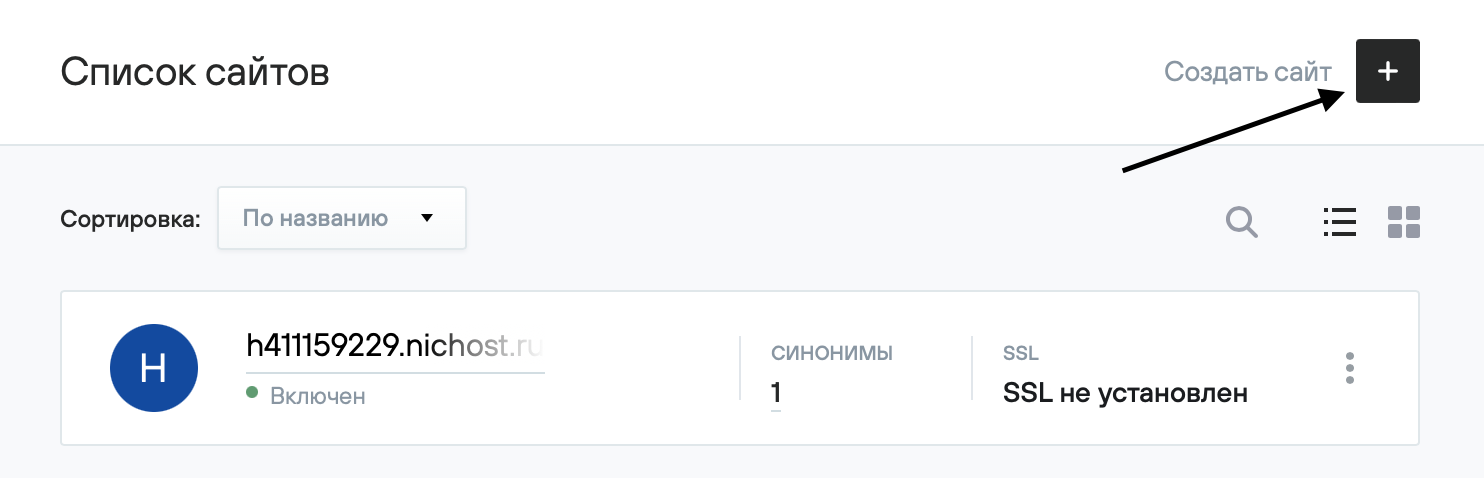
3. Click the Create Website button in the upper-right corner;
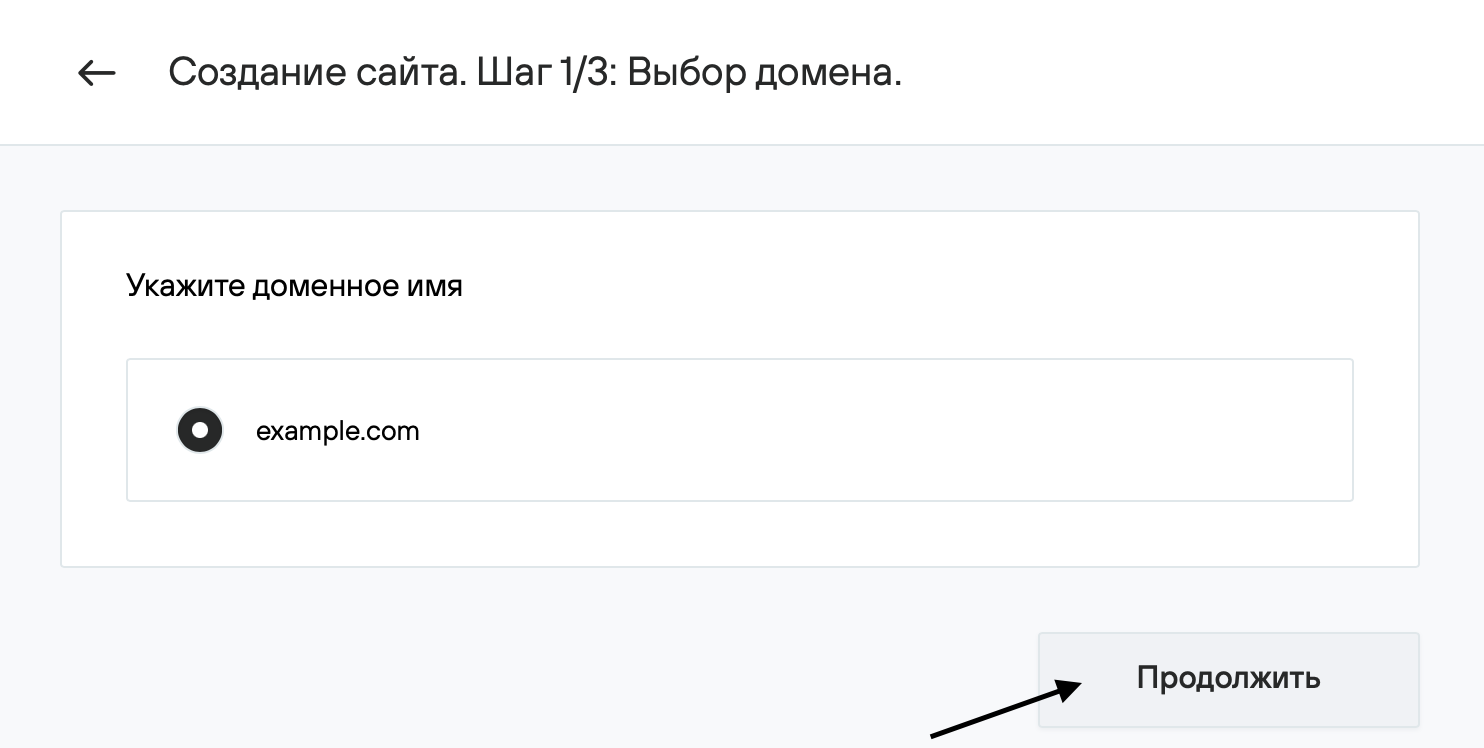
4. Select a domain from the list or enter the website name manually and click Continue;
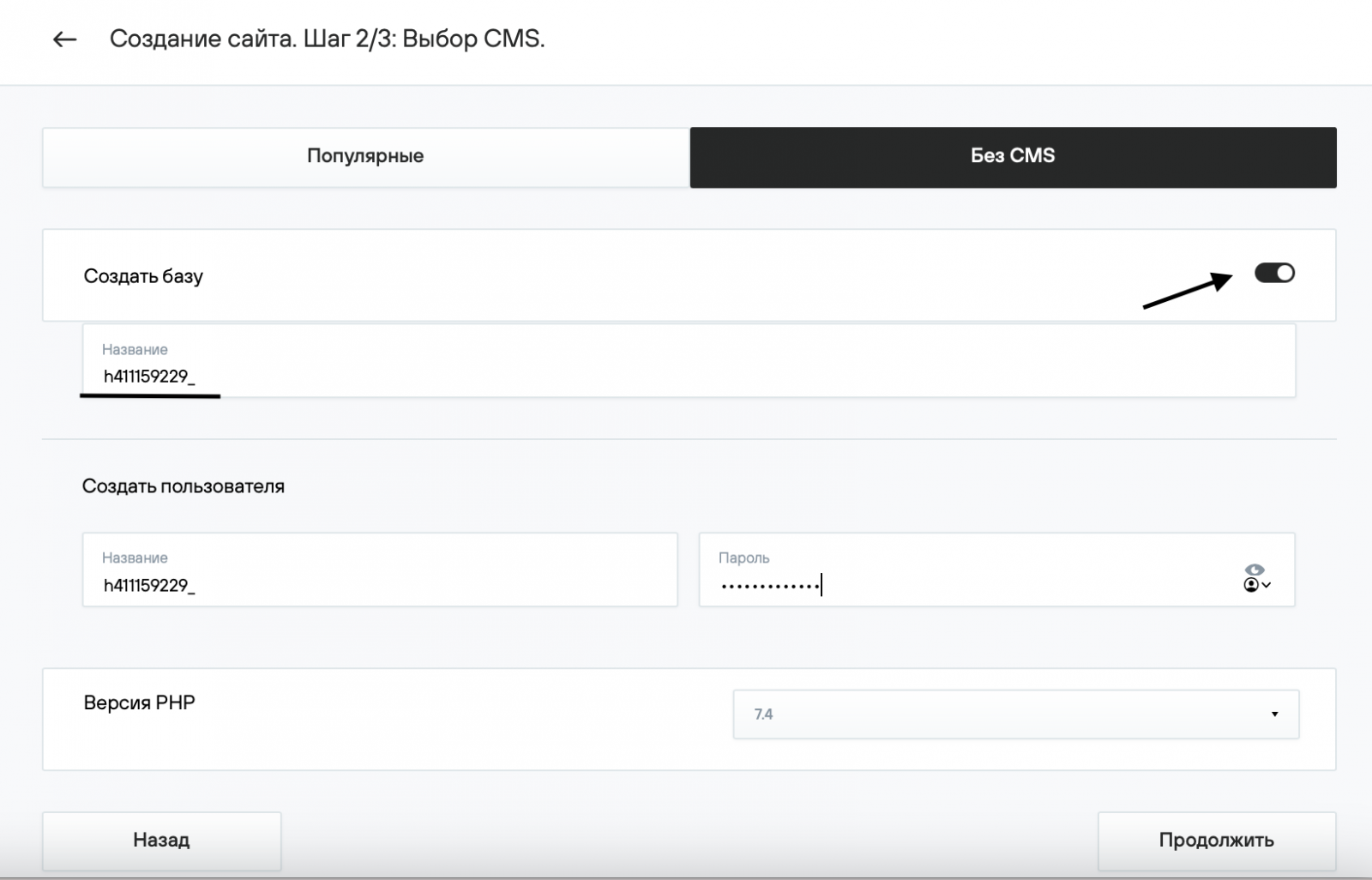
5. Since you are migrating a website, CMS installation is not required—select the Without CMS tab. If you need to create a separate database for the website, enable the Create database slider, enter the database name, username, and password, then click Continue.
3. Create a mail server in the control panel
If you plan to use Rucenter services to set up mailboxes for the domain, create a mail domain in the Mail section of the hosting control panel.
4. Upload the website files to the hosting
After the website is created, a directory with its name will appear on the hosting.
The website’s root directory will be your_domain/docs — upload the website files to this directory (unless otherwise specified by the website developer or documentation).
You can do this using:
- The hosting control panel’s file manager
- An FTP client
5. Import the database dump to Rucenter hosting
If the website uses a MySQL database, import the dump obtained from the old hosting provider into the new database on Rucenter hosting using phpMyAdmin (see the article MySQL Database Dump).
6. Configure the web server according to the website’s requirements
In some cases, additional web server configuration and changes to certain website files may be required—for example, specifying current database connection parameters. The need for and procedure of such changes should be clarified with the website developers or in the documentation for the scripts used.
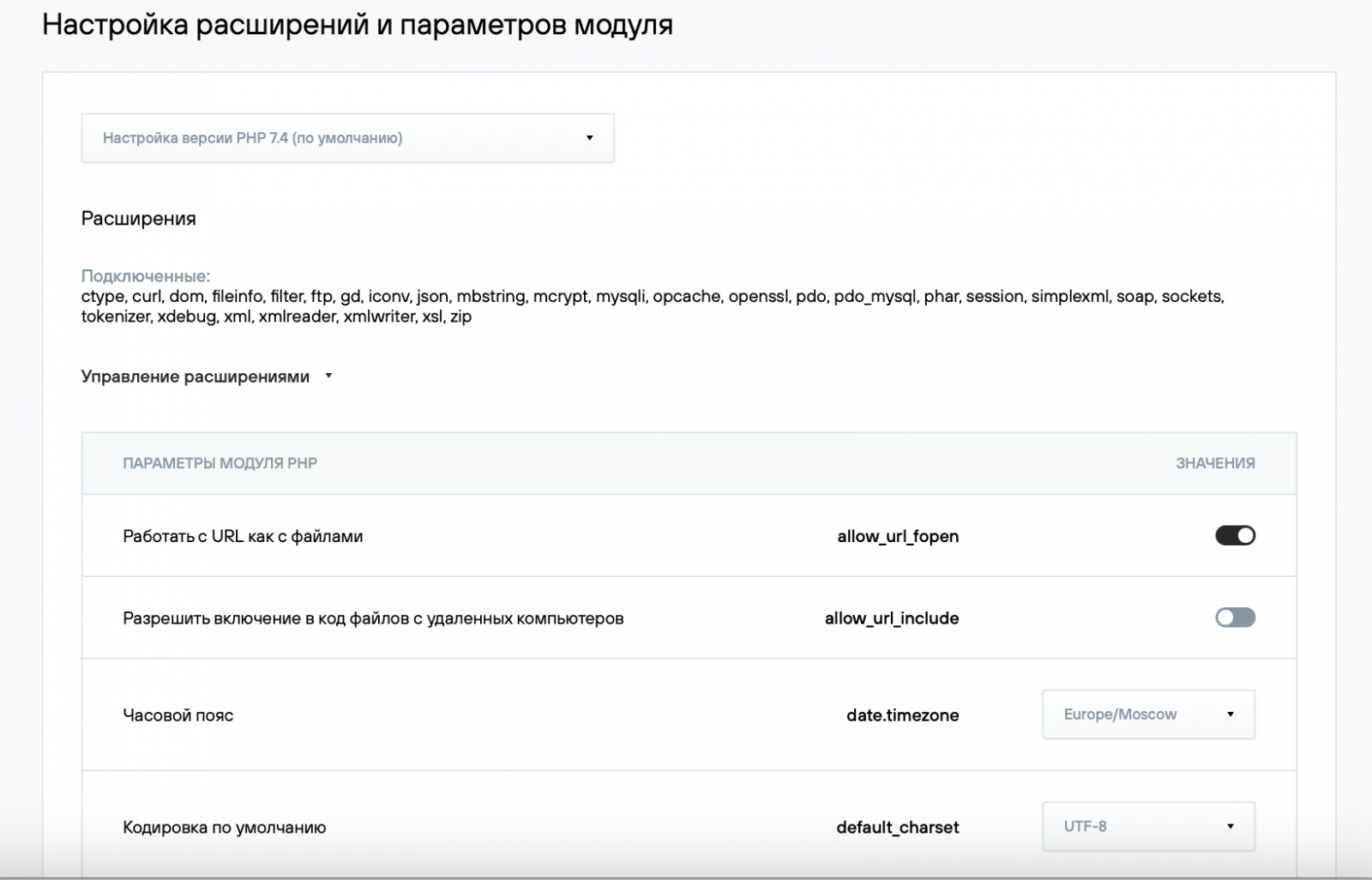
Web server configuration is performed in Web Server Management → PHP Module Management in the hosting control panel. The PHP Module Parameters table lists the most commonly used settings.
7. Test the website operation
Before changing the domain’s DNS servers, make sure the website works correctly on the new hosting.
To do this, in the control panel go to Websites → your_website → Settings → Aliases, add the technical domain identifier.nichost.ru as an alias, and access the website at: http://identifier.nichost.ru.
The identifier is the unique hosting service name, shown in the upper-right corner of the control panel next to the contract number.
8. Configure the domain to work with the hosting DNS servers
See the article How to point a domain to hosting?